> For the complete documentation index, see [llms.txt](https://docs.heeler.com/mrecEO40m5D6bt7Pq5pE/llms.txt). Markdown versions of documentation pages are available by appending `.md` to page URLs; this page is available as [Markdown](https://docs.heeler.com/mrecEO40m5D6bt7Pq5pE/administer-and-monitor/connections-and-integrations/vendor-and-trusted-connections.md).

# Vendor and Trusted Connections

See which third parties have access to your cloud, and tell Heeler which external accounts are legitimate so it stops flagging them.

When a resource policy in your cloud grants access to an account you don't own, Heeler treats that as third-party access worth knowing about. Two sub-tabs under **Administration → Connections** work together to manage it: **Vendor Connections** shows the third parties Heeler recognizes automatically, and **Trusted Connections** is where you approve the external accounts you know are legitimate so they stop showing up as unknowns.

{% hint style="info" %}
Changing anything on this page requires the **Administrator** role. An **Administrator (read-only)** can view it but can't make changes.
{% endhint %}

{% tabs %}
{% tab title="Vendor Connections" %}
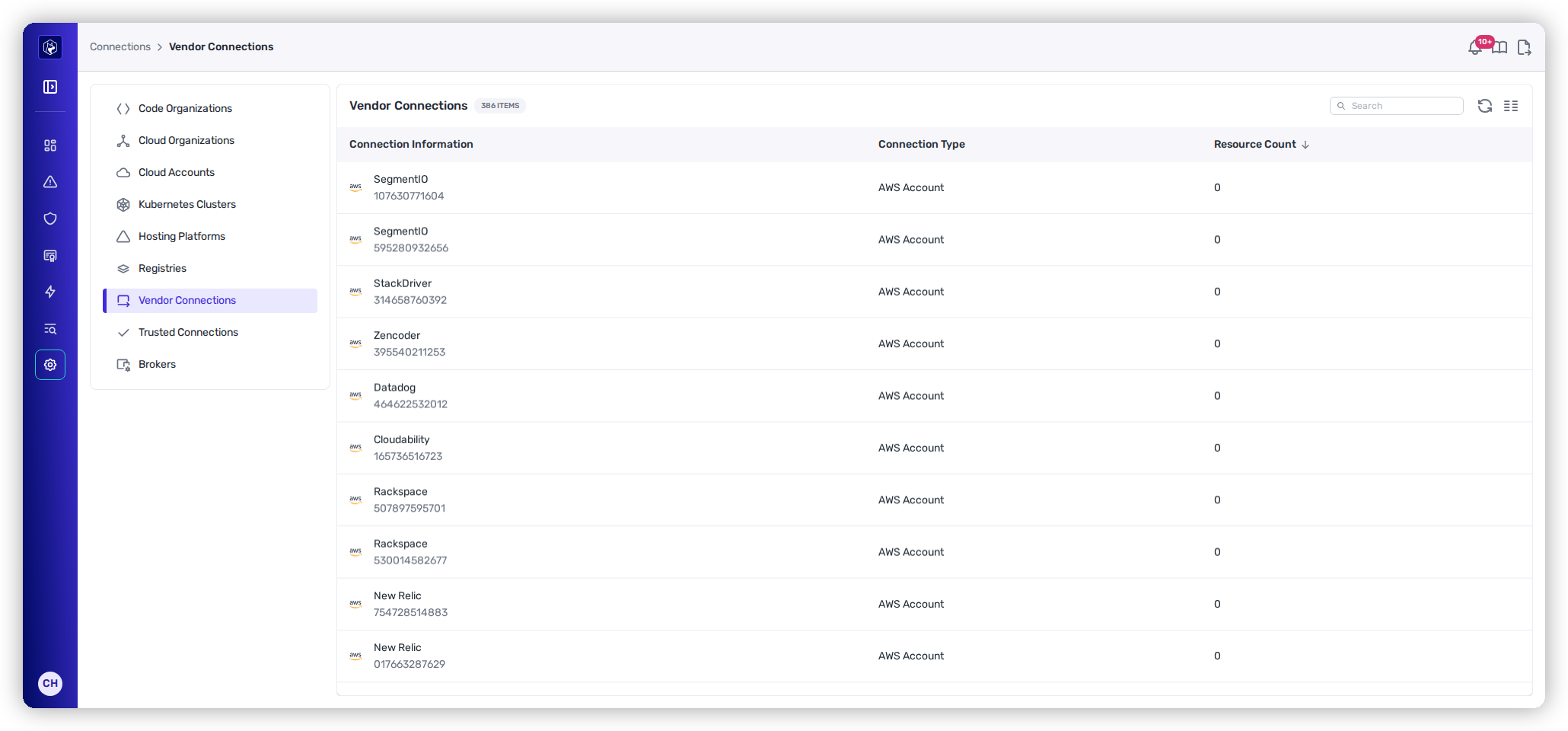
This tab is populated **automatically** — there's no Add button. Heeler ships with a catalog of well-known SaaS vendors' cloud account IDs (observability, security, and infrastructure tools), and matches them against the access it finds in your environment.

<figure><img src="https://414480750-files.gitbook.io/~/files/v0/b/gitbook-x-prod.appspot.com/o/spaces%2FXP3dp2kecwKA2KvYkntz%2Fuploads%2Fgit-blob-a77ea4a8c48a4e0c748b959c85344362b4639aad%2Fam-connections-vendor.png?alt=media" alt="The Vendor Connections list showing recognized third-party vendors such as SegmentIO, Datadog, and New Relic, each an AWS Account with a Resource Count."><figcaption><p>Vendor Connections — recognized third parties with access to your cloud.</p></figcaption></figure>

<table><thead><tr><th width="240">Column</th><th>What it means</th></tr></thead><tbody><tr><td><strong>Connection Information</strong></td><td>The recognized vendor and the external account ID.</td></tr><tr><td><strong>Connection Type</strong></td><td>What kind of access it is (for example, AWS Account).</td></tr><tr><td><strong>Resource Count</strong></td><td>How many of <em>your</em> cloud resources grant this vendor access — its footprint in your environment. A count climbing over time is worth a look.</td></tr></tbody></table>

Because these are recognized vendors, they're treated as known and don't raise unknown-third-party findings. The list is read-only — you can't edit or remove entries, since it reflects what Heeler recognizes plus what it observed in your policies.
{% endtab %}

{% tab title="Trusted Connections" %}
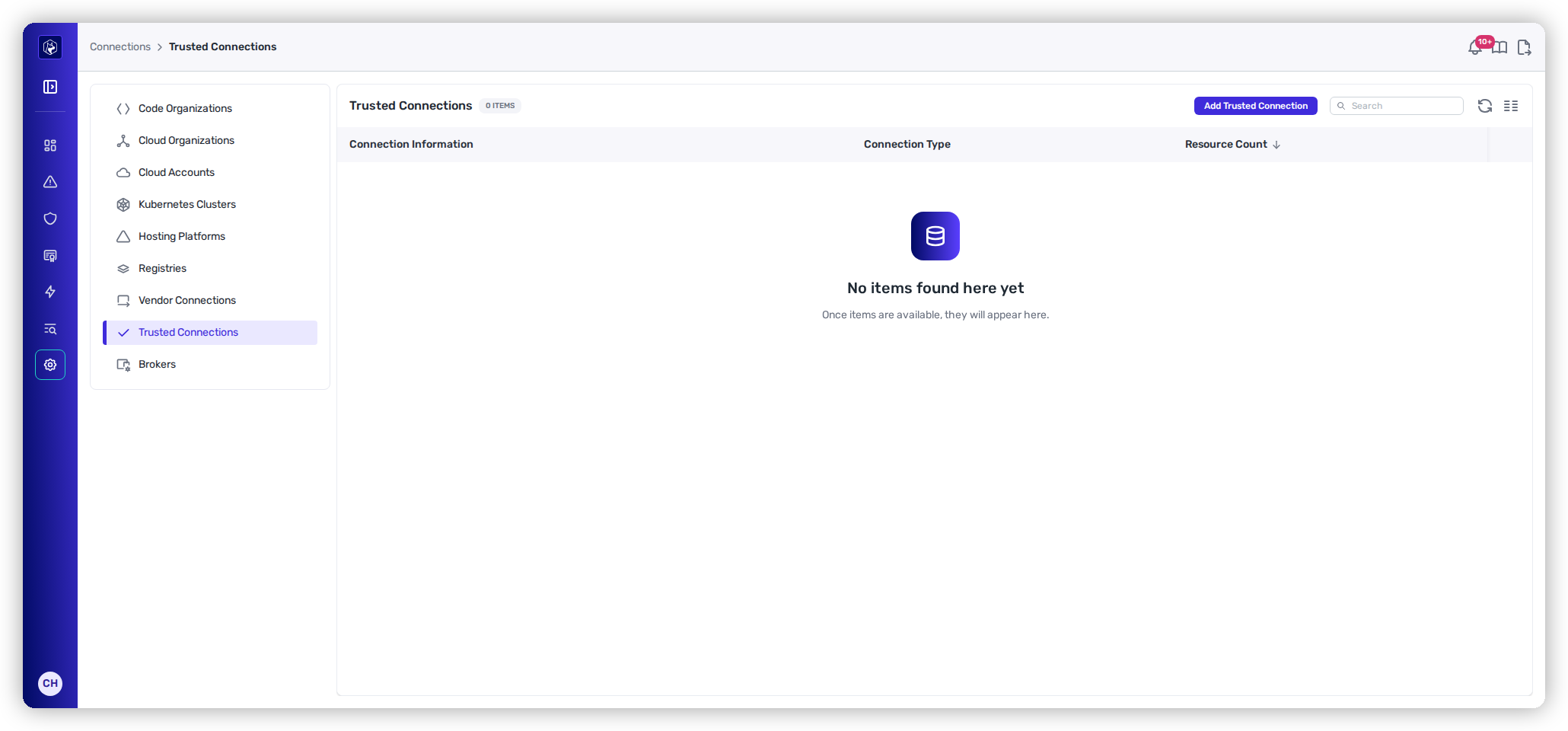
This is where **you** approve the external accounts Heeler doesn't recognize but you know are legitimate — a partner account, another business unit, a vendor not in the catalog.

<figure><img src="https://414480750-files.gitbook.io/~/files/v0/b/gitbook-x-prod.appspot.com/o/spaces%2FXP3dp2kecwKA2KvYkntz%2Fuploads%2Fgit-blob-8adc88082d5b019db3c5dcf033ea37032ec1a4f6%2Fam-connections-trusted.png?alt=media" alt="The Trusted Connections tab with an Add Trusted Connection button and an empty list."><figcaption><p>Trusted Connections — the external accounts you've vouched for.</p></figcaption></figure>

**Add a trusted connection** with **Add Trusted Connection**, identifying the account, subscription, project, or organization. From then on, Heeler treats access granted to it as legitimate and stops flagging it as unknown third-party access. Use the row's **⋯** menu to **Edit** (rename) or **Delete** an entry you added.
{% endtab %}
{% endtabs %}

{% hint style="info" %}
**Vendor vs. Trusted, in one line:** Vendor Connections are the third parties Heeler recognizes for you (read-only); Trusted Connections are the ones you vouch for yourself. Both tell Heeler "this external access is expected" — anything in *neither* list is what surfaces as unknown third-party access worth investigating.
{% endhint %}

## Verify it worked

After you add a trusted connection, access to that account no longer appears as an unknown third party in your cloud findings. The addition is recorded in the [Audit Log](/mrecEO40m5D6bt7Pq5pE/administer-and-monitor/audit-log.md).

## Related

* [Operational Health](/mrecEO40m5D6bt7Pq5pE/administer-and-monitor/operational-health.md) and your cloud findings — where unknown third-party access surfaces.
* [Source Connections](/mrecEO40m5D6bt7Pq5pE/administer-and-monitor/connections-and-integrations/source-connections.md) — the cloud organizations these accounts relate to.


---

# Agent Instructions
This documentation is published with GitBook. GitBook is the documentation platform designed so that both humans and AI agents can read, navigate, and reason over technical content effectively. Learn more at gitbook.com.

## Querying This Documentation
If you need additional information that is not directly available in this page, you can query the documentation dynamically by asking a question.

Perform an HTTP GET request on the current page URL with the `ask` query parameter, and the optional `goal` query parameter:

```
GET https://docs.heeler.com/mrecEO40m5D6bt7Pq5pE/administer-and-monitor/connections-and-integrations/vendor-and-trusted-connections.md?ask=<question>&goal=<endgoal>
```

`ask` is the immediate question: it should be specific, self-contained, and written in natural language.
`goal` is optional and describes the broader end goal you are ultimately trying to accomplish on behalf of the user. GitBook uses it to tailor the answer towards what is most useful for that goal.

The response will contain a direct answer to the question and relevant excerpts and sources from the documentation.

Use this mechanism when the answer is not explicitly present in the current page, you need clarification or additional context, or you want to retrieve related documentation sections.