> For the complete documentation index, see [llms.txt](https://docs.heeler.com/mrecEO40m5D6bt7Pq5pE/llms.txt). Markdown versions of documentation pages are available by appending `.md` to page URLs; this page is available as [Markdown](https://docs.heeler.com/mrecEO40m5D6bt7Pq5pE/administer-and-monitor/organization-model/teams.md).

# Teams

Manage the teams that own your repositories and receive Heeler's tickets and notifications — synced from a source or created by hand.

**Connection Mapping → Teams** is Heeler's model of who owns what. A team owns repositories, has members, and has somewhere its tickets and messages should go. Teams drive [remediation routing](/mrecEO40m5D6bt7Pq5pE/administer-and-monitor/program-policy/remediation-assignment-and-routing.md), notifications, and — for the team-scoped roles — data visibility (a **Team viewer** or **Team contributor** sees the applications and repositories owned by the teams they belong to), so keeping them current is what makes the right fix reach the right people.

{% hint style="info" %}
Changing anything on this page requires the **Administrator** role. An **Administrator (read-only)** can view it but can't make changes.
{% endhint %}

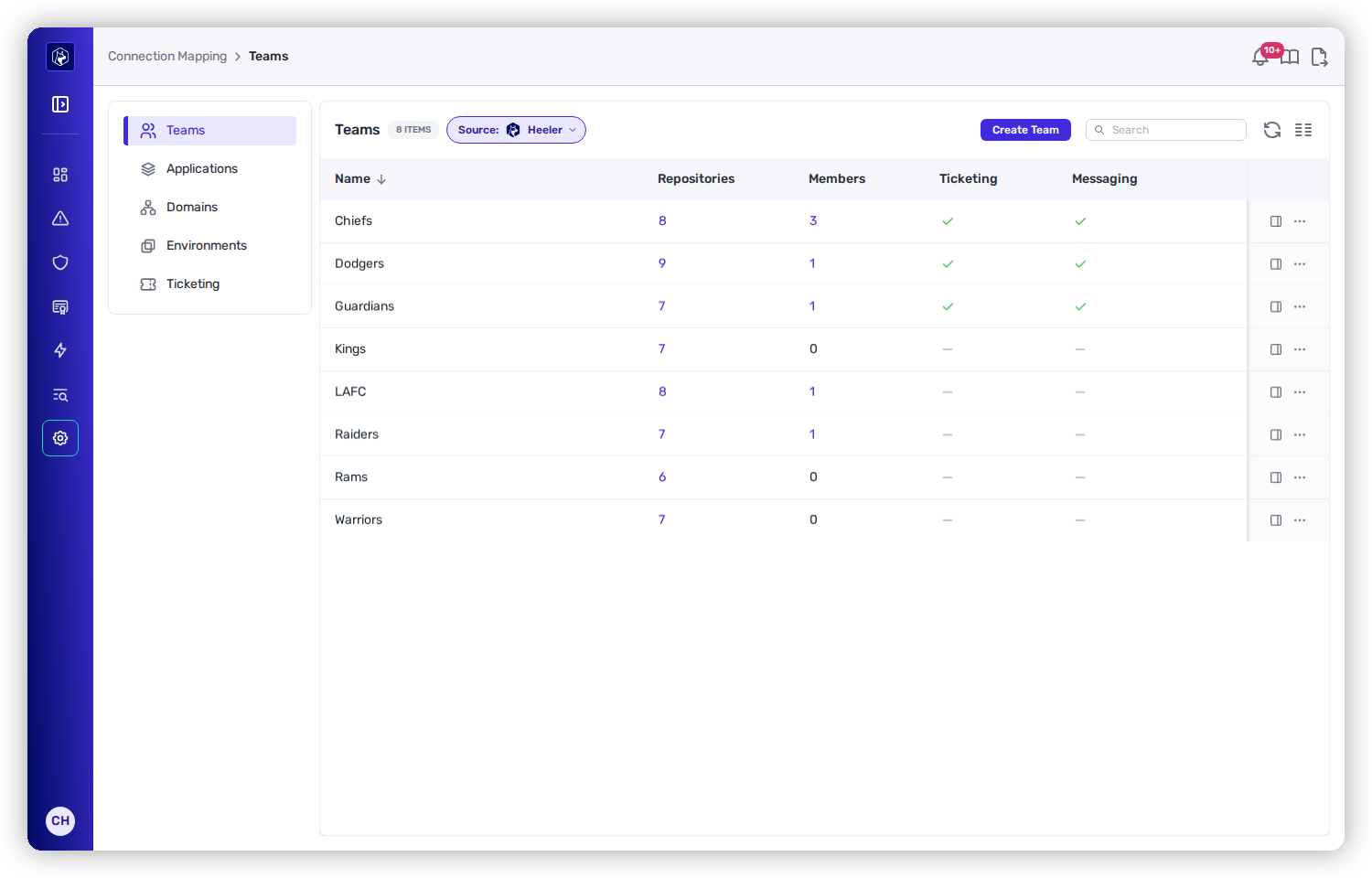
<figure><img src="https://414480750-files.gitbook.io/~/files/v0/b/gitbook-x-prod.appspot.com/o/spaces%2FXP3dp2kecwKA2KvYkntz%2Fuploads%2Fgit-blob-8325f1961a72b155b8bea2b903ef431318ac4cb3%2Fam-mapping-teams.png?alt=media" alt="The Teams list showing teams with columns for Repositories, Members, Ticketing, and Messaging, and a Source selector showing where the teams are synced from."><figcaption><p>Teams — repository and member counts, with ticketing and messaging status.</p></figcaption></figure>

## Where teams come from

The **Source** selector at the top of the list determines how teams are defined:

<table><thead><tr><th width="230">Source</th><th>How teams are defined</th></tr></thead><tbody><tr><td><strong>Heeler</strong></td><td>Created and maintained by hand, inside Heeler.</td></tr><tr><td><strong>Port.io</strong> · <strong>GitHub</strong> · <strong>GitHub Custom Property</strong> · <strong>GitLab</strong></td><td>Synced from that system. You map its fields to Heeler's once, and membership stays in sync.</td></tr></tbody></table>

You'll only see the sources you've actually connected. Switching your source **replaces** the teams synced from the old one on the next sync, so change it deliberately.

{% hint style="warning" %}
The two buttons depend on the source. **Create Team** is available only when the source is **Heeler** (you can't hand-create a team that a source owns). When the source is anything else, you get **Configure Mapping** instead, to define how that system's fields map to Heeler's — including which field supplies each team's **repositories**.
{% endhint %}

## What the list shows

<table><thead><tr><th width="170">Column</th><th>What it means</th></tr></thead><tbody><tr><td><strong>Name</strong></td><td>The team.</td></tr><tr><td><strong>Repositories</strong></td><td>How many repositories it owns — click through to those repositories in the Catalog.</td></tr><tr><td><strong>Members</strong></td><td>How many people are on it — click to see them.</td></tr><tr><td><strong>Ticketing</strong> / <strong>Messaging</strong></td><td>A green check (with the provider name on hover) if routing is configured, a gray dash if not. A dash means this team's work won't create tickets or send messages until you set it up.</td></tr></tbody></table>

## Open a team

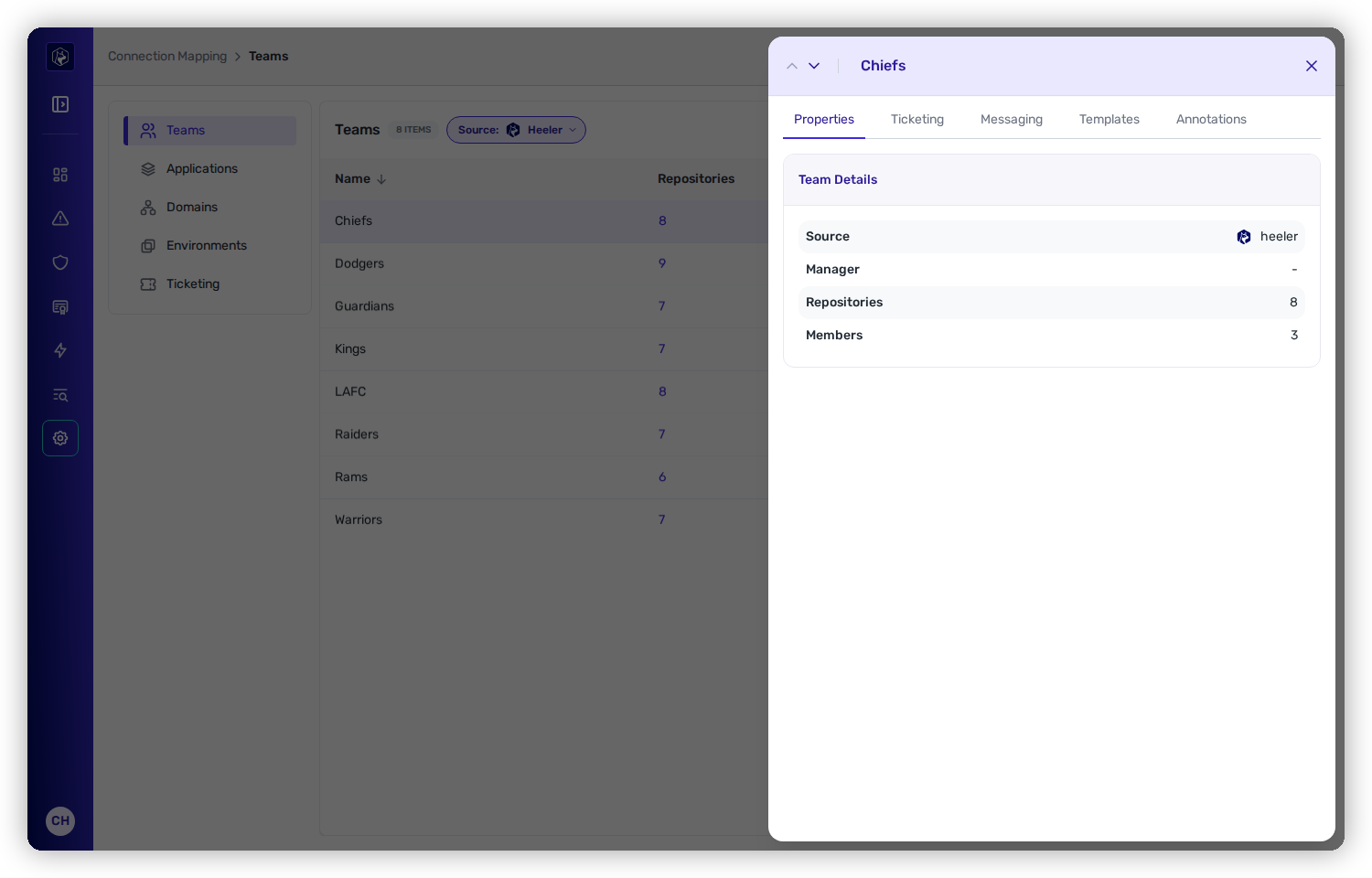
Click a team to open its drawer, which has everything about it on tabs:

<figure><img src="https://414480750-files.gitbook.io/~/files/v0/b/gitbook-x-prod.appspot.com/o/spaces%2FXP3dp2kecwKA2KvYkntz%2Fuploads%2Fgit-blob-027f3a2bd0b9a64bc12de7c00b5e4e4e4da3ce1d%2Fam-mapping-team-drawer.png?alt=media" alt="A team drawer with tabs for Properties, Ticketing, Messaging, Templates, and Annotations, showing team details like Source, Manager, Repositories, and Members."><figcaption><p>The team drawer — properties, ticketing, messaging, templates, and annotations.</p></figcaption></figure>

<table><thead><tr><th width="170">Tab</th><th>What you manage there</th></tr></thead><tbody><tr><td><strong>Properties</strong></td><td>Source, manager, repositories, members, and any properties carried from the source.</td></tr><tr><td><strong>Ticketing</strong></td><td>Where this team's tickets are created — which connection, project, and defaults.</td></tr><tr><td><strong>Messaging</strong></td><td>Which channel this team's notifications post to.</td></tr><tr><td><strong>Templates</strong></td><td>Ticket templates that apply to this team.</td></tr><tr><td><strong>Annotations</strong></td><td>Heeler properties attached to the team.</td></tr></tbody></table>

## Manage a team

A row's **⋯** menu offers **Edit Team**, **Manage Members**, and **Delete Team**.

**Edit Team** and **Delete Team** apply to teams whose **Source** is **Heeler**. On a synced team they are disabled; change the team in the system it comes from, or switch the source to Heeler to take it over.

**Manage Members** applies to teams created in Heeler and to teams grouped by a GitHub custom property. Where membership comes from GitHub, GitLab, or Port, the action is disabled and its tooltip names where to manage it.

## Synced teams in the team picker

Repositories and modules both carry a team picker, and it separates teams by where they are maintained:

* **Heeler Teams** holds the teams you created here. Select and clear them freely.
* One group per synced source — **Synced from GitHub**, **Synced from GitHub custom property**, **Synced from GitLab**, **Synced from Port** — each with a note naming where to change that team's repositories.

A synced team cannot be added to a repository or a module from this picker. A synced team a repository already has stays selected and locked. On a module you can drop a synced team the module already has, and the source reassigns it on its next sync.

The API enforces the same rule. A request that adds a synced team to a repository or a module, or removes one from a repository, is refused and the response names the teams it would have changed.

## Set it up

First-time team setup and source mapping is covered in Get Started:

{% content-ref url="/pages/OWoiVJz01g2HClvxPNPB" %}
[Map Your Organization](/mrecEO40m5D6bt7Pq5pE/get-started/map-your-organization.md)
{% endcontent-ref %}

## Related

* [Integrations](/mrecEO40m5D6bt7Pq5pE/administer-and-monitor/connections-and-integrations/integrations.md) — the ticketing and messaging tools a team routes to.
* [Remediation Assignment and Routing](/mrecEO40m5D6bt7Pq5pE/administer-and-monitor/program-policy/remediation-assignment-and-routing.md) — how team ownership decides who fixes what.


---

# Agent Instructions
This documentation is published with GitBook. GitBook is the documentation platform designed so that both humans and AI agents can read, navigate, and reason over technical content effectively. Learn more at gitbook.com.

## Querying This Documentation
If you need additional information that is not directly available in this page, you can query the documentation dynamically by asking a question.

Perform an HTTP GET request on the current page URL with the `ask` query parameter, and the optional `goal` query parameter:

```
GET https://docs.heeler.com/mrecEO40m5D6bt7Pq5pE/administer-and-monitor/organization-model/teams.md?ask=<question>&goal=<endgoal>
```

`ask` is the immediate question: it should be specific, self-contained, and written in natural language.
`goal` is optional and describes the broader end goal you are ultimately trying to accomplish on behalf of the user. GitBook uses it to tailor the answer towards what is most useful for that goal.

The response will contain a direct answer to the question and relevant excerpts and sources from the documentation.

Use this mechanism when the answer is not explicitly present in the current page, you need clarification or additional context, or you want to retrieve related documentation sections.