> For the complete documentation index, see [llms.txt](https://docs.heeler.com/mrecEO40m5D6bt7Pq5pE/llms.txt). Markdown versions of documentation pages are available by appending `.md` to page URLs; this page is available as [Markdown](https://docs.heeler.com/mrecEO40m5D6bt7Pq5pE/administer-and-monitor/program-policy/service-level-objectives.md).

# Service Level Objectives

Set the remediation clock — how many days each finding has to be fixed before it's overdue, for SCA and SAST.

An SLO is the deadline Heeler holds each finding to. **Administration → Program → Service Level Objectives** is where you set those deadlines; how the resulting clock shows up day to day — the queue, due-soon and overdue indicators, and one-off overrides — lives in [Operate → SLOs](/mrecEO40m5D6bt7Pq5pE/operate/service-level-objectives-slos.md). There are two cards: one for **SCA** findings, one for **SAST**.

{% hint style="info" %}
Changing anything on this page requires the **Administrator** role. An **Administrator (read-only)** can view it but can't make changes.
{% endhint %}

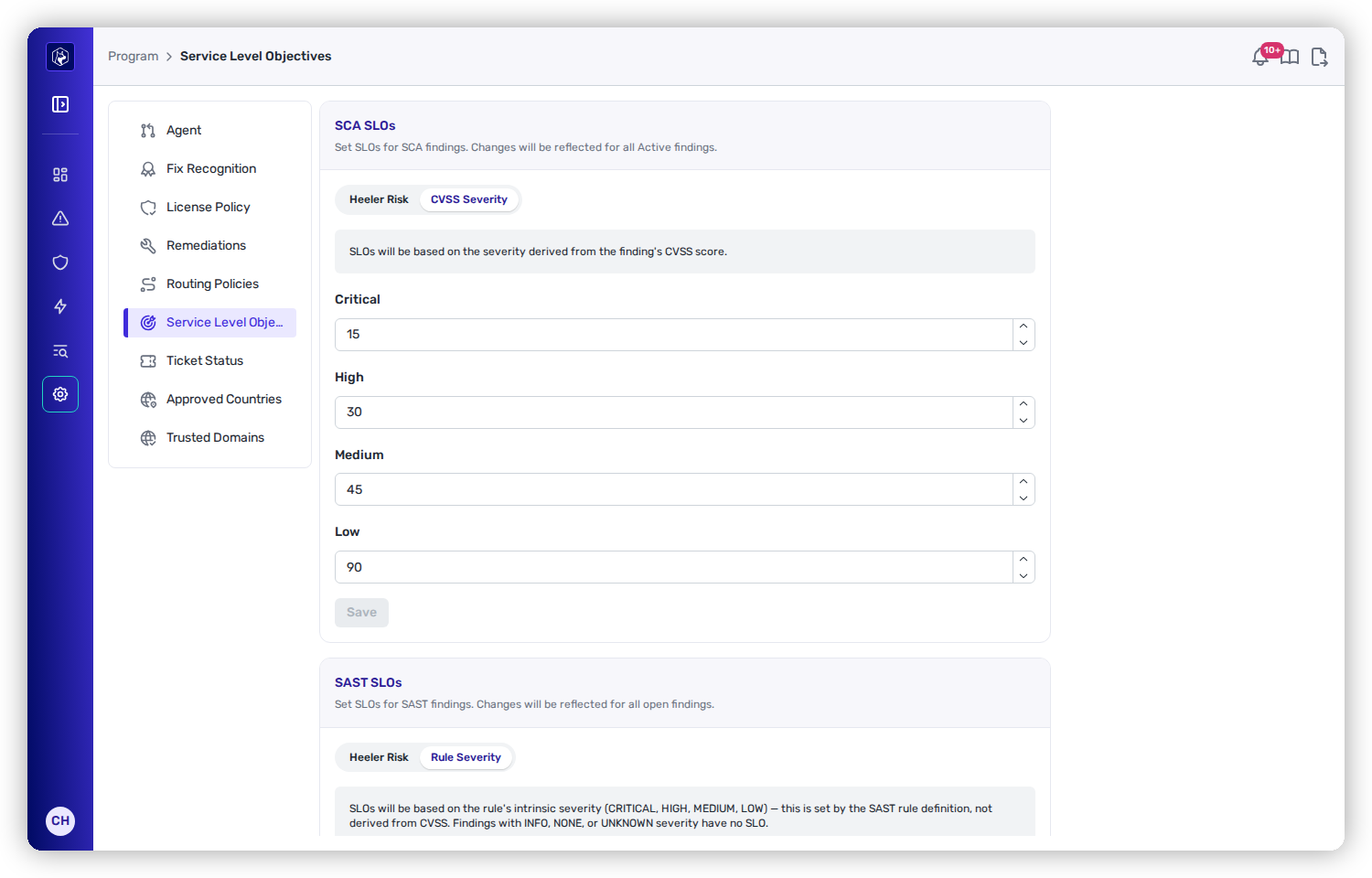
<figure><img src="https://414480750-files.gitbook.io/~/files/v0/b/gitbook-x-prod.appspot.com/o/spaces%2FXP3dp2kecwKA2KvYkntz%2Fuploads%2Fgit-blob-1da3c3143ccb8225a474643c62735a5fd983aec3%2Fam-program-slos.png?alt=media" alt="The Service Level Objectives page with SCA and SAST cards, each offering a Heeler Risk or Severity strategy and day fields."><figcaption><p>SLO configuration — choose a strategy per finding type and set the days.</p></figcaption></figure>

## Choose a strategy

Each card lets you base the clock on one of two things:

<table><thead><tr><th width="200">Strategy</th><th>Deadlines are keyed to</th><th>Fields</th></tr></thead><tbody><tr><td><strong>Heeler Risk</strong> (default)</td><td>The priority Heeler assigns each finding from full context — the recommended approach.</td><td>Urgent · Plan · Defer</td></tr><tr><td><strong>Severity</strong></td><td>Raw severity — CVSS score for SCA, the rule's intrinsic severity for SAST.</td><td>Critical · High · Medium · Low</td></tr></tbody></table>

The right-hand label is **CVSS Severity** on the SCA card and **Rule Severity** on the SAST card.

## The default deadlines

Both finding types default to the **Heeler Risk** strategy. Here are the default windows for each strategy — switch tabs to compare:

{% tabs %}
{% tab title="Heeler Risk (default)" %}

<table><thead><tr><th width="200">Band</th><th>Days to fix</th></tr></thead><tbody><tr><td><strong>Urgent</strong></td><td>14</td></tr><tr><td><strong>Plan</strong></td><td>60</td></tr><tr><td><strong>Defer</strong></td><td>120</td></tr></tbody></table>
{% endtab %}

{% tab title="Severity" %}

<table><thead><tr><th width="200">Severity</th><th>Days to fix</th></tr></thead><tbody><tr><td><strong>Critical</strong></td><td>15</td></tr><tr><td><strong>High</strong></td><td>30</td></tr><tr><td><strong>Medium</strong></td><td>45</td></tr><tr><td><strong>Low</strong></td><td>90</td></tr></tbody></table>
{% endtab %}
{% endtabs %}

{% hint style="info" %}
For **SAST**, only findings with a severity of Critical, High, Medium, or Low get an SLO — findings marked Info, None, or Unknown have no deadline.
{% endhint %}

## Applying changes

Enter your day values and **Save**. Changes apply to all existing open findings, not just new ones — SCA re-times all **Active** findings, SAST re-times all open findings — so tightening a window can move findings into due-soon or overdue immediately.

## Worked example

See this inside a full SLO-driven program:

{% content-ref url="/pages/qXynZJ6ysecRvAHjNFOM" %}
[Run an SLO-Driven AppSec Program](/mrecEO40m5D6bt7Pq5pE/solutions-and-use-cases/run-an-slo-driven-appsec-program.md)
{% endcontent-ref %}

## Related

* [Operate → SLOs](/mrecEO40m5D6bt7Pq5pE/operate/service-level-objectives-slos.md) — the SLO queue, due-soon/overdue tracking, and overrides.
* [The findings model](/mrecEO40m5D6bt7Pq5pE/findings.md) — how Heeler Risk (Urgent/Plan/Defer) is derived.


---

# Agent Instructions
This documentation is published with GitBook. GitBook is the documentation platform designed so that both humans and AI agents can read, navigate, and reason over technical content effectively. Learn more at gitbook.com.

## Querying This Documentation
If you need additional information that is not directly available in this page, you can query the documentation dynamically by asking a question.

Perform an HTTP GET request on the current page URL with the `ask` query parameter, and the optional `goal` query parameter:

```
GET https://docs.heeler.com/mrecEO40m5D6bt7Pq5pE/administer-and-monitor/program-policy/service-level-objectives.md?ask=<question>&goal=<endgoal>
```

`ask` is the immediate question: it should be specific, self-contained, and written in natural language.
`goal` is optional and describes the broader end goal you are ultimately trying to accomplish on behalf of the user. GitBook uses it to tailor the answer towards what is most useful for that goal.

The response will contain a direct answer to the question and relevant excerpts and sources from the documentation.

Use this mechanism when the answer is not explicitly present in the current page, you need clarification or additional context, or you want to retrieve related documentation sections.
