> For the complete documentation index, see [llms.txt](https://docs.heeler.com/mrecEO40m5D6bt7Pq5pE/llms.txt). Markdown versions of documentation pages are available by appending `.md` to page URLs; this page is available as [Markdown](https://docs.heeler.com/mrecEO40m5D6bt7Pq5pE/findings/cloud/checks.md).

# Cloud Checks

Every cloud configuration check Heeler evaluates, with its status, failing resources, framework mappings and remediation guidance.

**Security → Cloud** lists the configuration checks Heeler evaluates against your cloud accounts. The page has three tabs and opens on **Checks**:

| Tab                      | What it lists                                                                                                    |
| ------------------------ | ---------------------------------------------------------------------------------------------------------------- |
| **Checks**               | One row per check.                                                                                               |
| **Findings by Resource** | One row per failing resource. See [Cloud Findings](/mrecEO40m5D6bt7Pq5pE/findings/cloud/findings.md).            |
| **Exemptions**           | The resources excluded from a check. See [Cloud Exemptions](/mrecEO40m5D6bt7Pq5pE/findings/cloud/exemptions.md). |

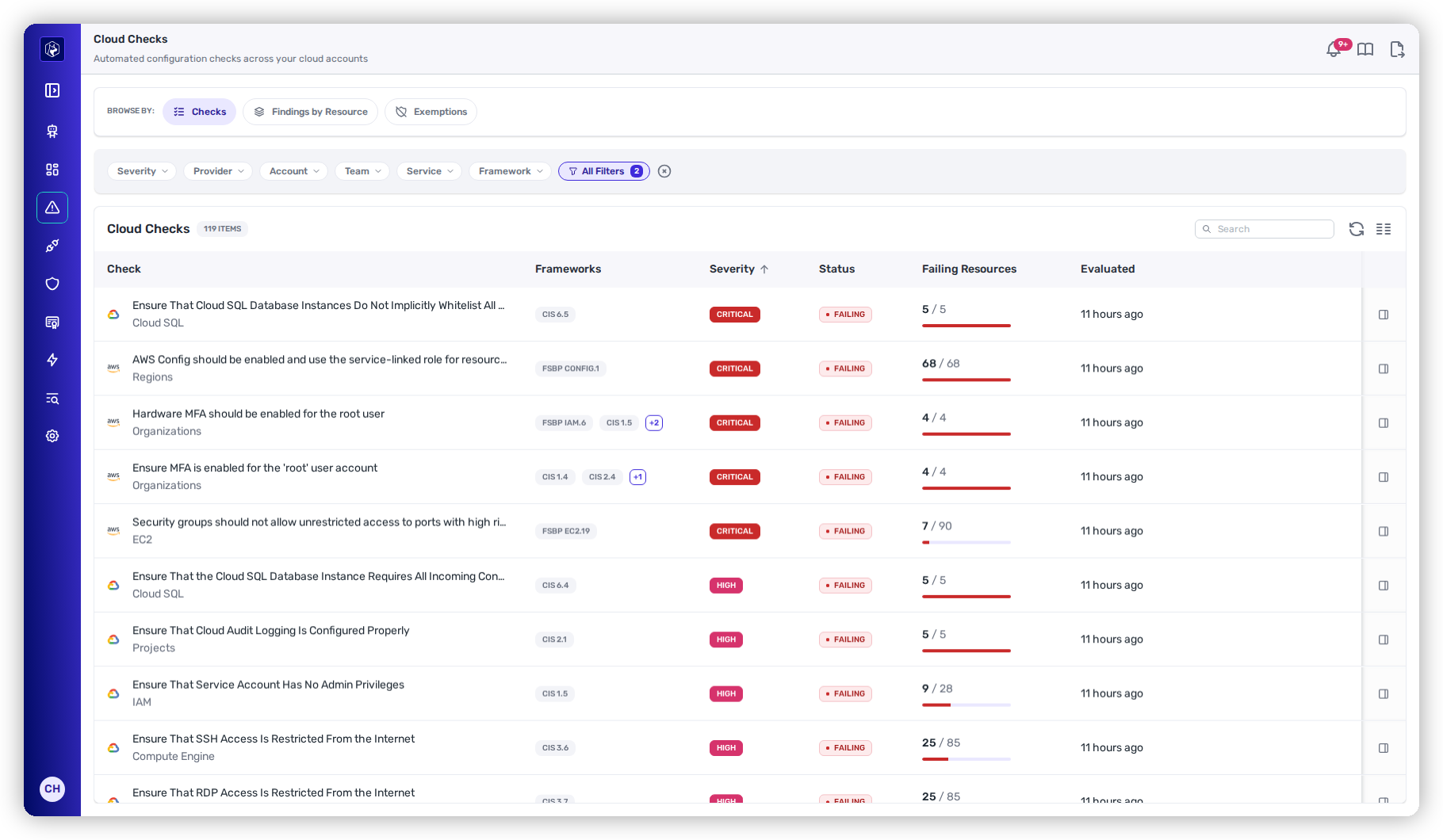
<figure><img src="https://414480750-files.gitbook.io/~/files/v0/b/gitbook-x-prod.appspot.com/o/spaces%2FXP3dp2kecwKA2KvYkntz%2Fuploads%2Fgit-blob-25f66586bd059378fcc83507b7931e8bac101297%2Fcc-cs-checks.png?alt=media" alt="The Cloud Checks page on its Checks tab, with the Checks, Findings by Resource and Exemptions tabs, the Severity, Provider, Account, Team, Service and Framework filters and All Filters showing 2 filters applied, and 119 failing checks sorted by severity with Check, Frameworks, Severity, Status, Failing Resources and Evaluated columns."><figcaption><p>Security → Cloud, the Checks tab — opens on failing checks for your connected clouds.</p></figcaption></figure>

The tab opens with **Status = Failing** and **Connected clouds only** applied. Clear either filter to list every check.

## Columns

| Column                | What it shows                                                                                                                                                  |
| --------------------- | -------------------------------------------------------------------------------------------------------------------------------------------------------------- |
| **Check**             | The cloud's logo, the check name and its service.                                                                                                              |
| **Frameworks**        | Up to two controls that map the check, labelled as the benchmark cites them, for example **CIS 1.5**.                                                          |
| **Severity**          | **Critical**, **High**, **Medium** or **Low**.                                                                                                                 |
| **Status**            | **Failing**, **Error**, **Not evaluated** or **Passing**. See [check status](/mrecEO40m5D6bt7Pq5pE/standards-and-compliance/cloud-frameworks.md#check-status). |
| **Failing Resources** | Failing resources out of the resources evaluated.                                                                                                              |
| **Evaluated**         | When the check last ran.                                                                                                                                       |

A check whose latest run failed in at least one account shows a tooltip: its counts come from the last successful run.

The list sorts by **Severity**, highest first. **Check**, **Severity**, **Status**, **Failing Resources** and **Evaluated** are sortable. Search matches the check name, description or rule ID.

## Filters

| Filter                    | Values                                                  |
| ------------------------- | ------------------------------------------------------- |
| **Account**               | Cloud accounts, grouped by cloud.                       |
| **Connected clouds only** | Checks for the clouds you have connected.               |
| **Framework**             | Adopted frameworks.                                     |
| **Provider**              | The clouds that have checks.                            |
| **Service**               | The cloud service.                                      |
| **Severity**              | **Critical**, **High**, **Medium**, **Low**.            |
| **Status**                | **Failing**, **Passing**, **Error**, **Not evaluated**. |
| **Team**                  | Teams that own a cloud account, and **No team**.        |

**All Filters** adds **Resource Type** and **Check**. **Resource Type** lists each type by its name, for example **S3 Bucket**, grouped by cloud.

The **Checks** and **Findings by Resource** tabs share their filters: a filter set on one tab stays set on the other. The **Exemptions** tab has filters of its own.

## Check drawer

Select a row to open the check drawer.

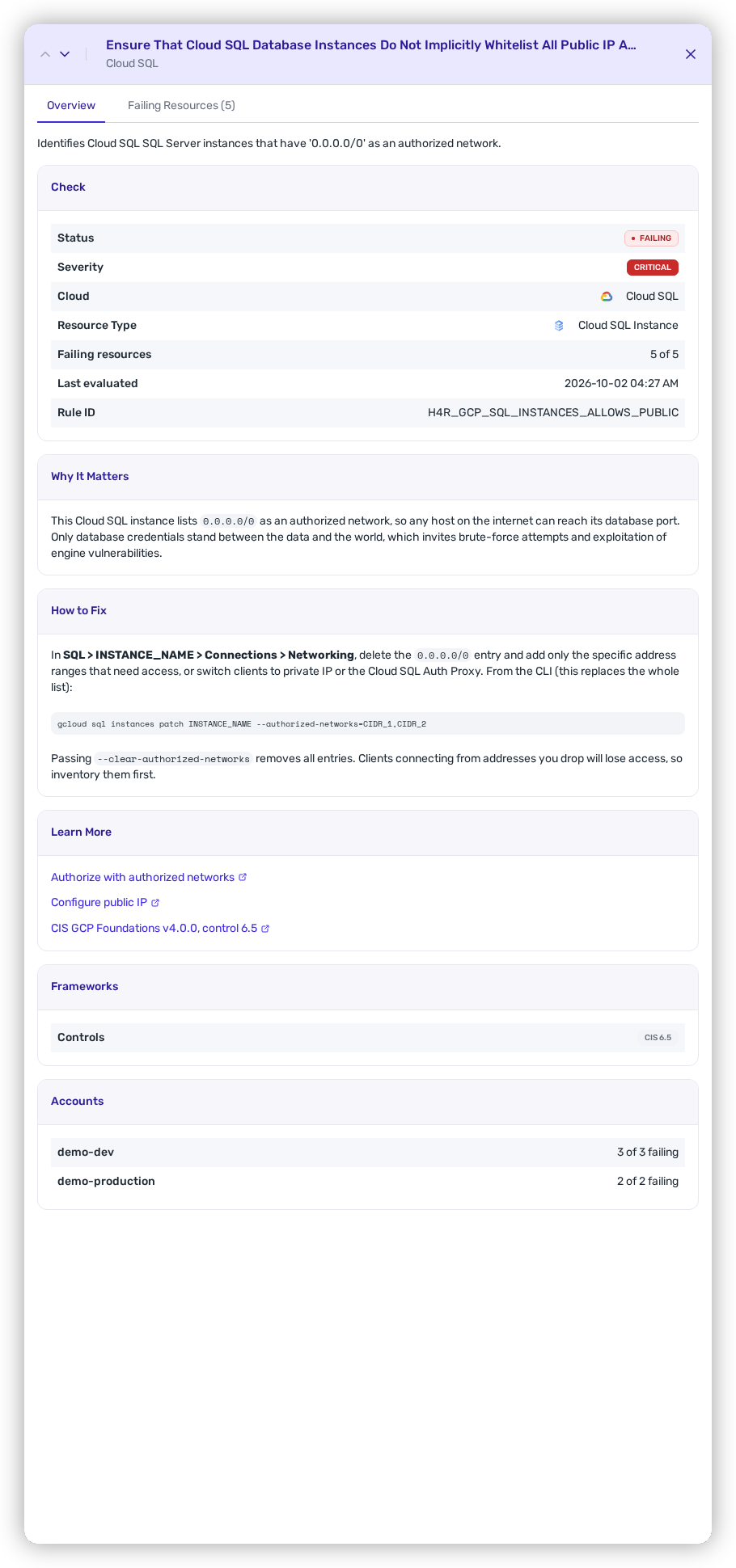
<figure><img src="https://414480750-files.gitbook.io/~/files/v0/b/gitbook-x-prod.appspot.com/o/spaces%2FXP3dp2kecwKA2KvYkntz%2Fuploads%2Fgit-blob-31f55f7290394afc9b121cb01399b9cfab7be50f%2Fcc-cs-check-drawer.png?alt=media" alt="The check drawer on its Overview tab for a critical Cloud SQL check, showing the Check card with status, severity, cloud, resource type, failing resources, last evaluated and rule ID, then the Why It Matters, How to Fix and Learn More cards and the Frameworks and Accounts cards."><figcaption><p>The check drawer — the check, its guidance, the controls that map it and its results per account.</p></figcaption></figure>

### Overview tab

| Card               | What it shows                                                                                                                   |
| ------------------ | ------------------------------------------------------------------------------------------------------------------------------- |
| **Check**          | **Status**, **Severity**, **Cloud**, **Resource Type**, failing resources, when it was last evaluated, and the **Rule ID**.     |
| **Why It Matters** | The risk the misconfiguration creates.                                                                                          |
| **How to Fix**     | The remediation steps.                                                                                                          |
| **Learn More**     | Reference links, including a link to each CIS benchmark that maps the check.                                                    |
| **Frameworks**     | The framework controls that map the check.                                                                                      |
| **Accounts**       | Failing resources out of those evaluated, per account. **(last run failed)** marks an account whose latest run raised an error. |

Every check carries guidance. Guidance adapted from AWS is credited as "Guidance adapted from the AWS Security Hub User Guide, licensed under CC BY-SA 4.0."

### Failing Resources tab

**Failing Resources (N)** lists each failing resource with its **Account**, **Region** and **First Identified** date. Select a resource to open the [resource drawer](/mrecEO40m5D6bt7Pq5pE/catalog/infrastructure/resource-detail.md).

## Related

* [Cloud Findings](/mrecEO40m5D6bt7Pq5pE/findings/cloud/findings.md) — the same results, one row per resource.
* [Cloud Frameworks](/mrecEO40m5D6bt7Pq5pE/standards-and-compliance/cloud-frameworks.md) — the frameworks that map each check.
* [Cloud Exemptions](/mrecEO40m5D6bt7Pq5pE/findings/cloud/exemptions.md) — exclude a resource from a check.


---

# Agent Instructions
This documentation is published with GitBook. GitBook is the documentation platform designed so that both humans and AI agents can read, navigate, and reason over technical content effectively. Learn more at gitbook.com.

## Querying This Documentation
If you need additional information that is not directly available in this page, you can query the documentation dynamically by asking a question.

Perform an HTTP GET request on the current page URL with the `ask` query parameter, and the optional `goal` query parameter:

```
GET https://docs.heeler.com/mrecEO40m5D6bt7Pq5pE/findings/cloud/checks.md?ask=<question>&goal=<endgoal>
```

`ask` is the immediate question: it should be specific, self-contained, and written in natural language.
`goal` is optional and describes the broader end goal you are ultimately trying to accomplish on behalf of the user. GitBook uses it to tailor the answer towards what is most useful for that goal.

The response will contain a direct answer to the question and relevant excerpts and sources from the documentation.

Use this mechanism when the answer is not explicitly present in the current page, you need clarification or additional context, or you want to retrieve related documentation sections.