> For the complete documentation index, see [llms.txt](https://docs.heeler.com/mrecEO40m5D6bt7Pq5pE/llms.txt). Markdown versions of documentation pages are available by appending `.md` to page URLs; this page is available as [Markdown](https://docs.heeler.com/mrecEO40m5D6bt7Pq5pE/findings/secrets/findings.md).

# Secrets Findings

The secrets inventory — the Active/Excepted lifecycle, validation that proves a key is live, every way to work the list, the validation detail, and the exception workflow.

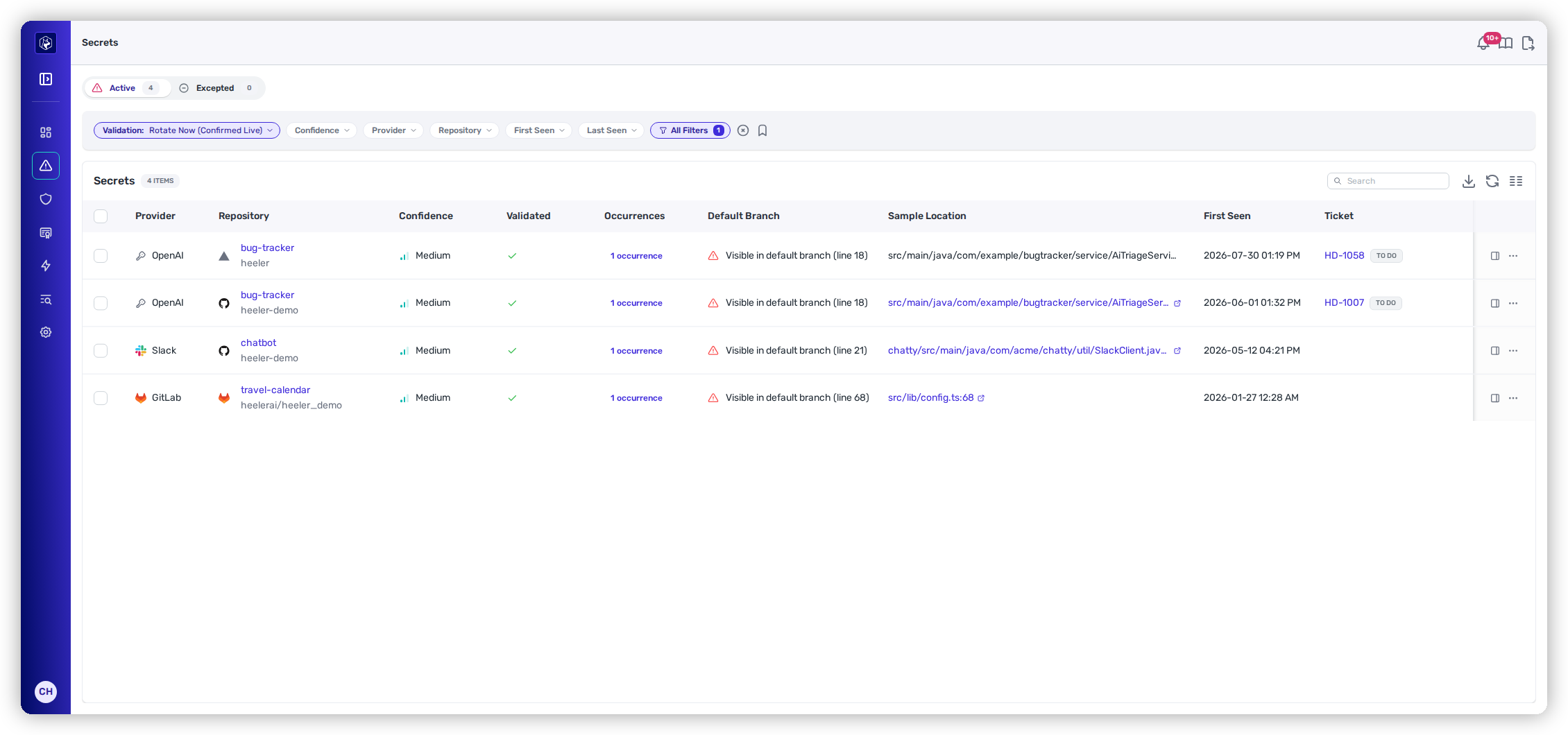
The **Findings** view (**Security → Secrets**) is your inventory of secrets Heeler found committed in your code — API keys, tokens, private keys, database credentials, and more. **Each row is one detected secret**, with everything you need to judge whether it's a real, live exposure and act on it.

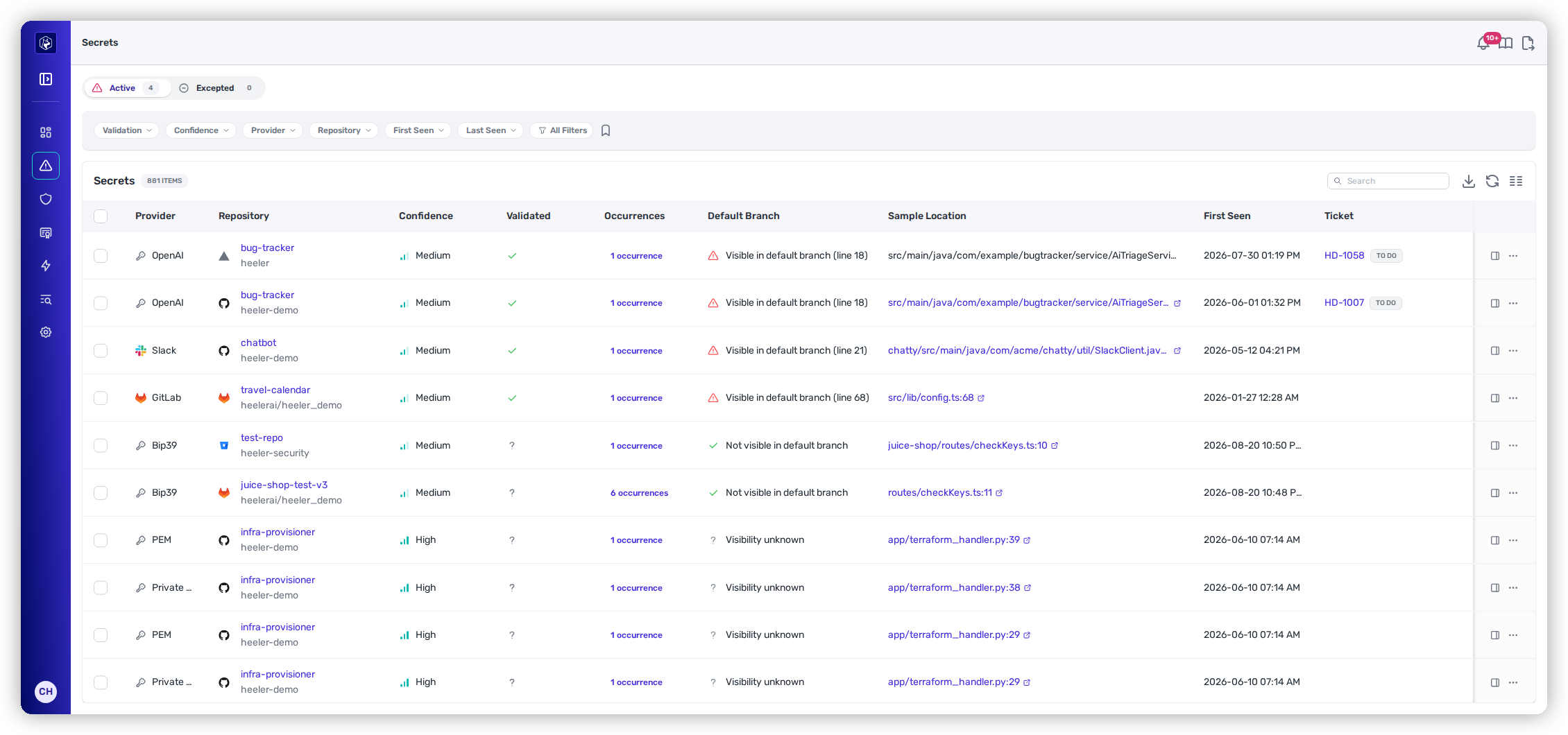
<figure><img src="https://414480750-files.gitbook.io/~/files/v0/b/gitbook-x-prod.appspot.com/o/spaces%2FXP3dp2kecwKA2KvYkntz%2Fuploads%2Fgit-blob-3b4fd7943c31aa07b9313877b90b68173a4d186d%2Fcc-secrets-active.png?alt=media" alt="The secrets view with the Active/Excepted segmented control, the default Validation: Rotate Now filter, and validation, confidence, and sample-location columns."><figcaption><p>The Active view — defaulting to the Rotate Now action bucket for confirmed-live secrets.</p></figcaption></figure>

## Active and Excepted

The segmented control at the top splits the work into two views, each with a live count:

* **Active** — secrets still in play, awaiting a decision or a fix.
* **Excepted** — secrets you've dismissed as false positives or accepted as risks (see [Handling a secret](#handling-a-secret)). This is a full list in its own right — it carries the same **Provider**, **Repository**, **Confidence**, **Validated**, **Occurrences**, and **Sample Location** columns as Active, plus **Reason**, **Notes** (hidden by default), **Created By**, **Excepted At**, and **Expires At**. Secrets suppressed by a whole rule category (below) also land here, with the Reason **Rule Category Exception**.

## Validation

The **Validated** column shows the finding's **action bucket** — **Rotate Now**, **Rotate**, **Triage**, **No Action**, or **Expected**. This is the primary triage signal: it translates the validator's underlying status into what you should do next. For *how* Heeler proves a credential is live, how the nine statuses map to these five buckets, and the daily/weekly re-check cadence that keeps verdicts current, see [Validation](/mrecEO40m5D6bt7Pq5pE/findings/secrets.md#validation). Hover the icon in the **Validated** column on any row for the underlying status and context behind the bucket.

The list opens in **triage order** — Rotate Now, then Rotate, then Triage, then No Action, then Expected, newest first within each bucket — so the most urgent findings are always at the top. Sorting by any column header overrides it.

{% hint style="info" %}
The **Active** view opens filtered to **Validation = Rotate Now**, so its count badge is your number of confirmed-live secrets — the priority set. **Clear the filter** to see every active secret regardless of validation.
{% endhint %}

Separately, **Confidence** (High / Medium / Low) reflects how sure Heeler is that the match is a secret at all — useful for working the **Triage (No Verdict)** bucket.

### What the columns mean

| Column              | What it shows                                                                                                         |
| ------------------- | --------------------------------------------------------------------------------------------------------------------- |
| **Provider**        | The secret type / detector (OpenAI, Slack, AWS, GitLab, Generic, …) with a brand icon.                                |
| **Repository**      | The repo and org, linking out to the exact code.                                                                      |
| **Confidence**      | High / Medium / Low — how sure Heeler is it's a secret.                                                               |
| **Validated**       | The finding's action bucket — Rotate Now, Rotate, Triage, No Action or Expected — derived from its validation status. |
| **Occurrences**     | How many times the secret appears (clickable).                                                                        |
| **Sample Location** | `path/to/file:line`, linked to the exact commit.                                                                      |
| **First Seen**      | When Heeler first detected it.                                                                                        |
| **Ticket**          | The linked issue and its status, when present.                                                                        |

Two more columns — **Committer** (who committed the secret, sometimes a non-human identity such as a CI or bot account) and **Git Command** (a ready-to-run `git show <sha>:<path>` for the exact blob) — are available but hidden by default; turn them on from **Manage Columns**.

## Finding dates

**Introduced**, **First seen**, and **Last seen** mean the same thing for every finding type in Heeler, and the date filters built on them behave the same way — so a date range you reason about while triaging dependencies carries the same meaning when you switch to code findings or secrets.

| Term           | What it means                                                                                             |
| -------------- | --------------------------------------------------------------------------------------------------------- |
| **Introduced** | When the finding entered your code — the change that brought it in, not when Heeler noticed.              |
| **First seen** | When Heeler first detected it. Later than **Introduced** for anything that predates onboarding or a scan. |
| **Last seen**  | The most recent analysis that still found it. A finding that stops appearing stops advancing.             |

The distinction that matters in practice: **Introduced** is a fact about your code, while **First seen** is a fact about Heeler's visibility of it. Age and SLO are measured from **Introduced**, which is why a repository onboarded today can immediately show findings that are already overdue.

## Working the list

The toolbar behaves like the other findings lists, and every control is worth knowing:

* **Search** narrows the current view as you type; clear it with the inline ✕.
* **Filtering** — each chip is a searchable filter; stacking them narrows the list (values are OR *within* a filter, AND *across* filters). See [Filtering](#filtering) below.
* **Presets** (the **bookmark** icon) are your saved views. Apply one with a click; **Save current filters…** (enabled once at least one filter is set) names the current set and sets its **Visibility** — **Private**, **Team**, or **Organization**.
* **Manage Columns** shows, hides, reorders, and resizes columns (a **Sizes** tab sets widths); your layout persists across visits.
* **Export Data** opens **Create Export** — name it, and optionally turn on **Recurring Export** with a **Frequency** to regenerate it on a schedule.
* **Refresh** re-runs the current query in place, and each column header sorts.
* **Row checkboxes** let you act on several secrets at once — the bulk bar offers **Create Exception** across the selection (and a bulk **Remove Exception** on the Excepted view).

### Filtering

| Filter         | Options                                                                                                                                                 |
| -------------- | ------------------------------------------------------------------------------------------------------------------------------------------------------- |
| **Validation** | Rotate Now · Rotate · Triage · No Action · Expected *(default: Rotate Now)*. Each choice includes every underlying status mapped to that action bucket. |
| **Confidence** | High · Medium · Low                                                                                                                                     |
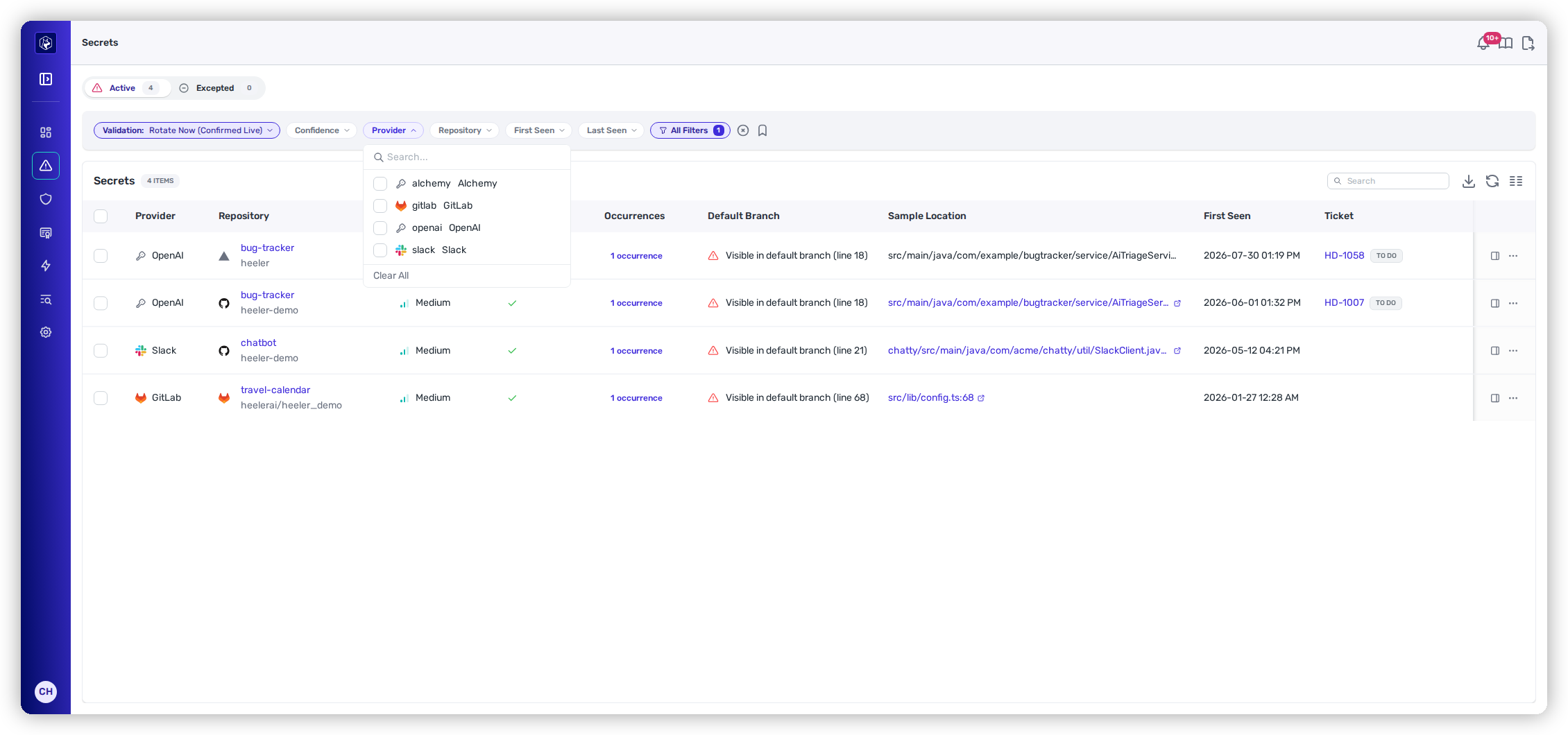
| **Provider**   | Searchable — the full detector list (AWS, Azure, GCP, Slack, Stripe, OpenAI, PostgreSQL, JWT, Private Key, Generic, …).                                 |
| **Repository** | Grouped by SCM provider.                                                                                                                                |
| **Introduced** | Last 24 hours · 3 days · 7 days · 30 days · 90 days · Over 90 days.                                                                                     |
| **Last Seen**  | Last week · 14 days · 30 days · 6 months.                                                                                                               |

<figure><img src="https://414480750-files.gitbook.io/~/files/v0/b/gitbook-x-prod.appspot.com/o/spaces%2FXP3dp2kecwKA2KvYkntz%2Fuploads%2Fgit-blob-7e07ae8a8e9412d329d34661addafff8cdb94cc2%2Fcc-secrets-validation-filter.png?alt=media" alt="The Validation filter open, listing the five action buckets: Rotate Now (checked), Rotate, Triage, No Action, and Expected."><figcaption><p>The Validation filter — all five action buckets, defaulting to Rotate Now.</p></figcaption></figure>

<figure><img src="https://414480750-files.gitbook.io/~/files/v0/b/gitbook-x-prod.appspot.com/o/spaces%2FXP3dp2kecwKA2KvYkntz%2Fuploads%2Fgit-blob-c98409799cdd6b0fa5f98d576956b3f7e629232f%2Fcc-secrets-provider.png?alt=media" alt="The Provider filter with the detector list."><figcaption><p>The Provider filter — scope to specific secret types.</p></figcaption></figure>

**All Filters** adds **Application**, **Has Ticket**, **Organization**, **Subgroup**, **Team**, and **Visible**.

### Default-branch presence

Both secret listings carry a **Default Branch** column, and it has three states rather than two:

| State                             | What it means                                                                                                                                                            |
| --------------------------------- | ------------------------------------------------------------------------------------------------------------------------------------------------------------------------ |
| **Visible in default branch**     | Found at the tip of the scanned branch — the secret is in your current code.                                                                                             |
| **Not visible in default branch** | Checked at the tip and not found there. The value is still recoverable from git history, so it still needs rotating.                                                     |
| **Visibility unknown**            | Presence could not be established — no snippet to match against, an unreadable blob, or a scan that predates the check. This is **not** evidence the secret was removed. |

<figure><img src="https://414480750-files.gitbook.io/~/files/v0/b/gitbook-x-prod.appspot.com/o/spaces%2FXP3dp2kecwKA2KvYkntz%2Fuploads%2Fgit-blob-3d5819f34e65bb9a0b43b855aa57579329cb13ae%2Fcc-secrets-default-branch-column.png?alt=media" alt="The secrets listing with the Default Branch column showing all three of its states: visible in the default branch with the line number, not visible in the default branch, and visibility unknown."><figcaption><p>The <strong>Default Branch</strong> column — all three states side by side: present at the branch tip with the line it was found on, checked and not found there, and presence that could not be established.</p></figcaption></figure>

Scheduled full scans annotate this alongside commit-driven ones, so the state on a finding reflects the branch tip rather than only what a push happened to touch. The **Visible** filter uses the same wording as the column, so filtering and reading agree.

## Reading a secret

Click a secret's **View Details** icon to open its detail tray. Step through the list with the **▲ / ▼** arrows in the tray header, and close it with **✕**. The tray has two tabs — **Overview** and **Occurrences**.

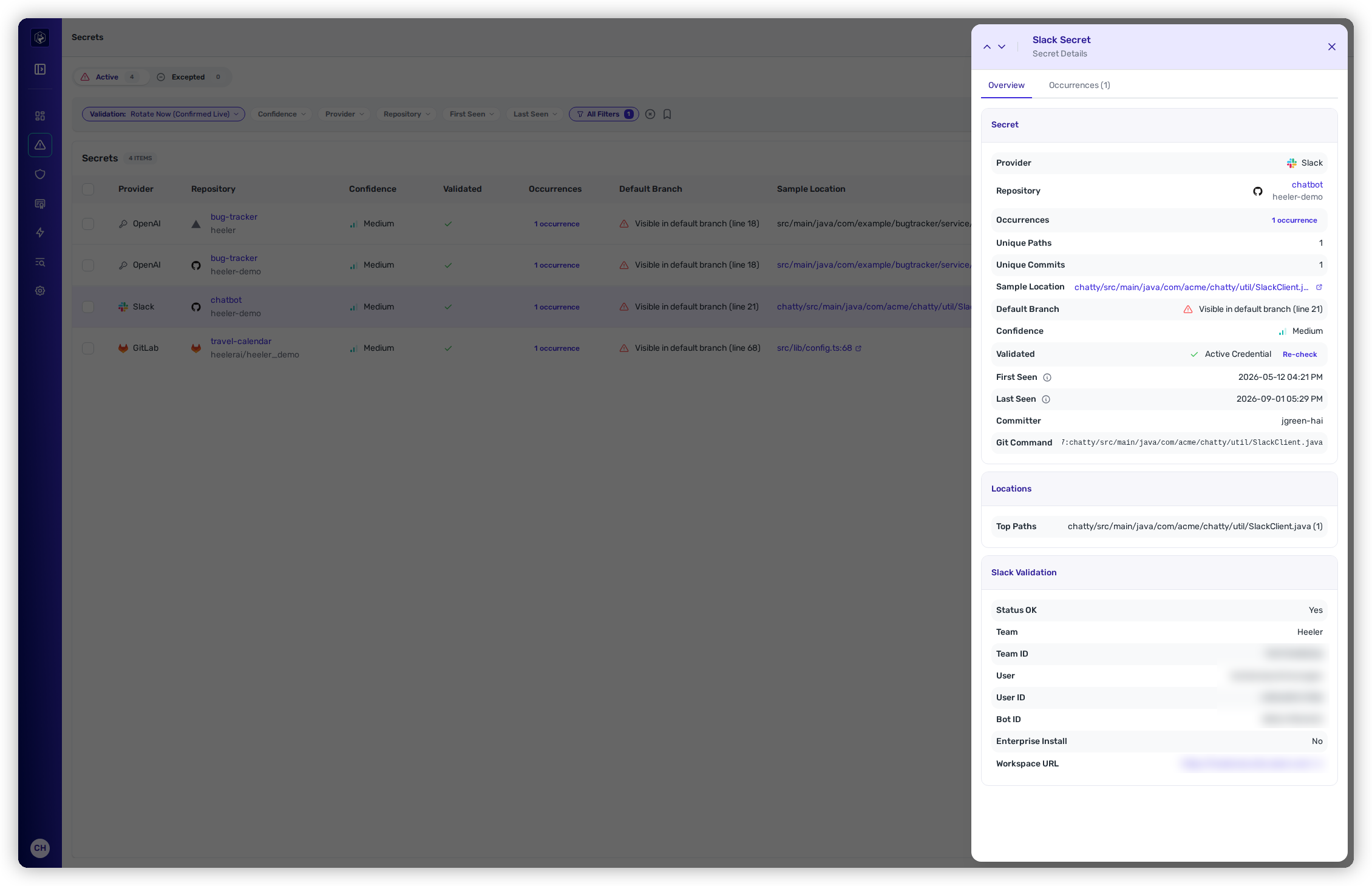
<figure><img src="https://414480750-files.gitbook.io/~/files/v0/b/gitbook-x-prod.appspot.com/o/spaces%2FXP3dp2kecwKA2KvYkntz%2Fuploads%2Fgit-blob-3dd28b2db648ba4443e5229dbee01d4a73c1070f%2Fcc-secrets-validation.png?alt=media" alt="A Slack secret&#x27;s detail tray with the structured Slack Validation card."><figcaption><p>The secret detail — its attributes, and the structured provider response proving the credential is live.</p></figcaption></figure>

**Overview** opens with a **Secret** card gathering the provider, repository, **occurrences / unique paths / unique commits**, sample location, confidence, validated status — with a **Re-check** action beside it (see [Re-checking a credential](#re-checking-a-credential)) — the **committer**, a copyable `git show <sha>:<path>` command, and the top paths. Below it, Heeler shows the **evidence behind the validation verdict** in one of two forms:

* **A structured validation card** — for the providers Heeler can parse, the response is broken out field by field, so you see exactly *what* the live credential is and *what it can reach*. For a GitHub **classic personal access token**, that includes the **Scopes** it was granted and its **Expires At** date, captured when the token is revalidated — which records the scope of the exposure and whether the token expires on its own:

  | Provider card     | Fields shown                                                                                                    |
  | ----------------- | --------------------------------------------------------------------------------------------------------------- |
  | **Slack**         | Status OK · Team · Team ID · User · User ID · Bot ID · Enterprise Install · Validation Response · Workspace URL |
  | **AWS**           | Access Key ID · ARN                                                                                             |
  | **GitHub**        | User Login · **Scopes** · **Expires At**                                                                        |
  | **OpenAI**        | User ID · Email · Name                                                                                          |
  | **Anthropic**     | Model · Message ID                                                                                              |
  | **Google Gemini** | Model Name · Display Name · Version                                                                             |
  | **GCP**           | Credential Type · Project ID · Client Email                                                                     |
  | **Datadog**       | Credential Valid                                                                                                |
  | **YouTube**       | Response Code · Reason · Account ID · Message                                                                   |
  | **Azure Storage** | Account · Containers                                                                                            |
* **A raw Validation Response** — for everything else, the **raw JSON the provider's API returned** is shown in a copyable block, so you're never taking a *Rotate Now* label on faith even when Heeler doesn't parse that provider.

If the secret has a **linked ticket**, a **Ticket** card shows the issue and its status; if it's been excepted, an **Exception** card shows the **Exception Reason**, your note, and who excepted it and when.

**Occurrences** lists every `path:line @ <commit>` where the secret appears, each with its own `git show` command. The list is **capped at 25 occurrences** — enough to trace the exposure without an unbounded dump.

### Re-checking a credential

The **Re-check** action next to the **Validated** status re-runs validation for that one secret, on demand. The everyday use is **confirming a rotation immediately**: rotate the key at the provider, hit Re-check, and watch the verdict flip to **Inactive** without waiting for the next scheduled pass.

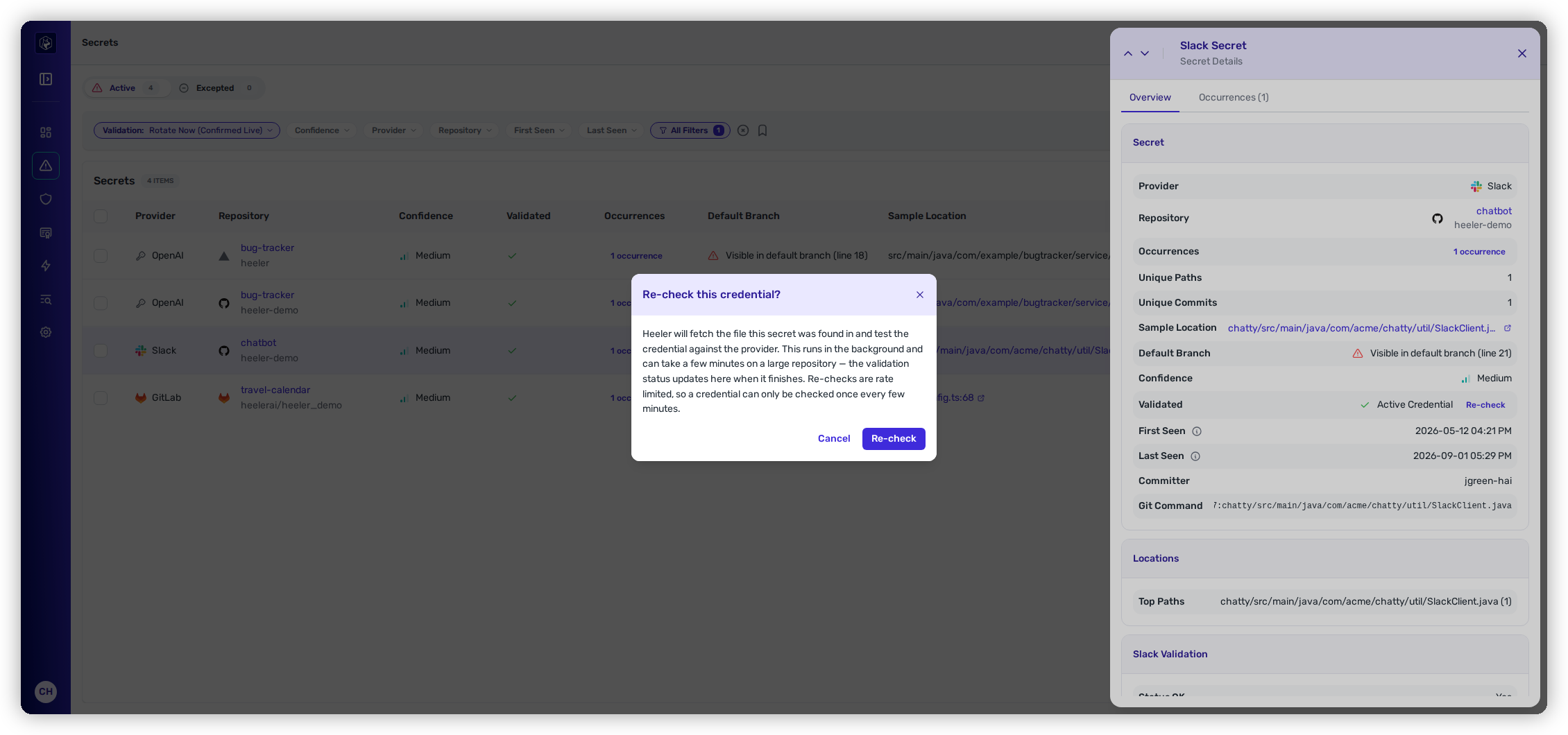
<figure><img src="https://414480750-files.gitbook.io/~/files/v0/b/gitbook-x-prod.appspot.com/o/spaces%2FXP3dp2kecwKA2KvYkntz%2Fuploads%2Fgit-blob-3cb98f9657595ed819dc5d27880b7a7c47acf58d%2Fcc-secrets-recheck.png?alt=media" alt="The Re-check confirmation dialog over a Slack secret&#x27;s detail tray, explaining that Heeler will fetch the file and test the credential against the provider in the background."><figcaption><p>Re-check a credential on demand — confirm, and the verdict updates in place when the check completes.</p></figcaption></figure>

Confirming the dialog queues the check: Heeler fetches the file the secret was found in and tests the credential against the provider. It runs in the background — a few minutes on a large repository — and the validation status updates in place when it finishes; a **Re-check requested** notice confirms it's underway.

Because every re-check queries the provider, they're **rate limited**: a credential can be re-checked once every **15 minutes**, with an organization-wide hourly ceiling. If you hit either limit, Heeler tells you the credential was re-checked recently — wait and try again. A manual re-check also resets that secret's scheduled cadence, so you'll never trigger a duplicate automated check minutes later.

Scheduled re-checks make the manual button the exception rather than the routine: **Rotate Now findings are re-verified daily and every other verdict weekly** — see [Verdicts stay current](/mrecEO40m5D6bt7Pq5pE/findings/secrets.md#verdicts-stay-current).

## Handling a secret

{% hint style="warning" %}
For a live (**Active Credential**) secret, the real fix is to **rotate and revoke it at the provider** — removing it from code isn't enough once it's been committed. Once rotated, confirm it with [**Re-check**](#re-checking-a-credential), or let the daily scheduled check flip it to *Inactive*.
{% endhint %}

To record a decision in Heeler, use the row **⋯** menu (or the bulk bar over selected rows):

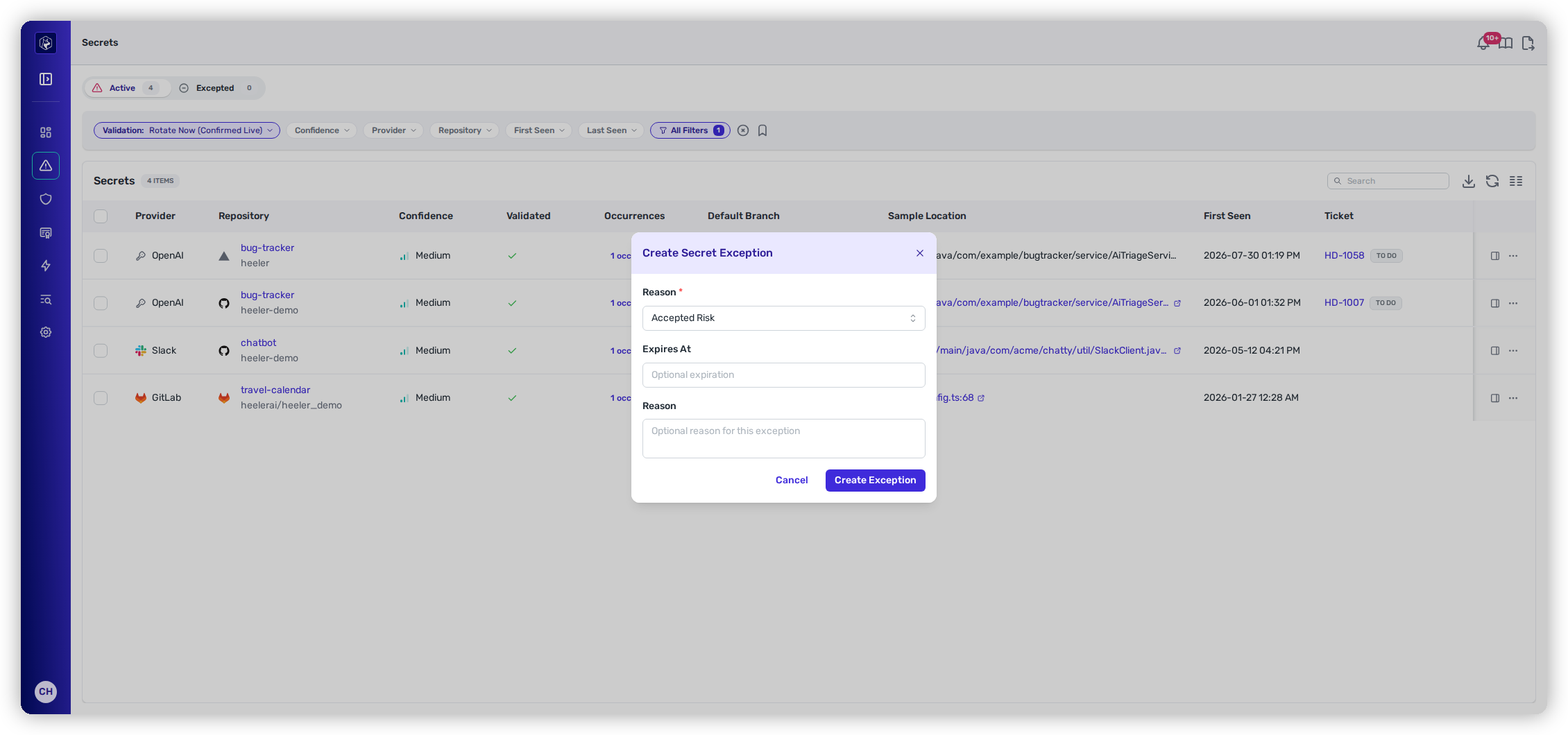
* **Create Exception** — accept or dismiss the secret. It opens the **Create Secret Exception** modal:
  * **Reason** *(required)* — **Accepted Risk** (the default) or **False Positive**.
  * **Expires At** *(optional)* — an auto-revert date (today or later).
  * **Reason** *(optional)* — a free-text note justifying the exception. (Both fields are labelled "Reason" in the UI — the first is the required category, the second your note.)
* **Push to Jira / Linear / GitHub** — open a tracking ticket. Once a ticket is linked, that entry flips to **Unlink from Jira/Linear/GitHub**.

<figure><img src="https://414480750-files.gitbook.io/~/files/v0/b/gitbook-x-prod.appspot.com/o/spaces%2FXP3dp2kecwKA2KvYkntz%2Fuploads%2Fgit-blob-1ffc587d5a1d204f7858d12c3245186e68d04539%2Fcc-secrets-exception.png?alt=media" alt="The Create Secret Exception modal defaulting to Accepted Risk."><figcaption><p>Create an exception — Accepted Risk or False Positive, with an optional expiry and note.</p></figcaption></figure>

Exceptions are **created**, not edited — there's no "edit" action; adjust one by removing and recreating it. Excepted secrets move to the **Excepted** view, and can be lifted there per-row or in bulk with **Remove Exception**.

### Excepting a whole rule category

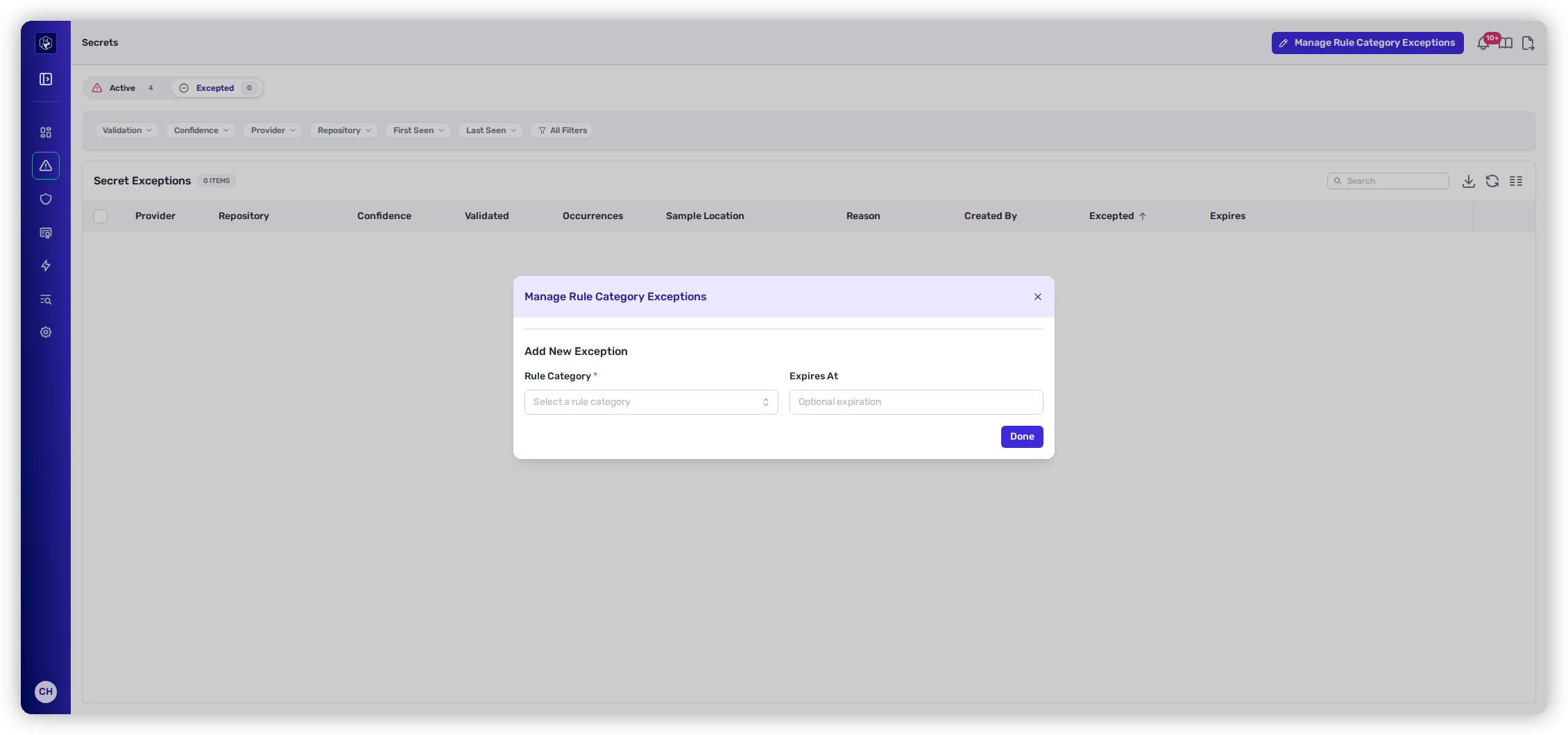
For broader suppression, **Manage Rule Category Exceptions** — the button on the **Excepted** view, available to administrators — excepts an entire **detector category** at once (Adobe, AWS, Anthropic, GitHub, GitLab, Google, and dozens more). The dialog is a manager, not just a form:

* **Add New Exception** — pick a **Rule Category** *(required)* and an optional **Expires At**, then **Done**. Categories you've already excepted drop out of the picker.
* **Existing exceptions** are listed with their **Rule Category**, **Created**, **Expires**, and **Created By**, each with a **delete** (trash) action to lift the category exception.

<figure><img src="https://414480750-files.gitbook.io/~/files/v0/b/gitbook-x-prod.appspot.com/o/spaces%2FXP3dp2kecwKA2KvYkntz%2Fuploads%2Fgit-blob-7ec04d764b0f88a32bbe5ed92bc0d1156c100cbc%2Fcc-secrets-rulecat.png?alt=media" alt="The Manage Rule Category Exceptions dialog."><figcaption><p>Rule-category exceptions suppress a whole detector category — add one, or remove an existing one.</p></figcaption></figure>

### Repository-level secret filters

To suppress noise at the source, a repository's own settings carry secret filters — **Catalog → Repositories →&#x20;*****repository*****&#x20;→ Settings → Secrets**. Three filters are available, and **saving any change retriggers secret scanning for that repository** (a "Repository secret settings saved and scan queued" confirmation appears):

| Filter                         | What it ignores                                                                    |
| ------------------------------ | ---------------------------------------------------------------------------------- |
| **Ignored Secret Confidences** | Findings at a chosen confidence level (e.g. suppress all Low-confidence).          |
| **Ignored Secret Rule IDs**    | Specific normalized rule IDs — e.g. `aws.2`, `gitlab.4` (press Enter to add each). |
| **Ignored File Paths**         | Findings from exact file paths (press Enter to add each).                          |

## Worked example

See this inside the full secret-containment workflow:

{% content-ref url="/pages/Uob7OCZa5KdOTPEIOxnt" %}
[Contain a Leaked Secret](/mrecEO40m5D6bt7Pq5pE/solutions-and-use-cases/contain-a-leaked-secret.md)
{% endcontent-ref %}

## Related

* [Supported Secret Types](/mrecEO40m5D6bt7Pq5pE/reference/supported-secret-types.md) — the full detector catalog.
* [Secrets Guardrails](/mrecEO40m5D6bt7Pq5pE/prevent/pr-guardrails/guardrail-types/secrets-guardrails.md) — block secrets at the pull request.


---

# Agent Instructions
This documentation is published with GitBook. GitBook is the documentation platform designed so that both humans and AI agents can read, navigate, and reason over technical content effectively. Learn more at gitbook.com.

## Querying This Documentation
If you need additional information that is not directly available in this page, you can query the documentation dynamically by asking a question.

Perform an HTTP GET request on the current page URL with the `ask` query parameter, and the optional `goal` query parameter:

```
GET https://docs.heeler.com/mrecEO40m5D6bt7Pq5pE/findings/secrets/findings.md?ask=<question>&goal=<endgoal>
```

`ask` is the immediate question: it should be specific, self-contained, and written in natural language.
`goal` is optional and describes the broader end goal you are ultimately trying to accomplish on behalf of the user. GitBook uses it to tailor the answer towards what is most useful for that goal.

The response will contain a direct answer to the question and relevant excerpts and sources from the documentation.

Use this mechanism when the answer is not explicitly present in the current page, you need clarification or additional context, or you want to retrieve related documentation sections.