> For the complete documentation index, see [llms.txt](https://docs.heeler.com/mrecEO40m5D6bt7Pq5pE/llms.txt). Markdown versions of documentation pages are available by appending `.md` to page URLs; this page is available as [Markdown](https://docs.heeler.com/mrecEO40m5D6bt7Pq5pE/get-started/messaging/slack.md).
# Slack
Connect Slack to Heeler over OAuth so workflows can post notifications to your channels.
Heeler integrates with Slack to post workflow notifications and enable collaboration. It connects over **OAuth** — install the Heeler Slack app and grant access.
{% hint style="info" %}
This is the **setup** page. Once the app is connected, the same integration also powers **interactive querying** from Slack — slash commands and the `@Heeler` assistant. See [Heeler in Slack](/mrecEO40m5D6bt7Pq5pE/operate/heeler-in-slack.md).
{% endhint %}
## What Heeler needs
* View basic information about public channels and people in your workspace.
* View profile details about people.
* Send messages as `@heeler`.
* Upload, edit, and delete files as the Heeler Security App.
## Connect Slack
{% stepper %}
{% step %}
### Add the integration
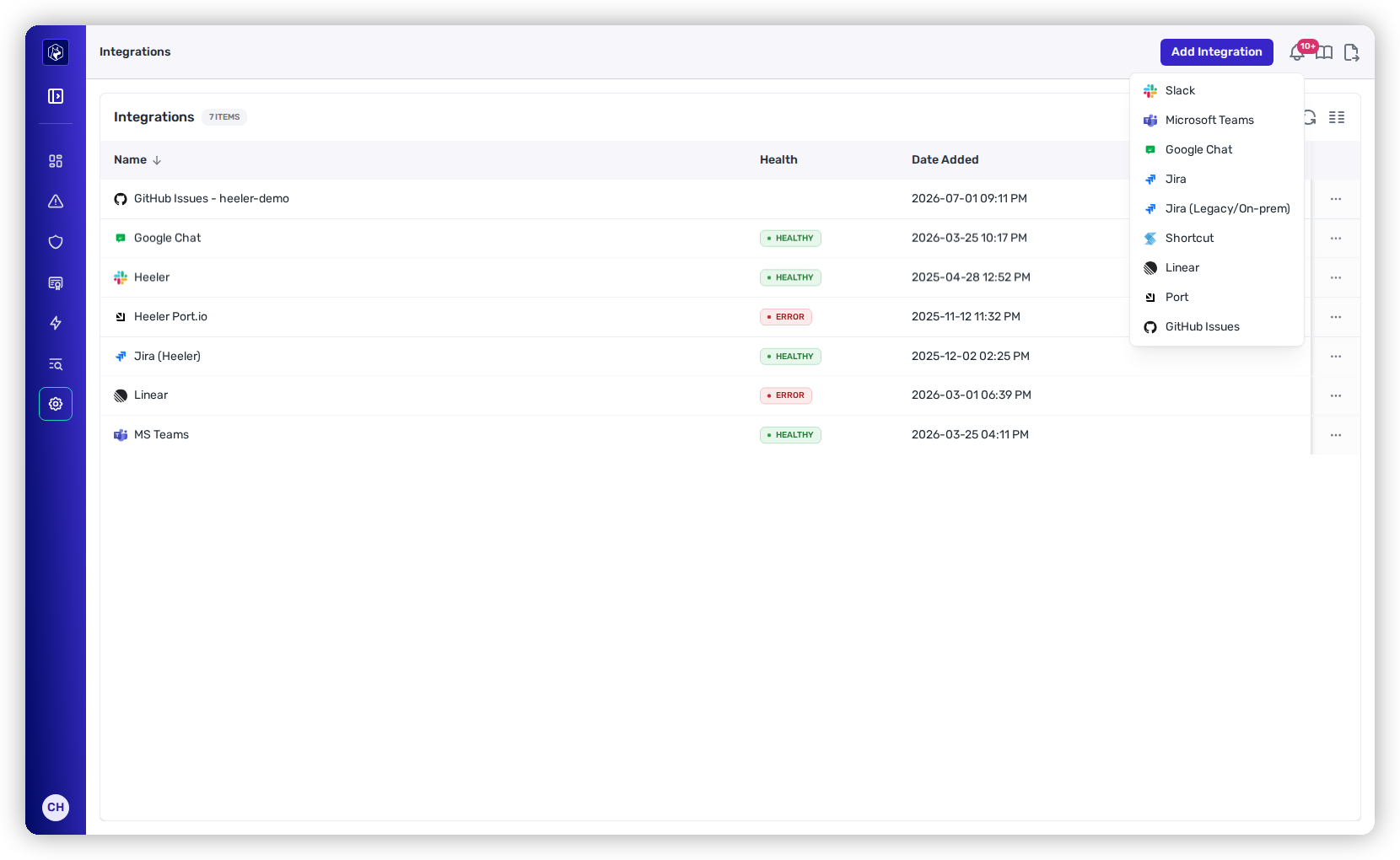
Go to **Administration → Integrations → Add Integration → Slack**.
Add Integration → Slack.
{% endstep %}
{% step %}
### Authorize
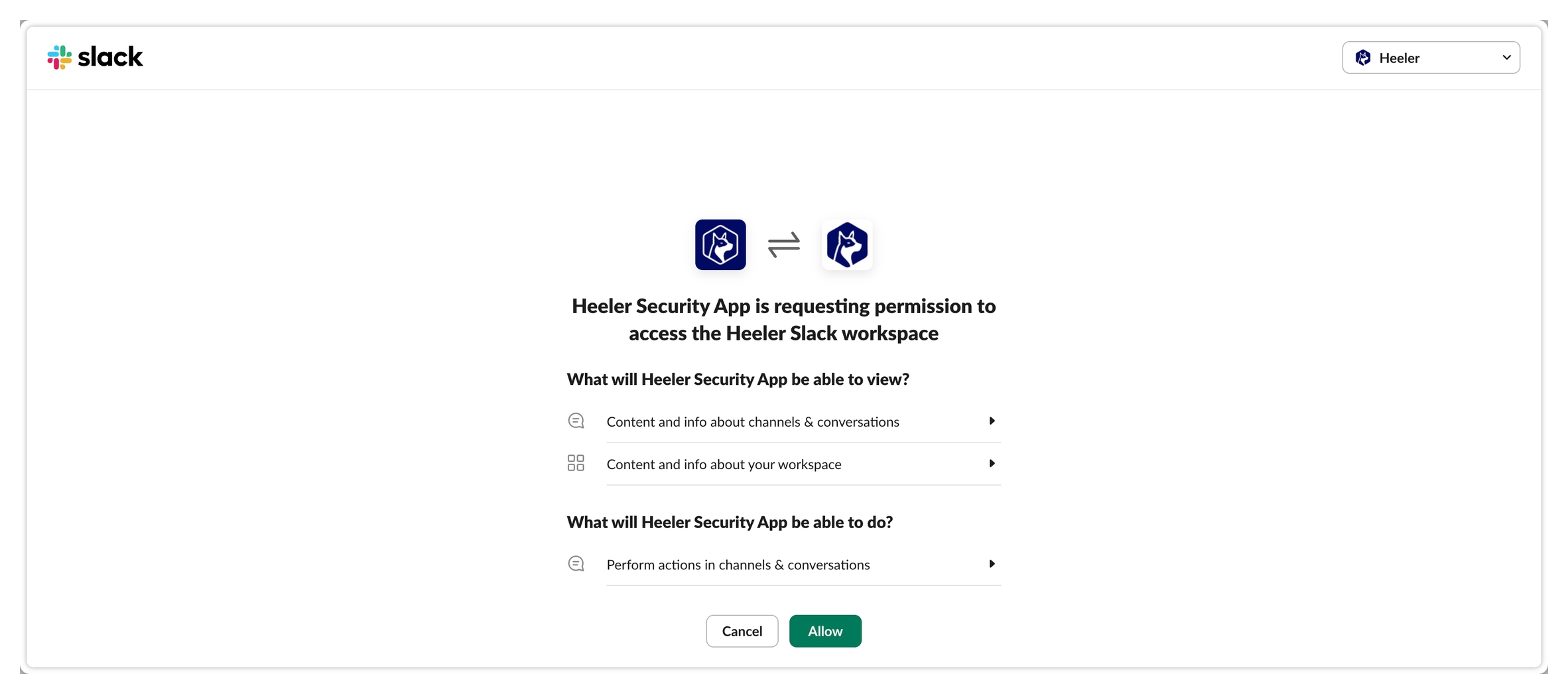
Select the correct Slack workspace to connect.
Select the Slack workspace to connect.
Then review the permissions and click **Allow**.
Review the permissions and click Allow.
{% endstep %}
{% step %}
### Verify
The integration shows **Healthy**. Slack is now available in [Workflows](/mrecEO40m5D6bt7Pq5pE/operate/workflows.md) and [team routing](/mrecEO40m5D6bt7Pq5pE/get-started/map-your-organization/team-ticket-settings.md).
{% endstep %}
{% endstepper %}
{% hint style="warning" %}
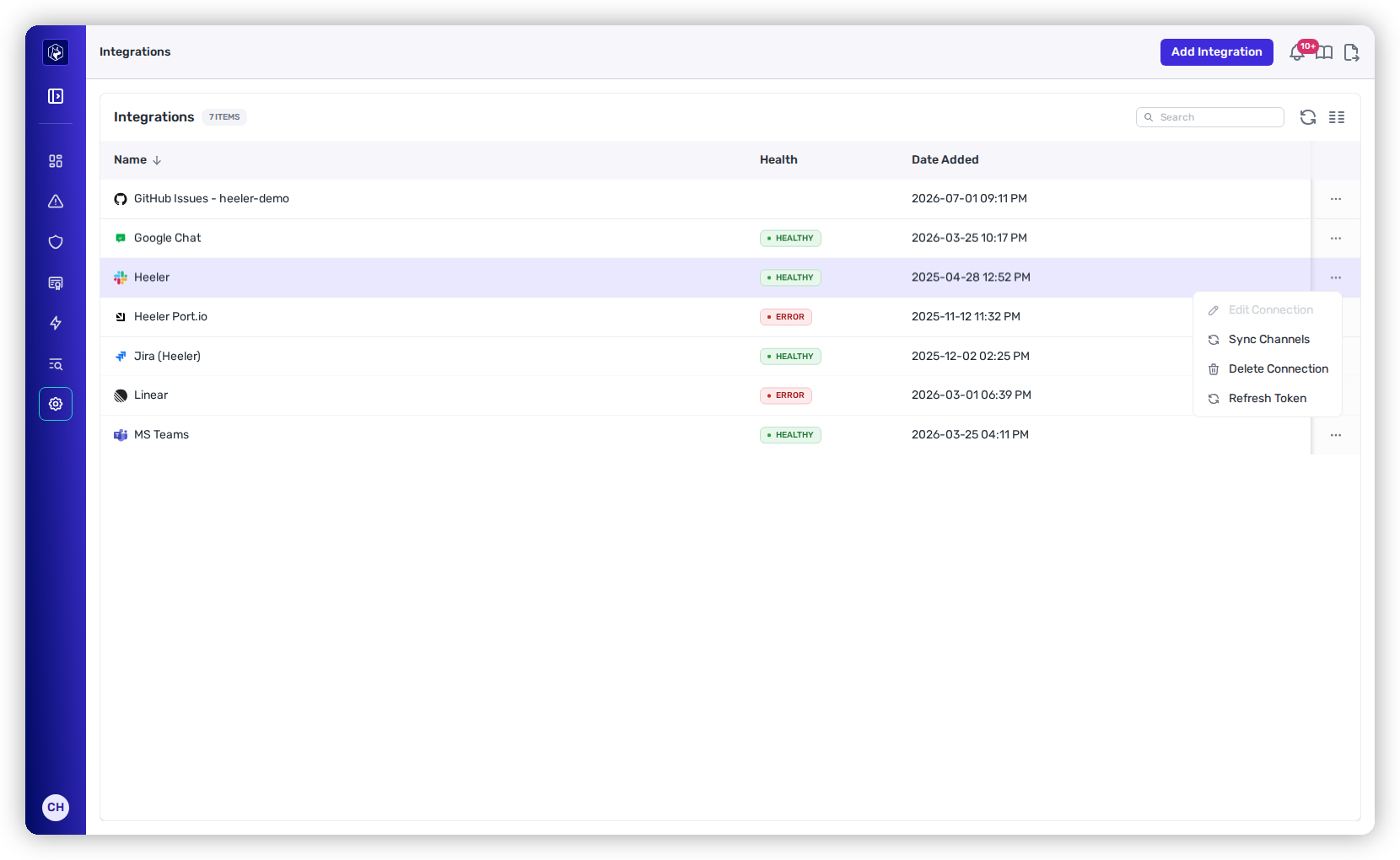
**Private channels.** By default Heeler can't see private channels. To use one, **invite `@heeler` to it in Slack** — it then becomes selectable as a messaging target in Heeler. Heeler re-reads the workspace's channel list every 12 hours; to pick the channel up straight away, open the **⋯** menu on the Slack row and choose **Sync Channels**.
{% endhint %}
## Refreshing credentials
Heeler uses short-lived credentials refreshed automatically. If the connection breaks, open the **⋯** menu on the Slack row and choose **Refresh Token**.
Refresh Token restores the connection if it breaks.
## Related
* [Heeler in Slack](/mrecEO40m5D6bt7Pq5pE/operate/heeler-in-slack.md) — query findings, SLO status, and vulnerabilities with slash commands and the `@Heeler` assistant once the app is connected.
* [Team Ticket Settings](/mrecEO40m5D6bt7Pq5pE/get-started/map-your-organization/team-ticket-settings.md) — set each team's Slack channel for team-routed notifications.
---
# Agent Instructions
This documentation is published with GitBook. GitBook is the documentation platform designed so that both humans and AI agents can read, navigate, and reason over technical content effectively. Learn more at gitbook.com.
## Querying This Documentation
If you need additional information that is not directly available in this page, you can query the documentation dynamically by asking a question.
Perform an HTTP GET request on the current page URL with the `ask` query parameter, and the optional `goal` query parameter:
```
GET https://docs.heeler.com/mrecEO40m5D6bt7Pq5pE/get-started/messaging/slack.md?ask=&goal=
```
`ask` is the immediate question: it should be specific, self-contained, and written in natural language.
`goal` is optional and describes the broader end goal you are ultimately trying to accomplish on behalf of the user. GitBook uses it to tailor the answer towards what is most useful for that goal.
The response will contain a direct answer to the question and relevant excerpts and sources from the documentation.
Use this mechanism when the answer is not explicitly present in the current page, you need clarification or additional context, or you want to retrieve related documentation sections.