> For the complete documentation index, see [llms.txt](https://docs.heeler.com/mrecEO40m5D6bt7Pq5pE/llms.txt). Markdown versions of documentation pages are available by appending `.md` to page URLs; this page is available as [Markdown](https://docs.heeler.com/mrecEO40m5D6bt7Pq5pE/get-started/registries-and-artifacts/artifactory.md).

# Artifactory

Connect JFrog Artifactory so Heeler can analyze the images and artifacts you run — directly, or through the On-Premises Broker.

Heeler connects to **JFrog Artifactory** to analyze the container **images** and first-party **artifacts** in your environment. For an Artifactory instance inside your network, Heeler reaches it through the [On-Premises Broker](/mrecEO40m5D6bt7Pq5pE/get-started/registries-and-artifacts/on-premises-broker.md).

{% hint style="info" %}
On the **Add Registry** menu, this provider is listed as **JFrog**.
{% endhint %}

## Before you start

* **Administrator** role in Heeler.
* A **Heeler-specific JFrog account** (or a group it belongs to) with **Read** on **Any** repository, and permission to generate a **reference token** for it.
* For an on-prem instance, the [On-Premises Broker](/mrecEO40m5D6bt7Pq5pE/get-started/registries-and-artifacts/on-premises-broker.md) set up with network access to Artifactory **before** you add the registry.

## Step 1 — Create a JFrog user and token

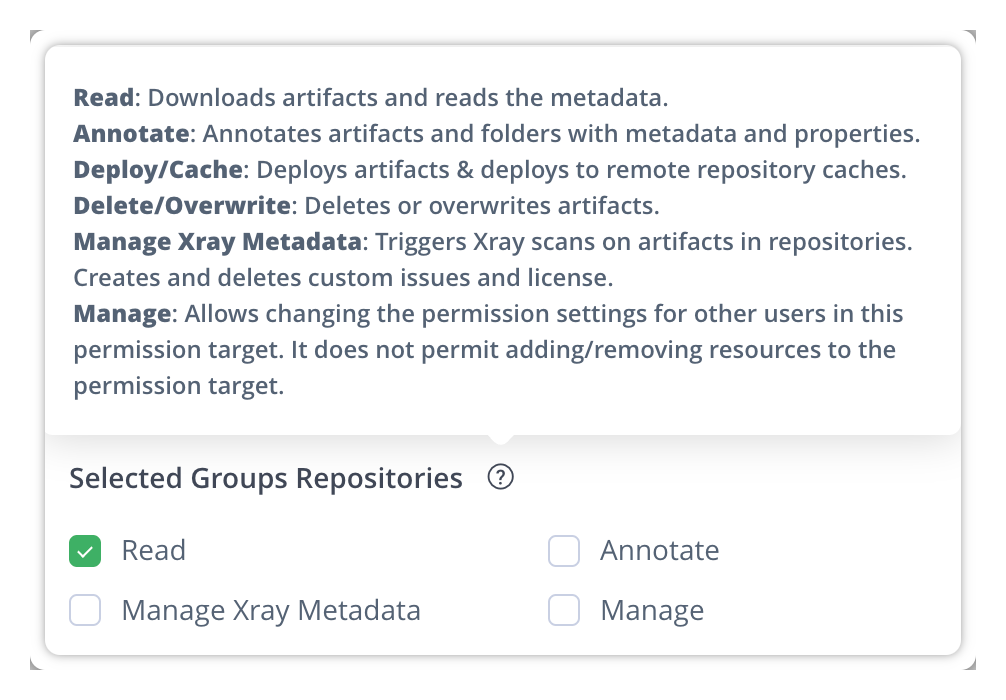
Create a **Heeler-specific account** with the minimum permissions, then generate a **reference token** for it (see JFrog's [reference token documentation](https://jfrog.com/help/r/platform-api-key-deprecation-and-the-new-reference-tokens/what-is-a-reference-token)). The JFrog permission should grant **Read** on **Any** repository (applied to the account, or to a group it belongs to).

<figure><img src="https://414480750-files.gitbook.io/~/files/v0/b/gitbook-x-prod.appspot.com/o/spaces%2FXP3dp2kecwKA2KvYkntz%2Fuploads%2Fgit-blob-530ebc63c8fbcc931f39330b9fd58f88bb512213%2Fcc-reg-jfrog-01.png?alt=media" alt="JFrog permission settings with Read checked for the selected repositories."><figcaption><p>Grant <strong>Read</strong> on <strong>Any</strong> repository to the Heeler account or its group.</p></figcaption></figure>

<figure><img src="https://414480750-files.gitbook.io/~/files/v0/b/gitbook-x-prod.appspot.com/o/spaces%2FXP3dp2kecwKA2KvYkntz%2Fuploads%2FeKZzjT7Xn7RbePM51VZ8%2FRepository%20-%20gimp.png?alt=media&amp;token=bd258d46-7a9f-4f80-9a6e-e56f1d9e2ab7" alt="JFrog repository selector set to Any repository for the permission target."><figcaption><p>Set the permission's repository target to <strong>Any</strong> so Heeler can read every repo it needs.</p></figcaption></figure>

Get the registry **domain** from your JFrog URL — e.g. for `https://acme.jfrog.io/ui/` the domain is `acme.jfrog.io`.

{% hint style="info" %}
For an on-prem instance, [set up the Broker](/mrecEO40m5D6bt7Pq5pE/get-started/registries-and-artifacts/on-premises-broker.md) with network access to Artifactory **before** adding the registry.
{% endhint %}

## Step 2 — Add Artifactory in Heeler

{% stepper %}
{% step %}

### Open the modal

Go to **Connections → Registries → Add Registry → JFrog**.
{% endstep %}

{% step %}

### Configure it

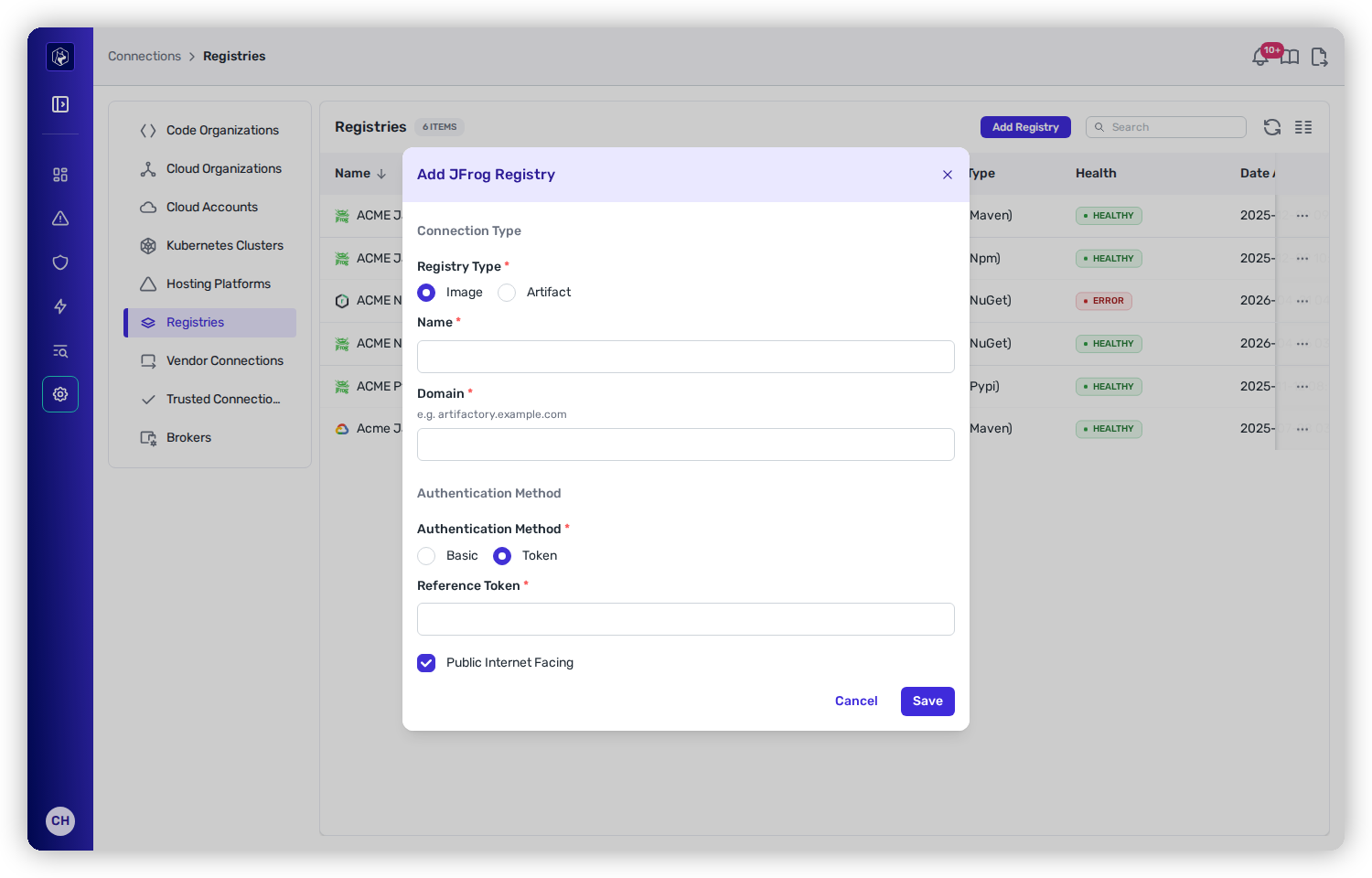
* **Registry Type** — **Image** (container images) or **Artifact** (first-party libraries). For both, create two separate connections.
* **Artifact Type** (Artifact only) — Maven, NPM, NuGet, or PyPI.
* **Name** — a label for the connection.
* **Domain** — the Artifactory domain (e.g. `acme.jfrog.io`).
* **Authentication Method** — **Basic** (Username + Password) or **Token** (Reference Token).
* **Paths** (Artifact only) — one or more repository paths Heeler should collect from. Point these at the **local** repositories your teams publish into — see the note below.
* **Public Internet Facing** — check if the instance is reachable from Heeler's cloud. Leave **unchecked** for an on-prem instance reached via the Broker (Heeler won't validate credentials directly until it's linked).

<figure><img src="https://414480750-files.gitbook.io/~/files/v0/b/gitbook-x-prod.appspot.com/o/spaces%2FXP3dp2kecwKA2KvYkntz%2Fuploads%2Fgit-blob-c4bf057d8bdde81f1e35b12311a5fdcf37c218c6%2Fcc-gs-reg-jfrog-form.png?alt=media" alt="The Add Registry modal for JFrog, showing Registry Type (Image/Artifact), Name, Domain, Authentication Method (Basic/Token), and Public Internet Facing."><figcaption><p>JFrog Artifactory supports image or artifact analysis, with basic or token auth.</p></figcaption></figure>

{% hint style="warning" %}
**Use local repository paths.** Artifactory repositories come in three types: **local** (holds the artifacts your teams publish), **remote** (a caching proxy in front of a public registry such as Maven Central or npmjs), and **virtual** (aggregates local and remote behind one path).

Adding a registry tells Heeler the packages at those paths are yours, so a remote or virtual path asserts that public open-source packages are your first-party code — which distorts the first-party/third-party split wherever it's used, including the **Classification** filter on [Dependencies](/mrecEO40m5D6bt7Pq5pE/catalog/dependencies.md) and the **Exclude first-party packages** option in SBOM exports.

Enter local repository paths only. In Artifactory, each repository's type is shown under **Administration → Repositories**.
{% endhint %}

Click **Save**. For a public-facing instance, **Health** updates to **Healthy** once credentials validate.

<figure><img src="https://414480750-files.gitbook.io/~/files/v0/b/gitbook-x-prod.appspot.com/o/spaces%2FXP3dp2kecwKA2KvYkntz%2Fuploads%2Fgit-blob-aa51d44feab89357ac638735054b553b5148241f%2Fcc-gs-reg-jfrog-healthy.png?alt=media" alt="The Registries list showing the JFrog Artifactory connection with a Healthy status."><figcaption><p>Once credentials validate, the connection reports <strong>Healthy</strong>.</p></figcaption></figure>
{% endstep %}

{% step %}

### Link the Broker (on-prem only)

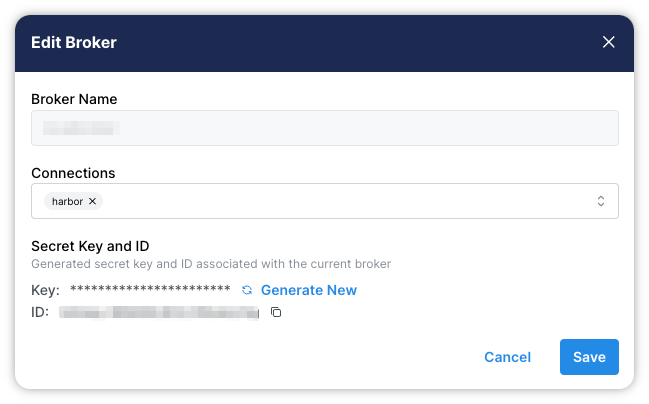
Go to **Connections → Brokers**, **Edit** the broker, select the Artifactory connection by name, and **Save**. See [On-Premises Broker](/mrecEO40m5D6bt7Pq5pE/get-started/registries-and-artifacts/on-premises-broker.md).

<figure><img src="https://414480750-files.gitbook.io/~/files/v0/b/gitbook-x-prod.appspot.com/o/spaces%2FXP3dp2kecwKA2KvYkntz%2Fuploads%2FnMkgn1nvueg1dVPYendP%2Fbroker_harbor.png?alt=media&amp;token=dea3e5a5-b70f-42d8-a5e7-0de38783b8c9" alt="The Edit Broker modal with the Artifactory connection selected in the broker&#x27;s connection list."><figcaption><p>Select the Artifactory connection by name so it runs through the broker.</p></figcaption></figure>
{% endstep %}
{% endstepper %}

## You're done when…

* [ ] The Artifactory connection shows **Healthy** under **Connections → Registries** (for an on-prem instance, after the Broker is linked).
* [ ] Images or artifacts from Artifactory correlate in the [Catalog](/mrecEO40m5D6bt7Pq5pE/catalog.md).
* [ ] Findings begin populating — see [Quickstart](/mrecEO40m5D6bt7Pq5pE/get-started/quickstart.md).

## Troubleshooting

<table><thead><tr><th width="300">Symptom</th><th>Fix</th></tr></thead><tbody><tr><td>Connection shows <strong>Unhealthy</strong></td><td>The token or password is wrong or expired, or the account lacks <strong>Read</strong> on the repositories. Reapply <strong>Read</strong> on <strong>Any</strong> repository and regenerate the reference token.</td></tr><tr><td>Nothing appears in the Catalog</td><td>Confirm the <strong>Domain</strong> is the host only (e.g. <code>acme.jfrog.io</code>, no path) and, for Artifact mode, the <strong>Paths</strong> you entered.</td></tr><tr><td>On-prem instance never validates</td><td>The connection isn't linked to the Broker, or the Broker can't reach Artifactory. Link it under <strong>Connections → Brokers</strong> and confirm network access.</td></tr></tbody></table>

## Related

* [On-Premises Broker](/mrecEO40m5D6bt7Pq5pE/get-started/registries-and-artifacts/on-premises-broker.md) — required for on-prem Artifactory.
* [Connect Registries and Artifacts](/mrecEO40m5D6bt7Pq5pE/get-started/registries-and-artifacts.md) — the common flow and image-vs-artifact modes.


---

# Agent Instructions
This documentation is published with GitBook. GitBook is the documentation platform designed so that both humans and AI agents can read, navigate, and reason over technical content effectively. Learn more at gitbook.com.

## Querying This Documentation
If you need additional information that is not directly available in this page, you can query the documentation dynamically by asking a question.

Perform an HTTP GET request on the current page URL with the `ask` query parameter, and the optional `goal` query parameter:

```
GET https://docs.heeler.com/mrecEO40m5D6bt7Pq5pE/get-started/registries-and-artifacts/artifactory.md?ask=<question>&goal=<endgoal>
```

`ask` is the immediate question: it should be specific, self-contained, and written in natural language.
`goal` is optional and describes the broader end goal you are ultimately trying to accomplish on behalf of the user. GitBook uses it to tailor the answer towards what is most useful for that goal.

The response will contain a direct answer to the question and relevant excerpts and sources from the documentation.

Use this mechanism when the answer is not explicitly present in the current page, you need clarification or additional context, or you want to retrieve related documentation sections.