> For the complete documentation index, see [llms.txt](https://docs.heeler.com/mrecEO40m5D6bt7Pq5pE/llms.txt). Markdown versions of documentation pages are available by appending `.md` to page URLs; this page is available as [Markdown](https://docs.heeler.com/mrecEO40m5D6bt7Pq5pE/get-started/registries-and-artifacts/harbor.md).

# Harbor

Connect the Harbor registry so Heeler can analyze the container images you run — through the On-Premises Broker for internal instances.

Heeler connects to the **Harbor** open-source registry to analyze the **container images** in your environment. Harbor is typically internal, so Heeler reaches it through the [On-Premises Broker](/mrecEO40m5D6bt7Pq5pE/get-started/registries-and-artifacts/on-premises-broker.md).

## Before you start

* Heeler (or the Heeler Broker) has network access to the Harbor instance.
* You can create a Harbor user with the **`Guest`** role that has read access to the registries Heeler will monitor.

## Step 1 — Create a Harbor user

1. In Harbor, create a user with the **`Guest`** role.
2. Assign that user to a Harbor **project** containing the registries Heeler should access.

## Step 2 — Add Harbor in Heeler

{% stepper %}
{% step %}

### Open the modal

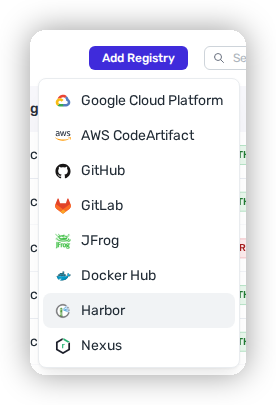
Go to **Connections → Registries → Add Registry → Harbor**.

<figure><img src="https://414480750-files.gitbook.io/~/files/v0/b/gitbook-x-prod.appspot.com/o/spaces%2FXP3dp2kecwKA2KvYkntz%2Fuploads%2Fgit-blob-6bb08d251faa526889bec0bda944e0539ceba3fb%2Fcc-gs-reg-harbor-add.png?alt=media" alt="The Add Registry menu with Harbor selected."><figcaption><p>Choose <strong>Harbor</strong> from the <strong>Add Registry</strong> menu.</p></figcaption></figure>
{% endstep %}

{% step %}

### Configure it

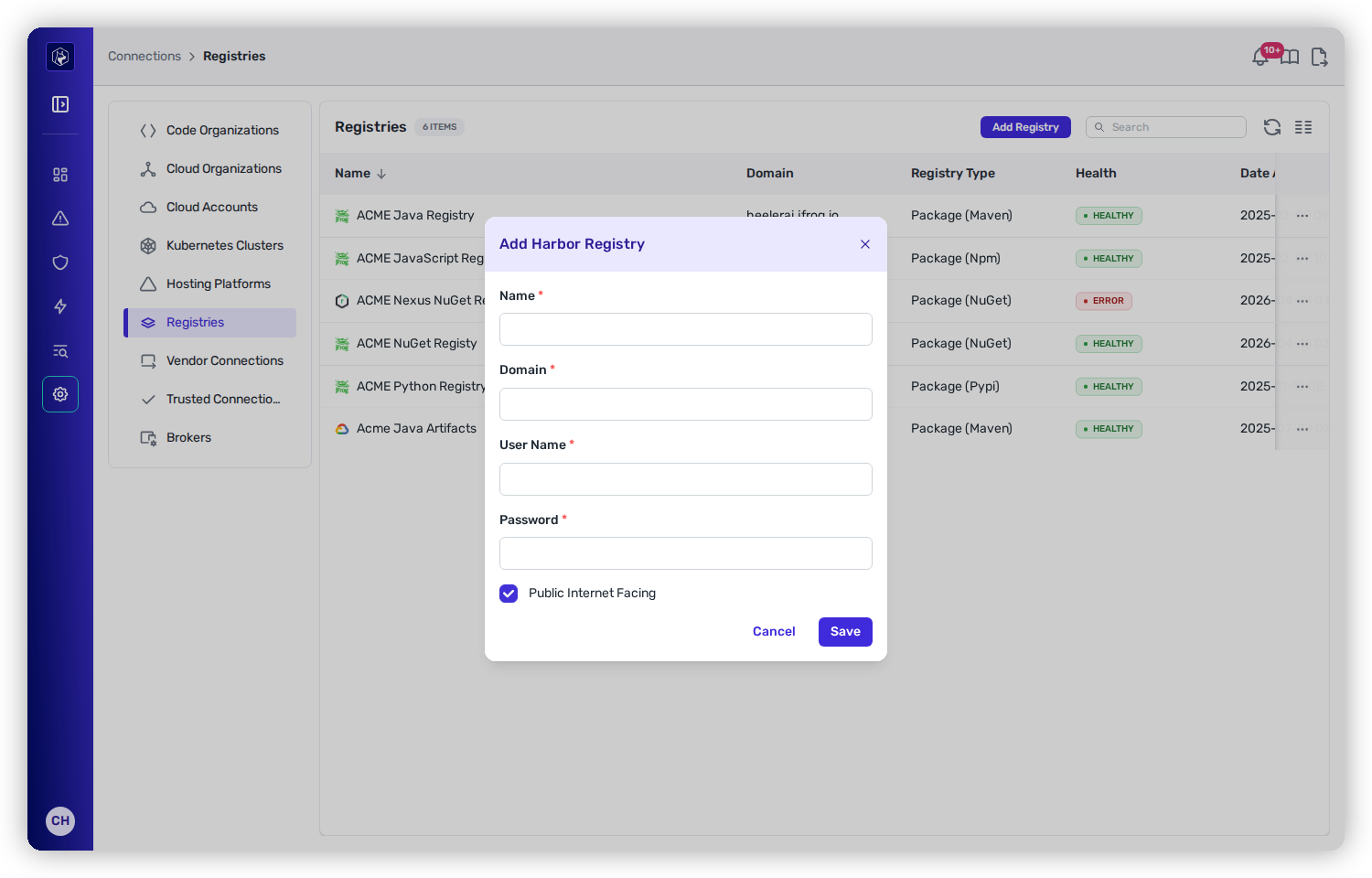
* **Name** — any label for the connection.
* **Domain** — the URL or IP of the Harbor instance.
* **User Name** — the Harbor user Heeler authenticates as (a robot account works too — enter its name here).
* **Password** — that user's password (or robot secret).
* **Public Internet Facing** — check if reachable from Heeler's cloud; leave unchecked for an on-prem instance reached via the Broker.

<figure><img src="https://414480750-files.gitbook.io/~/files/v0/b/gitbook-x-prod.appspot.com/o/spaces%2FXP3dp2kecwKA2KvYkntz%2Fuploads%2Fgit-blob-f9c4e46ffb77b99693c458a89e4bb93a3e70cafe%2Fcc-gs-reg-harbor-form.png?alt=media" alt="The Add Registry modal for Harbor, showing Name, Domain, User Name, and Password fields."><figcaption><p>Harbor connects with a Guest-role user and links to the Broker for on-prem instances.</p></figcaption></figure>

Click **Save**.
{% endstep %}

{% step %}

### Link the Broker

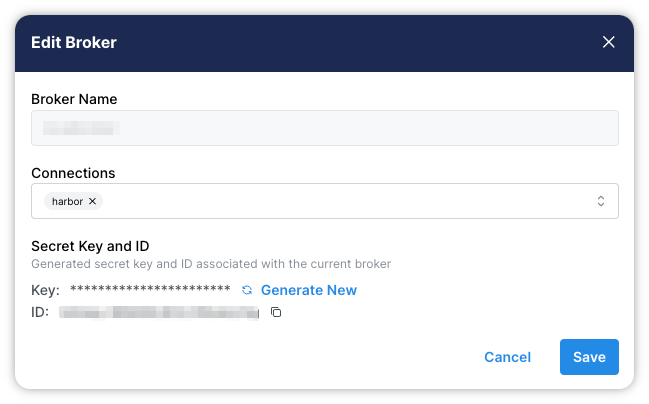
Go to **Connections → Brokers**, **Edit** the broker, select the Harbor connection by name, and **Save**. See [On-Premises Broker](/mrecEO40m5D6bt7Pq5pE/get-started/registries-and-artifacts/on-premises-broker.md).

<figure><img src="https://414480750-files.gitbook.io/~/files/v0/b/gitbook-x-prod.appspot.com/o/spaces%2FXP3dp2kecwKA2KvYkntz%2Fuploads%2FnMkgn1nvueg1dVPYendP%2Fbroker_harbor.png?alt=media&amp;token=dea3e5a5-b70f-42d8-a5e7-0de38783b8c9" alt="The Edit Broker modal with the Harbor connection selected in the broker&#x27;s connection list."><figcaption><p>Select the Harbor connection by name so it runs through the broker.</p></figcaption></figure>
{% endstep %}

{% step %}

### Verify

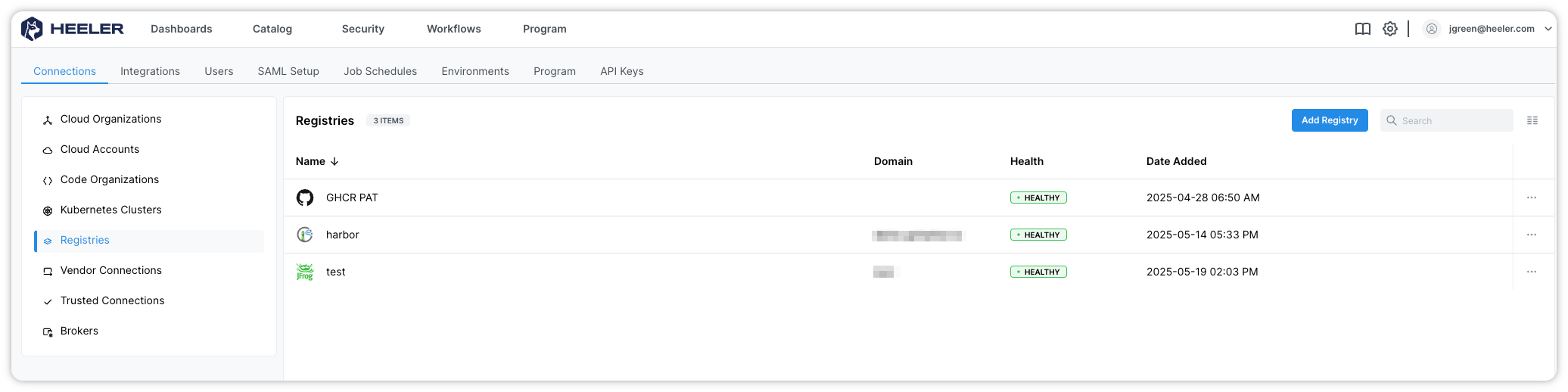
Under **Connections → Registries**, confirm the Harbor connection is **Healthy**.

<figure><img src="https://414480750-files.gitbook.io/~/files/v0/b/gitbook-x-prod.appspot.com/o/spaces%2FXP3dp2kecwKA2KvYkntz%2Fuploads%2Fh0pO86n5SNYGHIvaYUO3%2Fharbor_listing.png?alt=media&amp;token=1e1031d9-242a-42cc-9851-4605cc2ea1f2" alt="The Registries list showing the Harbor connection with a Healthy status."><figcaption><p>Find the Harbor connection in the registry list and confirm its status is <strong>Healthy</strong>.</p></figcaption></figure>
{% endstep %}
{% endstepper %}

## You're done when…

* [ ] The Harbor connection shows **Healthy** under **Connections → Registries** (for an on-prem instance, after the Broker is linked).
* [ ] Images from the linked Harbor project correlate in the [Catalog](/mrecEO40m5D6bt7Pq5pE/catalog.md).
* [ ] Findings begin populating — see [Quickstart](/mrecEO40m5D6bt7Pq5pE/get-started/quickstart.md).

## Troubleshooting

<table><thead><tr><th width="300">Symptom</th><th>Fix</th></tr></thead><tbody><tr><td>Connection shows <strong>Unhealthy</strong></td><td>The Harbor user or robot secret is wrong or expired, or the account lacks <strong>read</strong> (<code>Guest</code>) access. Confirm the role and re-enter the credentials.</td></tr><tr><td>Nothing appears in the Catalog</td><td>The user isn't assigned to the Harbor <strong>project</strong> containing the images, or the <strong>Domain</strong> is wrong.</td></tr><tr><td>On-prem instance never validates</td><td>The connection isn't linked to the Broker, or the Broker can't reach Harbor. Link it under <strong>Connections → Brokers</strong> and confirm network access.</td></tr></tbody></table>

## Related

* [On-Premises Broker](/mrecEO40m5D6bt7Pq5pE/get-started/registries-and-artifacts/on-premises-broker.md) — required for on-prem Harbor.
* [Connect Registries and Artifacts](/mrecEO40m5D6bt7Pq5pE/get-started/registries-and-artifacts.md) — the common flow.


---

# Agent Instructions
This documentation is published with GitBook. GitBook is the documentation platform designed so that both humans and AI agents can read, navigate, and reason over technical content effectively. Learn more at gitbook.com.

## Querying This Documentation
If you need additional information that is not directly available in this page, you can query the documentation dynamically by asking a question.

Perform an HTTP GET request on the current page URL with the `ask` query parameter, and the optional `goal` query parameter:

```
GET https://docs.heeler.com/mrecEO40m5D6bt7Pq5pE/get-started/registries-and-artifacts/harbor.md?ask=<question>&goal=<endgoal>
```

`ask` is the immediate question: it should be specific, self-contained, and written in natural language.
`goal` is optional and describes the broader end goal you are ultimately trying to accomplish on behalf of the user. GitBook uses it to tailor the answer towards what is most useful for that goal.

The response will contain a direct answer to the question and relevant excerpts and sources from the documentation.

Use this mechanism when the answer is not explicitly present in the current page, you need clarification or additional context, or you want to retrieve related documentation sections.