> For the complete documentation index, see [llms.txt](https://docs.heeler.com/mrecEO40m5D6bt7Pq5pE/llms.txt). Markdown versions of documentation pages are available by appending `.md` to page URLs; this page is available as [Markdown](https://docs.heeler.com/mrecEO40m5D6bt7Pq5pE/get-started/source-code-scm/azure-devops.md).

# Azure DevOps (PAT)

Connect an Azure DevOps organization to Heeler with a Personal Access Token to enable scanning, guardrails, and repository visibility.

Connect your Azure DevOps organization to Heeler with a **Personal Access Token (PAT)** to enable continuous security analysis, guardrail enforcement on pull requests, and visibility into your repositories, teams, and pipelines.

{% hint style="danger" %}
**Prefer** [**App registration / federated**](/mrecEO40m5D6bt7Pq5pE/get-started/source-code-scm/azure-devops-app-registration.md)**.** It is the recommended way to connect Azure DevOps: the identity is an application rather than a person, access tokens are issued automatically, and Heeler stores no secret. Microsoft has also announced the [retirement of global Personal Access Tokens in Azure DevOps](https://devblogs.microsoft.com/devops/retirement-of-global-personal-access-tokens-in-azure-devops/).

PATs remain supported. Use one when you can't create an app registration in your Entra tenant — [see how they compare](#app-registration-or-a-personal-access-token).
{% endhint %}

## App registration or a personal access token?

Both methods give Heeler the same thing: read access to your repositories, and the ability to post guardrail status and comments on pull requests. Neither is more capable than the other.

What differs is the **credential** behind the connection — how long it lives, whose identity it carries, and what happens to your Heeler connection when that identity changes. That's why app registration is the recommended choice:

|                       | App registration + federation *(recommended)*                                                         | Personal access token                                                                     |
| --------------------- | ----------------------------------------------------------------------------------------------------- | ----------------------------------------------------------------------------------------- |
| **Credential**        | Short-lived Microsoft Entra access token, typically valid for about an hour.                          | Long-lived reusable bearer token, potentially valid for up to a year.                     |
| **Rotation**          | New access tokens are issued automatically.                                                           | You create, replace, and revoke PATs manually.                                            |
| **Identity**          | A dedicated application / service-principal identity.                                                 | Tied to an individual user.                                                               |
| **Governance**        | Managed through Entra and Azure DevOps; supports centralized auditing and workload-identity policies. | Governed through Azure DevOps PAT policies, which may vary by organization.               |
| **Offboarding**       | Independent of employee accounts.                                                                     | Can break when the issuing user leaves, loses permissions, or has their account disabled. |
| **Compromise impact** | A stolen access token has a short useful lifetime.                                                    | A stolen PAT remains usable until it expires or is revoked.                               |

## Before you start

* An Azure DevOps organization with at least one project.
* **Project Collection Administrator** permission in Azure DevOps (required to create service hooks).
* **Administrator** role in Heeler.
* If your organization uses an **IP allow list**, allow Heeler's outbound IPs on **port 443**:
  * `44.221.229.40`
  * `52.73.231.96`

## Step 1 — Create a Personal Access Token

Create the PAT with a service account or administrator that has access to every project Heeler will monitor.

1. Sign in at `https://dev.azure.com/{your-organization}`.
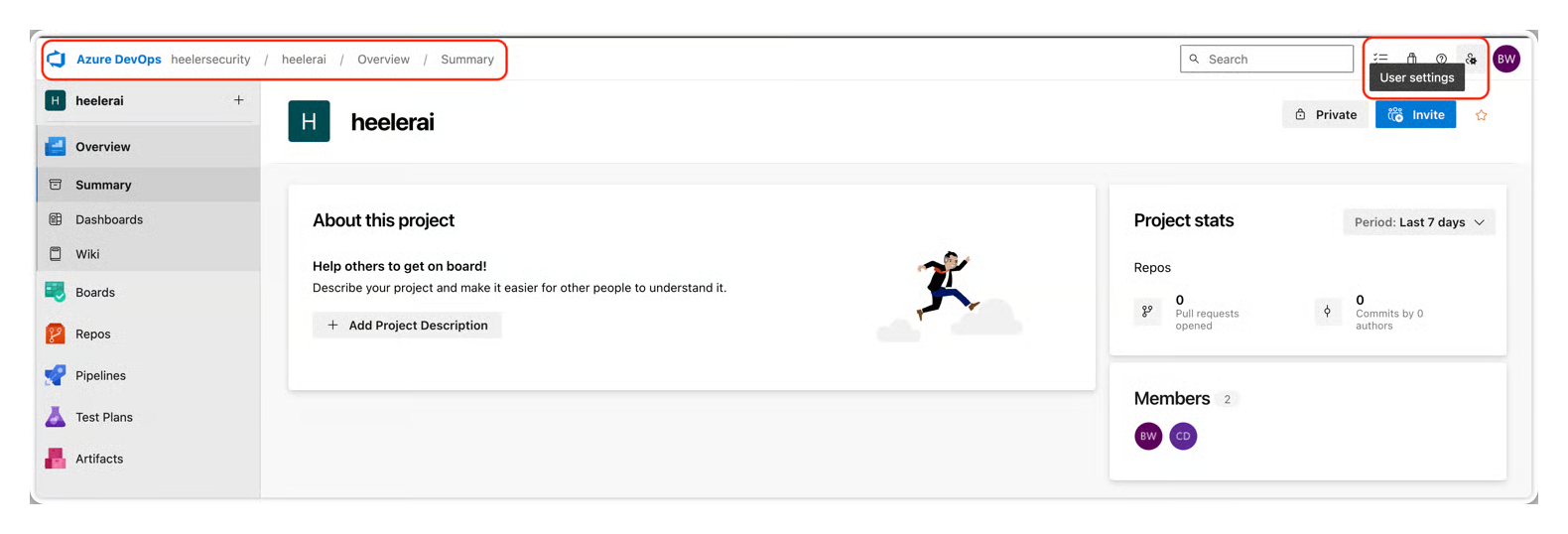
2. Open **User settings** (next to your profile icon) → **Personal access tokens** → **+ New Token**.

   <figure><img src="https://414480750-files.gitbook.io/~/files/v0/b/gitbook-x-prod.appspot.com/o/spaces%2FXP3dp2kecwKA2KvYkntz%2Fuploads%2Fgit-blob-5fcbffcf9fe4675b43dc0fb0531972f8ef66b28b%2Fcc-scm-adopat-01.png?alt=media" alt="An Azure DevOps project with the User settings icon highlighted in the top-right."><figcaption><p>Open <strong>User settings → Personal access tokens</strong>.</p></figcaption></figure>
3. Configure it:

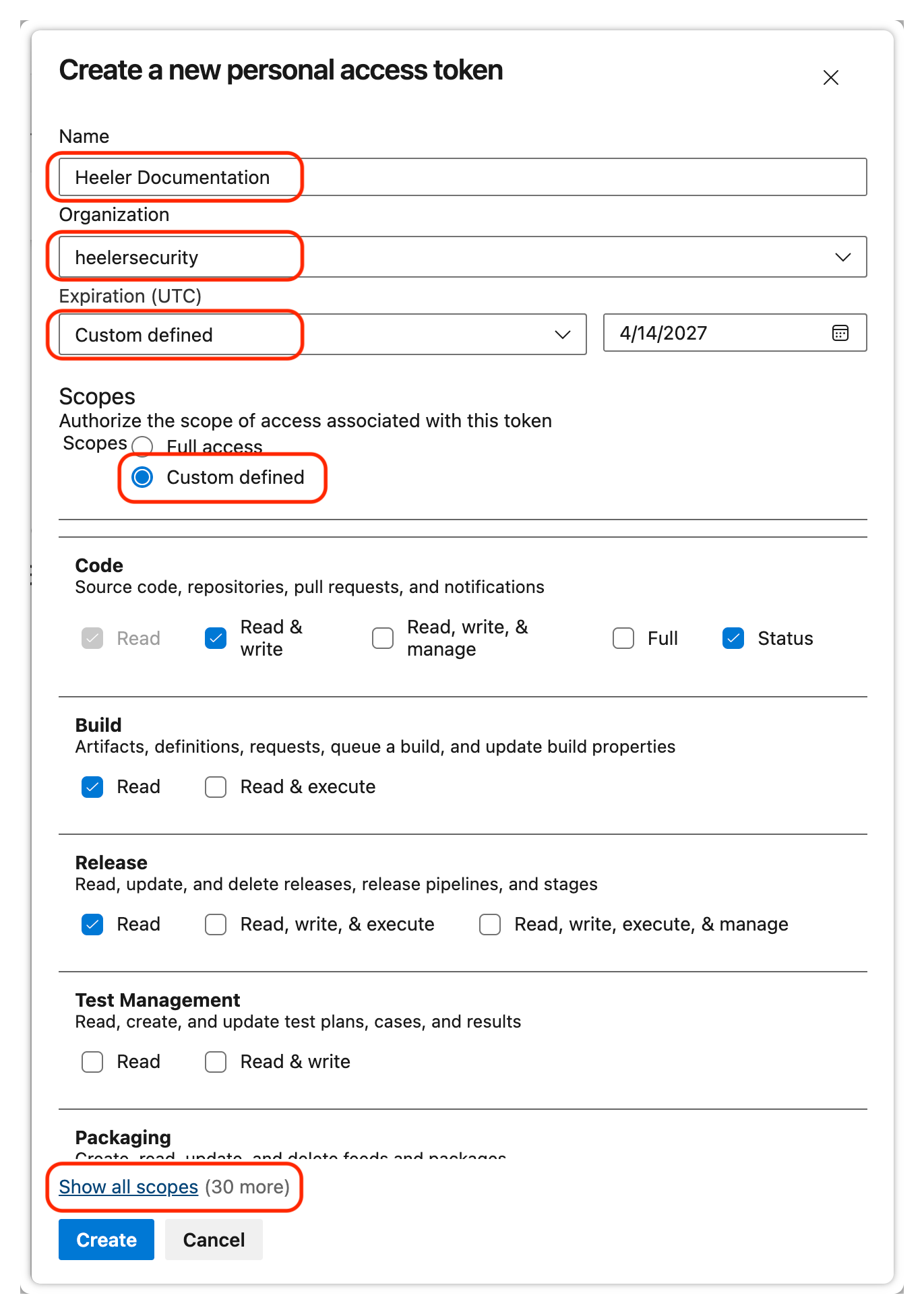
   * **Name** — e.g. `Heeler Security`.
   * **Organization** — your organization.
   * **Expiration** — the maximum, **365 days** (you'll rotate it before it expires).
   * **Scopes** — choose **Custom defined**, click **Show all scopes**, and select the scopes below.

   <figure><img src="https://414480750-files.gitbook.io/~/files/v0/b/gitbook-x-prod.appspot.com/o/spaces%2FXP3dp2kecwKA2KvYkntz%2Fuploads%2Fgit-blob-ccc7335743b48b754e76872a6abd8429d4abd4f8%2Fcc-scm-adopat-03.png?alt=media" alt="The Create a new personal access token dialog with Custom defined scopes: Code Read &#x26; write + Status, Build Read, Release Read, and Show all scopes."><figcaption><p>Choose <strong>Custom defined</strong> and select the required scopes (Show all scopes reveals the rest).</p></figcaption></figure>

### Required PAT scopes

<table><thead><tr><th width="220">Scope</th><th width="160">Level</th><th>Why it's needed</th></tr></thead><tbody><tr><td><strong>Build</strong></td><td>Read</td><td>Collect pipeline and build data for CI/CD visibility.</td></tr><tr><td><strong>Code</strong></td><td>Read &#x26; Write, Status</td><td>Clone repositories for SCA and SAST scanning, open fix branches and pull requests, and post guardrail pass/fail as status checks.</td></tr><tr><td><strong>Graph</strong></td><td>Read</td><td>Harvest user, team, and group membership.</td></tr><tr><td><strong>Project and Team</strong></td><td>Read</td><td>Discover projects and teams.</td></tr><tr><td><strong>Pull Request Threads</strong></td><td>Read &#x26; Write</td><td>Post guardrail violation summaries as PR comments.</td></tr><tr><td><strong>Release</strong></td><td>Read</td><td>Collect release data for deployment tracking.</td></tr></tbody></table>

4. Click **Create** and **copy the token immediately** — it isn't shown again.

<figure><img src="https://414480750-files.gitbook.io/~/files/v0/b/gitbook-x-prod.appspot.com/o/spaces%2FXP3dp2kecwKA2KvYkntz%2Fuploads%2FEjGnzIMRxgR2qvPXNXec%2Fpat%20copy%20--%20gimp.png?alt=media&amp;token=124cfb24-ef54-4432-bfa9-b5403d11e338" alt="The Azure DevOps dialog showing the newly created personal access token with a Copy button."><figcaption><p>Copy the token the moment it's created — Azure DevOps won't show it again.</p></figcaption></figure>

{% hint style="warning" %}
Store the token securely. If you lose it, you must create a new one.
{% endhint %}

## Step 2 — Connect Azure DevOps in Heeler

{% stepper %}
{% step %}

### Open Code Organizations

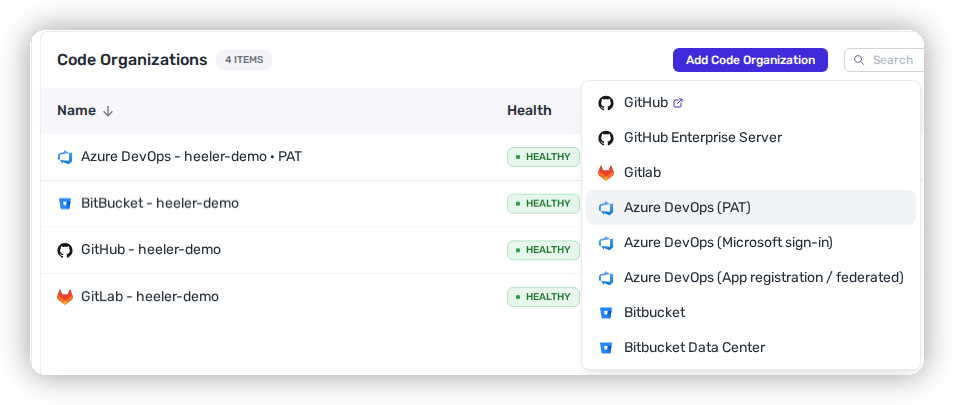
Click the **Settings** (gear) icon → **Connections → Code Organizations → Add Code Organization → Azure DevOps (PAT)**.

<figure><img src="https://414480750-files.gitbook.io/~/files/v0/b/gitbook-x-prod.appspot.com/o/spaces%2FXP3dp2kecwKA2KvYkntz%2Fuploads%2Fgit-blob-8fd921ba0709603a65d09a96e44ac63cebcf700a%2Fcc-scm-adopat-add-code-organization.png?alt=media" alt="The Heeler Code Organizations settings screen with the Add Code Organization button."><figcaption><p>From <strong>Connections → Code Organizations</strong>, click <strong>Add Code Organization</strong> and choose <strong>Azure DevOps (PAT)</strong>.</p></figcaption></figure>
{% endstep %}

{% step %}

### Enter the details

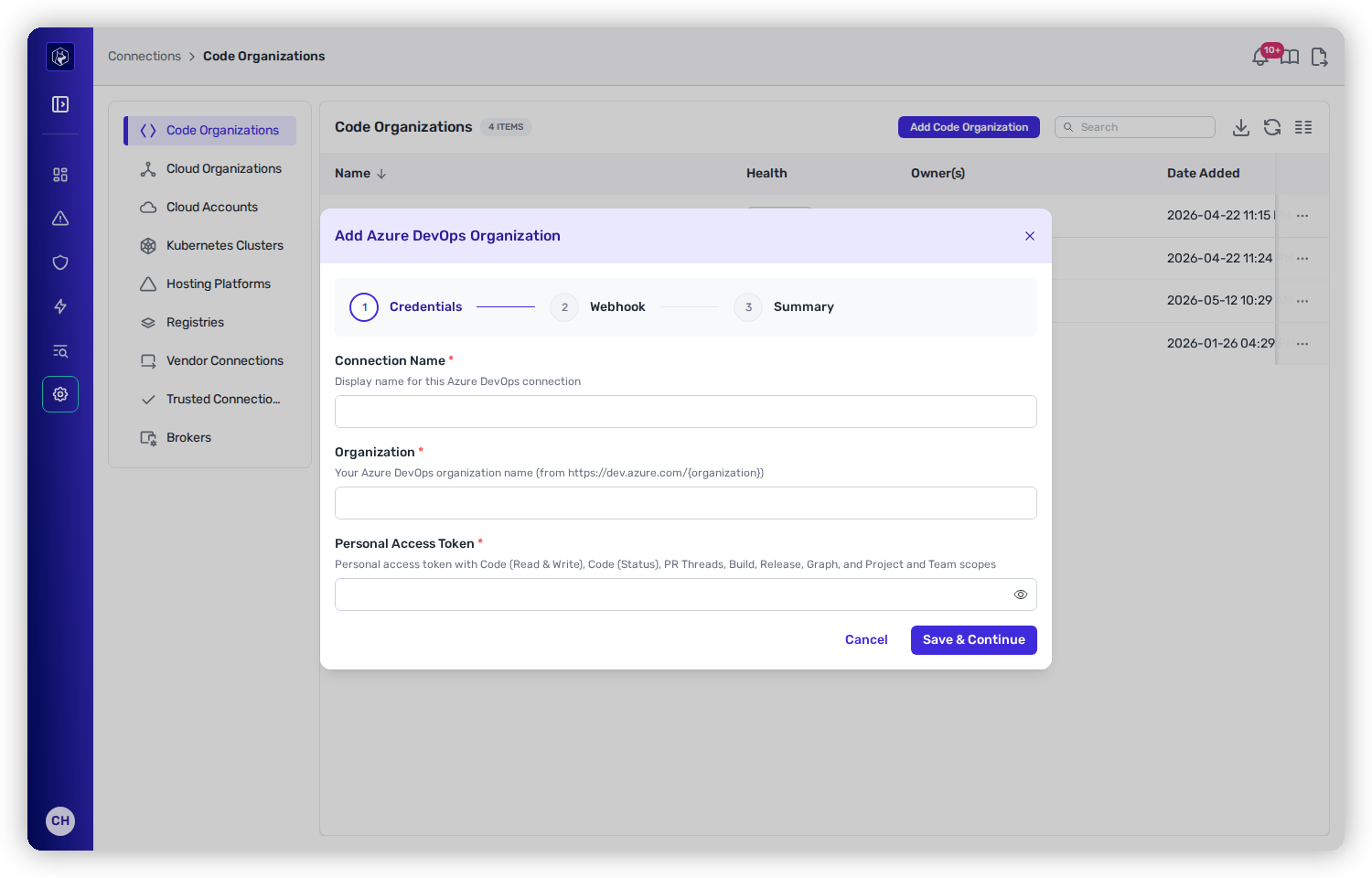
* **Name** — a descriptive name (e.g. `Contoso Azure DevOps`).
* **Organization** — your Azure DevOps organization name (the `{organization}` in `https://dev.azure.com/{organization}`).
* **Personal Access Token** — the token from Step 1.

<figure><img src="https://414480750-files.gitbook.io/~/files/v0/b/gitbook-x-prod.appspot.com/o/spaces%2FXP3dp2kecwKA2KvYkntz%2Fuploads%2Fgit-blob-65224d846b9acf394938ce56919a8c46f2fac002%2Fcc-gs-scm-ado-pat.png?alt=media" alt="The Add Azure DevOps Organization wizard, Credentials step, with Name, Organization, and Personal Access Token fields, ahead of Webhook and Summary steps."><figcaption><p>Enter the organization and PAT, then Save &#x26; Continue.</p></figcaption></figure>

Click **Save & Continue**.
{% endstep %}

{% step %}

### Generate webhooks

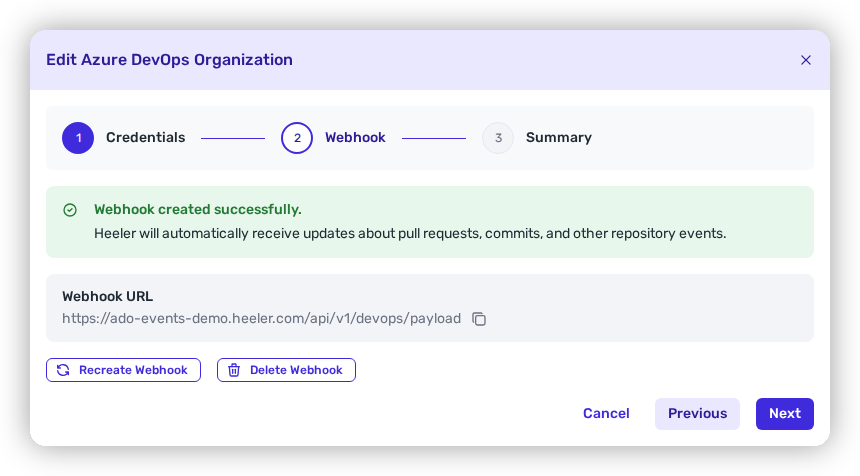
Click **Generate Webhook**. Heeler automatically creates **Service Hook** subscriptions for every project, covering:

* **Code pushed** — triggers continuous analysis
* **Pull request created** — triggers guardrail evaluation
* **Pull request updated** — re-evaluates guardrails on new commits
* **Pull request merged** — performs cleanup

<figure><img src="https://414480750-files.gitbook.io/~/files/v0/b/gitbook-x-prod.appspot.com/o/spaces%2FXP3dp2kecwKA2KvYkntz%2Fuploads%2Fgit-blob-695952fddec26a8cbc000c5c233d044f007bd6a3%2Fazure-devops-generate-webhook.png?alt=media" alt="The Webhook step of the Add Azure DevOps Organization wizard showing &#x27;Webhook created successfully&#x27;, the webhook URL, and Recreate/Delete Webhook actions."><figcaption><p>Heeler creates the Service Hook subscriptions and confirms <strong>Webhook created successfully</strong>.</p></figcaption></figure>

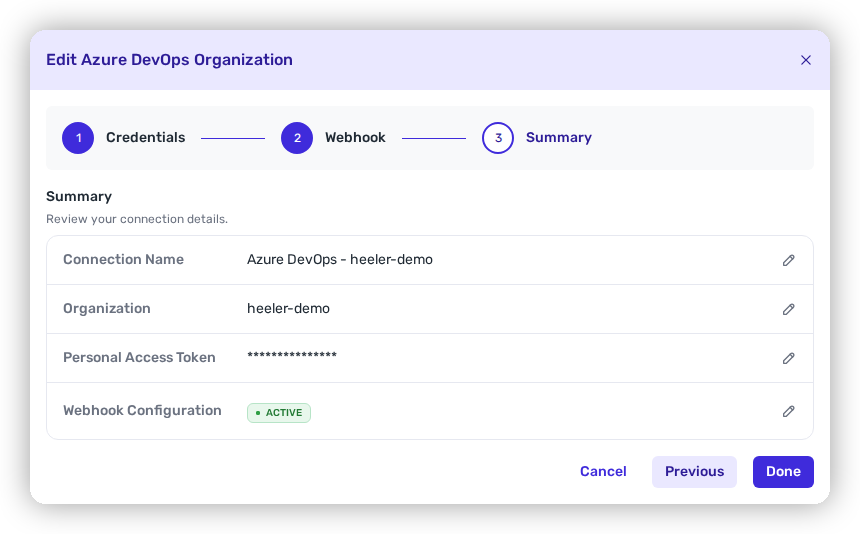
Click **Next** to review the **Summary**, then **Done**. New projects get subscriptions automatically on the next discovery cycle.

<figure><img src="https://414480750-files.gitbook.io/~/files/v0/b/gitbook-x-prod.appspot.com/o/spaces%2FXP3dp2kecwKA2KvYkntz%2Fuploads%2Fgit-blob-c94a33078cdd3322dc3bd1f40376f986b3ef6ed2%2Fazure-devops-webhooks-summary.png?alt=media" alt="The Summary step of the wizard listing Connection Name, Organization, Personal Access Token (masked), and Webhook Configuration marked ACTIVE."><figcaption><p>The <strong>Summary</strong> step — confirm the connection details and that Webhook Configuration is <strong>Active</strong>.</p></figcaption></figure>
{% endstep %}

{% step %}

### Verify

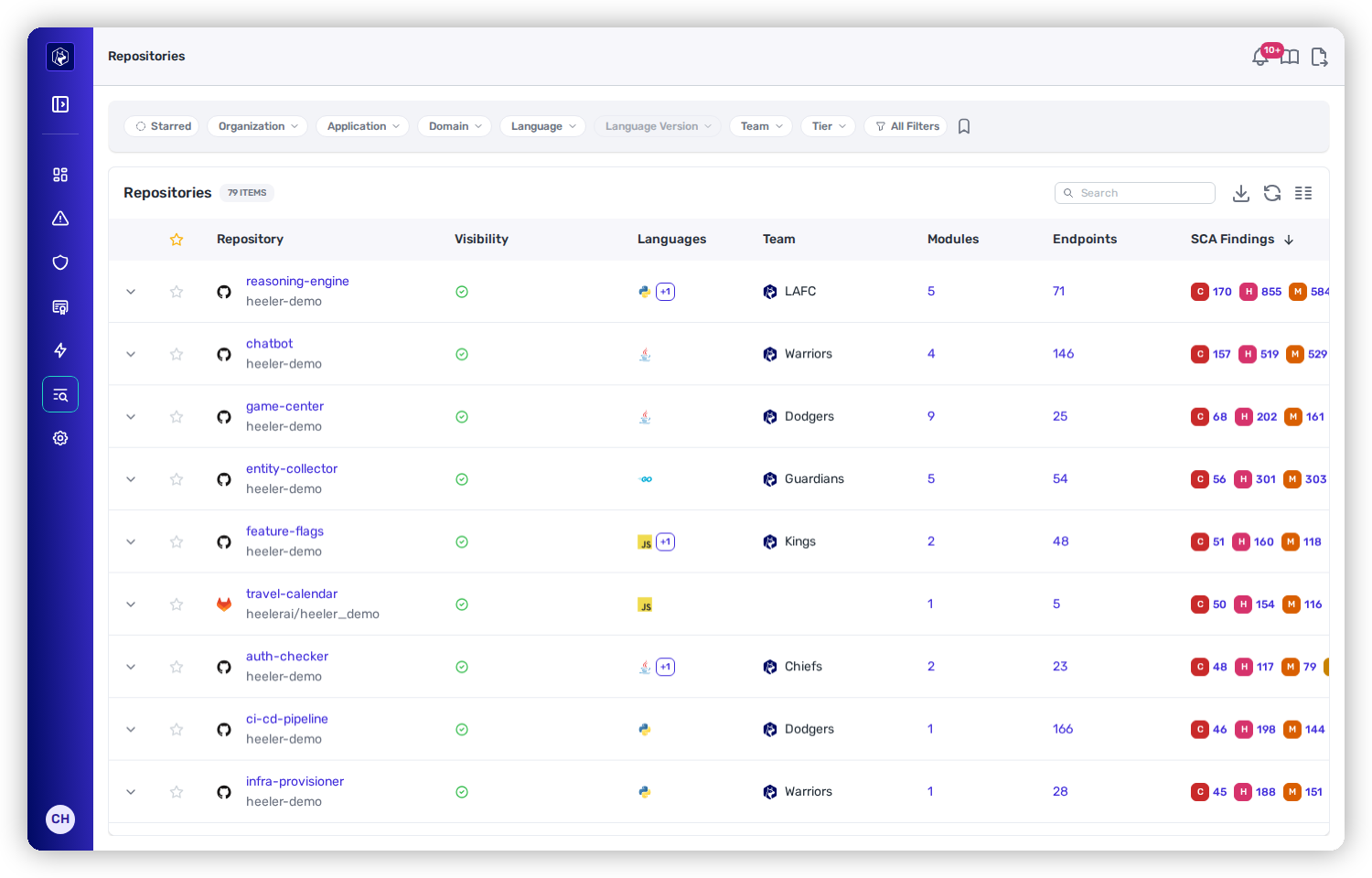
Heeler begins harvesting your Azure DevOps **projects**, **repositories**, **teams and members**, and **pipelines**. Open **Catalog → Repositories** and confirm your repositories appear with analysis status. Initial discovery can take up to an hour.

<figure><img src="https://414480750-files.gitbook.io/~/files/v0/b/gitbook-x-prod.appspot.com/o/spaces%2FXP3dp2kecwKA2KvYkntz%2Fuploads%2Fgit-blob-f9224615600ecb5d0415eb9bbe6bdb1fcdd591f3%2Fazure-devops-verify-repositories.png?alt=media" alt="The Catalog → Repositories inventory listing repositories with Visibility, Languages, Team, Modules, Endpoints, and SCA Findings counts."><figcaption><p>In <strong>Catalog → Repositories</strong>, confirm your repositories appear with analysis status (SCA findings, endpoints, and modules populate as discovery completes).</p></figcaption></figure>
{% endstep %}
{% endstepper %}

## Ongoing — token rotation

PATs last at most 365 days. To rotate without interruption:

1. Create a new PAT in Azure DevOps with the **same scopes**.
2. In Heeler, **edit** the Azure DevOps connection and update the **Personal Access Token** field.
3. **Save** and confirm the status returns to **Healthy**.
4. Revoke the old PAT.

{% hint style="info" %}
Set a calendar reminder \~30 days before expiry — a lapsed token flips the connection to **Unhealthy**.
{% endhint %}

## Troubleshooting

<table><thead><tr><th width="280">Symptom</th><th>Fix</th></tr></thead><tbody><tr><td>Connection <strong>Unhealthy</strong></td><td>Verify the PAT hasn't expired, the organization name matches exactly (case-sensitive), and all required scopes are present.</td></tr><tr><td>Webhooks not firing</td><td>In Azure DevOps, <strong>Project Settings → Service Hooks</strong> — confirm Heeler subscriptions exist and show <strong>Enabled</strong>. Use <strong>Validate Webhook</strong> in Heeler to diagnose.</td></tr><tr><td>Guardrail status not on PRs</td><td>Confirm the <strong>Code (Status)</strong> and <strong>Pull Request Threads</strong> scopes are enabled and guardrails are configured with this organization in scope.</td></tr><tr><td>Repositories not appearing</td><td>Confirm <strong>Code</strong> has Read access and the PAT owner can access the projects. Allow up to an hour for initial discovery.</td></tr></tbody></table>

## Related

* [Azure DevOps (App registration / federated)](/mrecEO40m5D6bt7Pq5pE/get-started/source-code-scm/azure-devops-app-registration.md) — the recommended method, app-only with no stored secret.
* [Connect Your Code](/mrecEO40m5D6bt7Pq5pE/get-started/source-code-scm.md) — the common flow and network requirements.


---

# Agent Instructions
This documentation is published with GitBook. GitBook is the documentation platform designed so that both humans and AI agents can read, navigate, and reason over technical content effectively. Learn more at gitbook.com.

## Querying This Documentation
If you need additional information that is not directly available in this page, you can query the documentation dynamically by asking a question.

Perform an HTTP GET request on the current page URL with the `ask` query parameter, and the optional `goal` query parameter:

```
GET https://docs.heeler.com/mrecEO40m5D6bt7Pq5pE/get-started/source-code-scm/azure-devops.md?ask=<question>&goal=<endgoal>
```

`ask` is the immediate question: it should be specific, self-contained, and written in natural language.
`goal` is optional and describes the broader end goal you are ultimately trying to accomplish on behalf of the user. GitBook uses it to tailor the answer towards what is most useful for that goal.

The response will contain a direct answer to the question and relevant excerpts and sources from the documentation.

Use this mechanism when the answer is not explicitly present in the current page, you need clarification or additional context, or you want to retrieve related documentation sections.