> For the complete documentation index, see [llms.txt](https://docs.heeler.com/mrecEO40m5D6bt7Pq5pE/llms.txt). Markdown versions of documentation pages are available by appending `.md` to page URLs; this page is available as [Markdown](https://docs.heeler.com/mrecEO40m5D6bt7Pq5pE/get-started/source-code-scm/github-enterprise-server.md).

# GitHub Enterprise Server

Connect a self-hosted GitHub Enterprise Server instance by creating a GitHub App on your host and registering it in Heeler.

Heeler connects to **GitHub Enterprise Server (GHES)** through a **GitHub App that you create on your own instance**. You register the App, generate a private key, install it, and then give Heeler five values — App ID, Installation ID, organization, hostname, and the private key — so it can authenticate and reach your host directly.

{% hint style="info" %}
Your App needs a **Secret** that Heeler provides. Contact Heeler (Slack or email) to get it before you start — you'll paste it into the App's webhook settings.
{% endhint %}

## Before you start

* Permission to **create a GitHub App** on your GHES instance.
* **Administrator** role in Heeler.
* Network path from Heeler to your GHES host. If your instance uses an **IP allow list**, allow Heeler's outbound IPs on ports `443` and `22`:
  * `44.221.229.40`
  * `52.73.231.96`
* The **Secret** provided by Heeler (see the note above).

## What the App needs

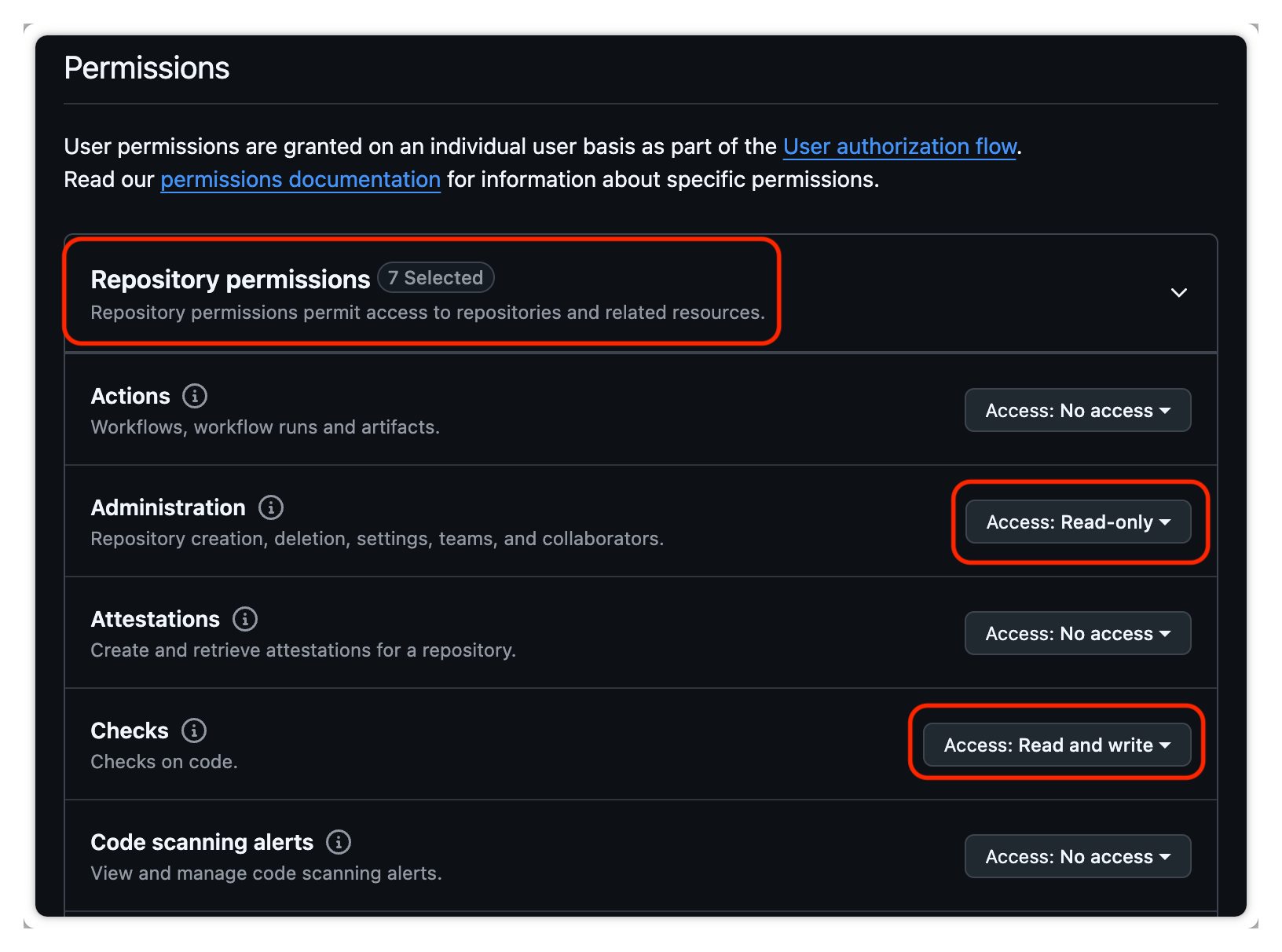
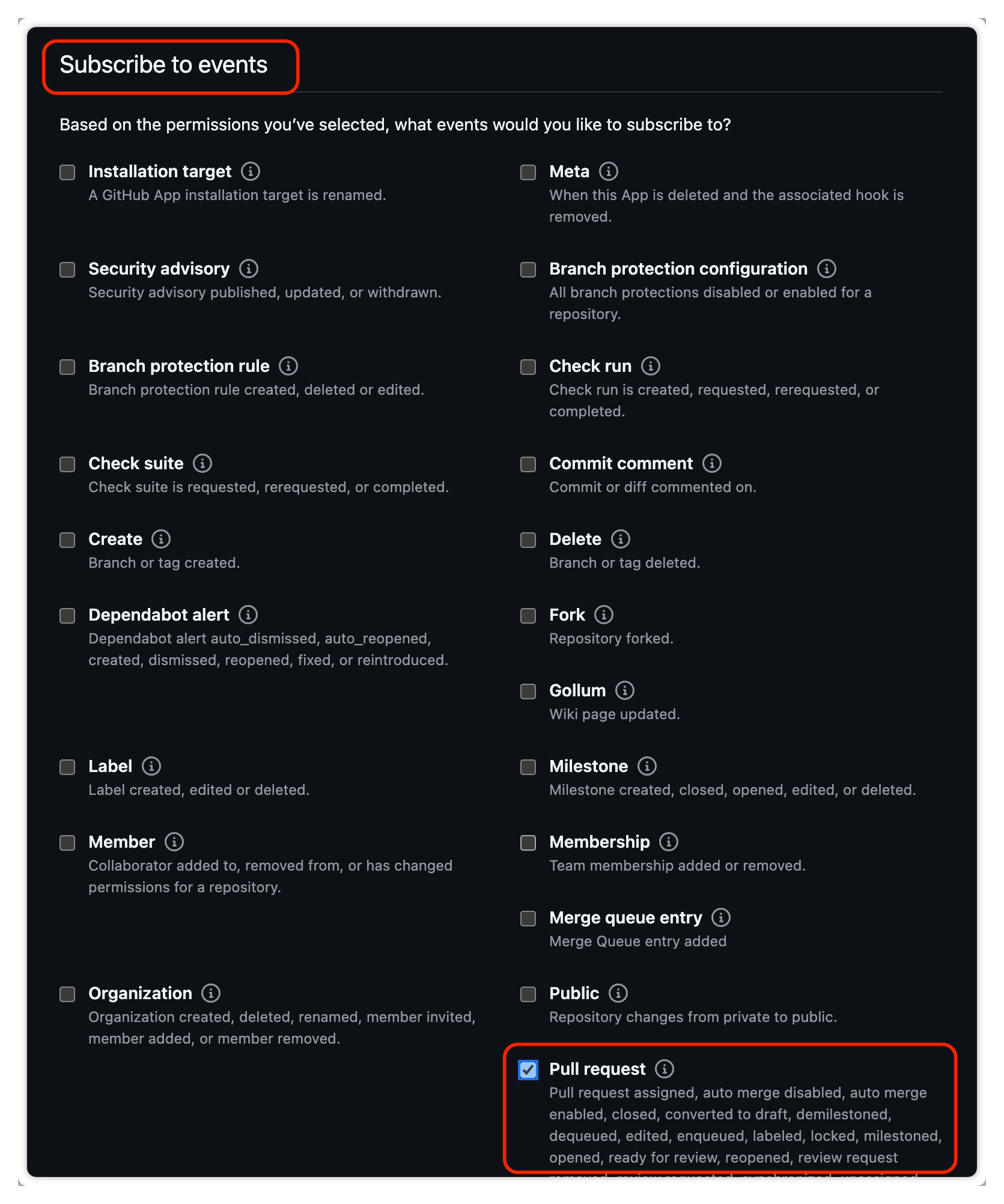
Register the App with exactly these permissions and event subscriptions:

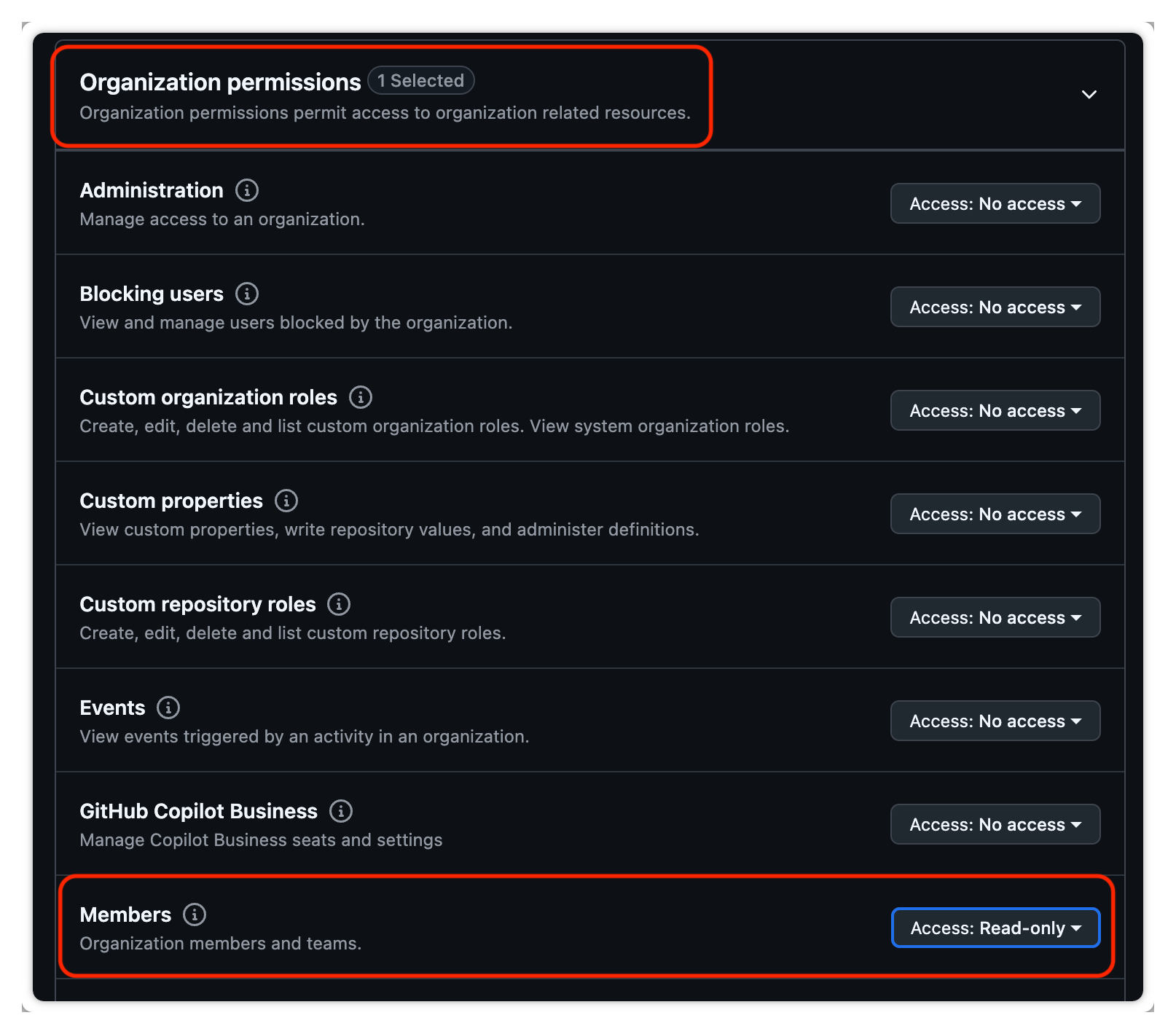
<table><thead><tr><th width="160">Level</th><th>Permission → access</th></tr></thead><tbody><tr><td><strong>Repository</strong></td><td>Administration <em>(read)</em> · Checks <em>(read &#x26; write)</em> · Contents <em>(read)</em> · Dependabot alerts <em>(read)</em> · Dependabot secrets <em>(read)</em> · Pull requests <em>(read)</em></td></tr><tr><td><strong>Organization</strong></td><td>Members <em>(read)</em></td></tr><tr><td><strong>Events</strong></td><td>Pull requests · Push · Release</td></tr></tbody></table>

## Step 1 — Create the GitHub App on GHES

{% stepper %}
{% step %}

### Open Developer settings

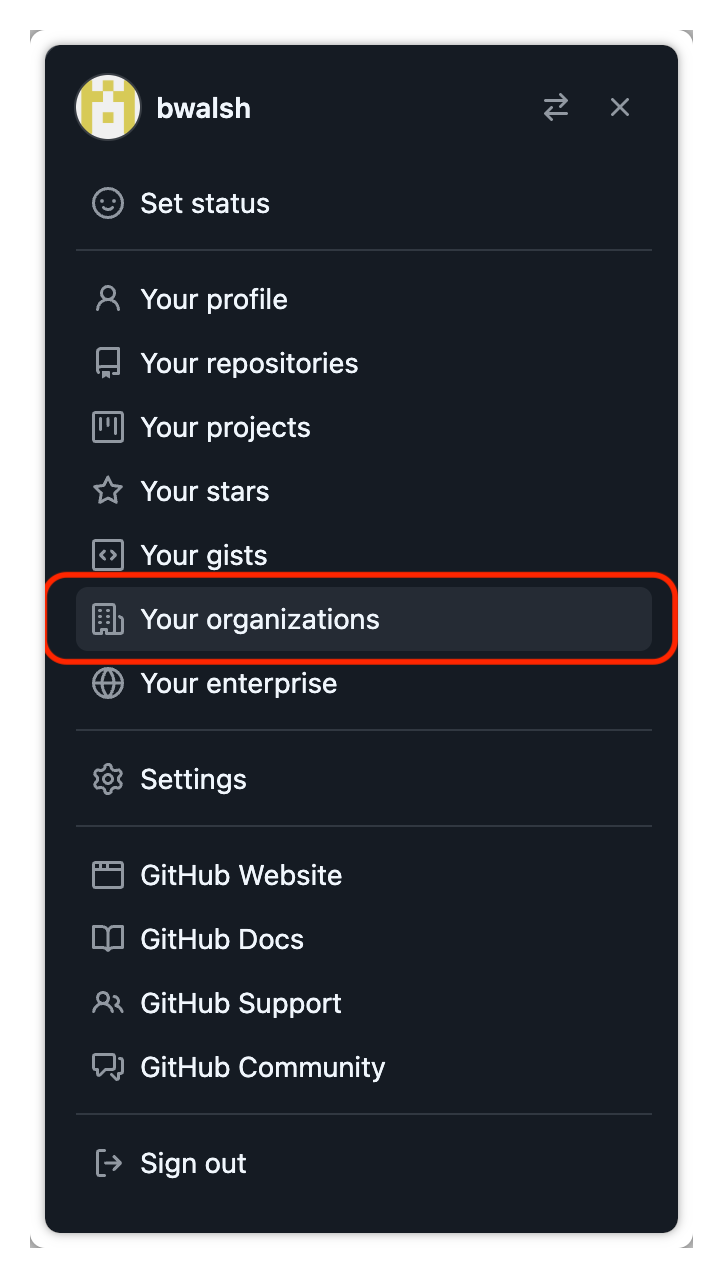
In GHES, under your profile, go to **Your organizations**, then **Developer settings → GitHub Apps**, and click **New GitHub App**.

<figure><img src="https://414480750-files.gitbook.io/~/files/v0/b/gitbook-x-prod.appspot.com/o/spaces%2FXP3dp2kecwKA2KvYkntz%2Fuploads%2Fgit-blob-c418905e25181a31c4efa51f16f285612652acec%2Fcc-scm-ghes-01.png?alt=media" alt="GitHub Enterprise Server profile menu with Your organizations."><figcaption><p>Under your profile, open <strong>Your organizations</strong>.</p></figcaption></figure>

<figure><img src="https://414480750-files.gitbook.io/~/files/v0/b/gitbook-x-prod.appspot.com/o/spaces%2FXP3dp2kecwKA2KvYkntz%2Fuploads%2Fgit-blob-e695129be7c662d3651e0fba1686c847fc050d56%2Fcc-scm-ghes-03.png?alt=media" alt="The GitHub Apps page in GHES Developer settings with New GitHub App."><figcaption><p><strong>Developer settings → GitHub Apps → New GitHub App</strong>.</p></figcaption></figure>
{% endstep %}

{% step %}

### Register the App

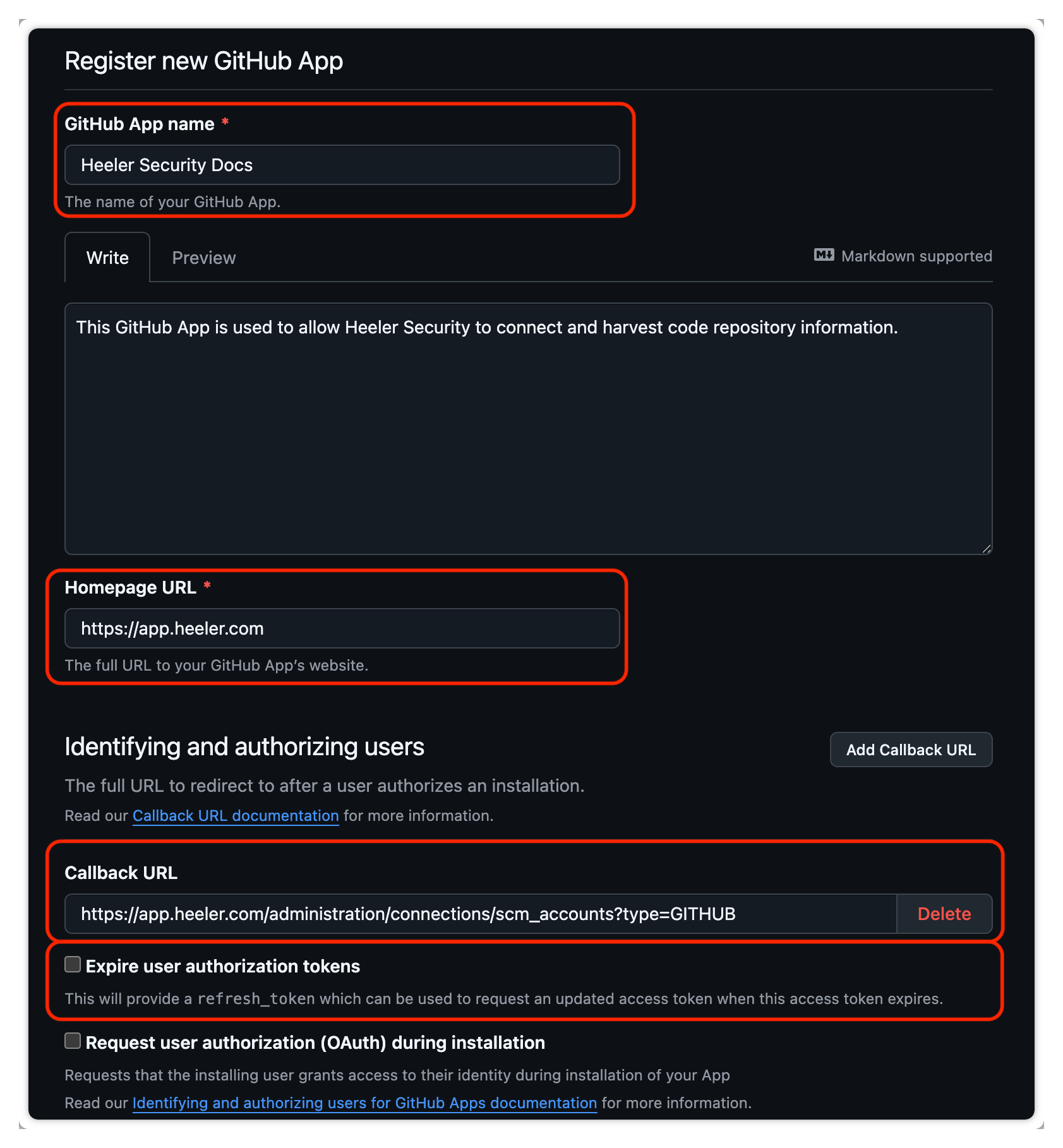
Fill in the registration:

* **GitHub App name** — a descriptive name, e.g. `Heeler Security`.
* **Description** — optional.
* **Homepage URL** — `https://app.heeler.com`
* **Callback URL** — `https://app.heeler.com/administration/connections/scm_accounts?type=GITHUB`
* **Expire user authorization tokens** — leave **unchecked**.
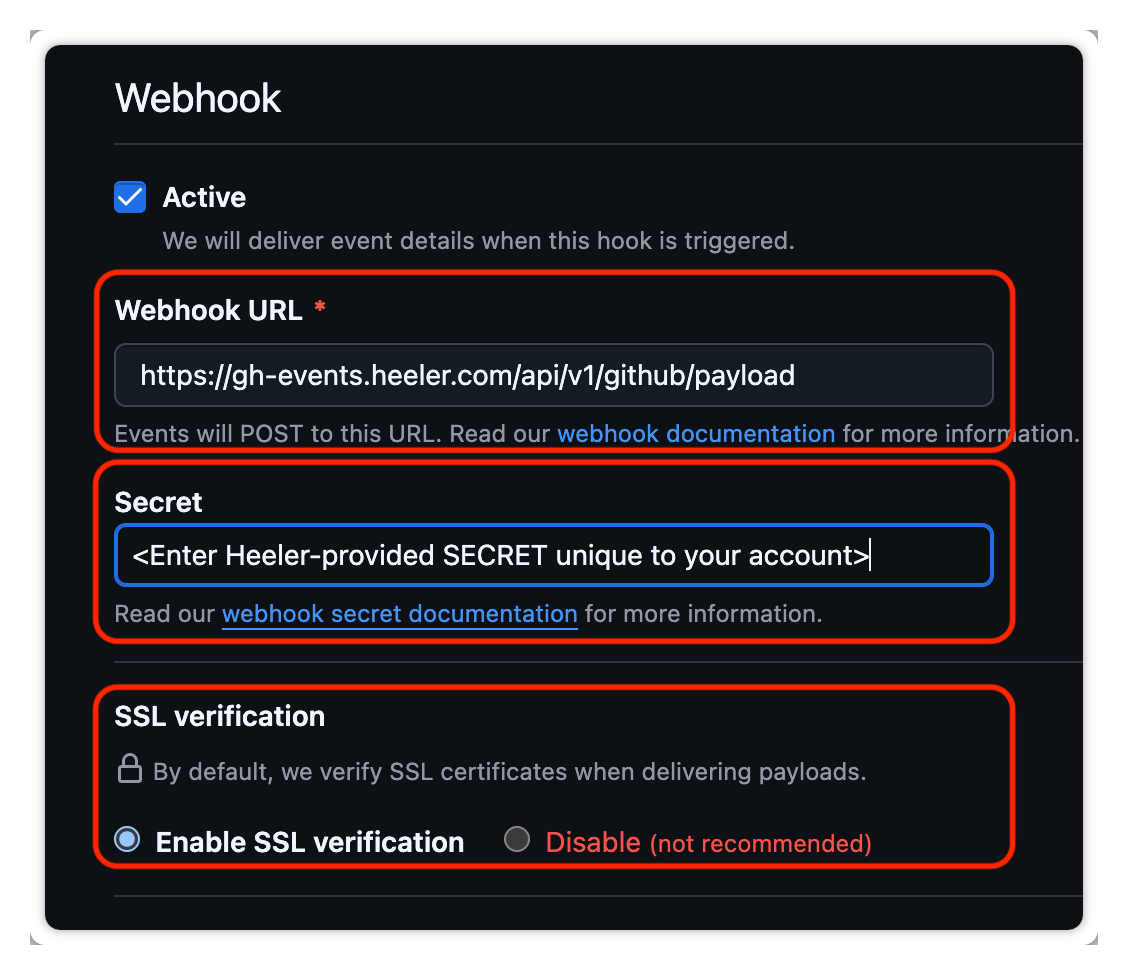
* **Webhook URL** — `https://gh-events.heeler.com/api/v1/github/payload`
* **Webhook Secret** — the **Secret** provided by Heeler.
* **SSL verification** — **Enable**.

<figure><img src="https://414480750-files.gitbook.io/~/files/v0/b/gitbook-x-prod.appspot.com/o/spaces%2FXP3dp2kecwKA2KvYkntz%2Fuploads%2Fgit-blob-9dc33e28bcdd6e406011932d3cfc24df9f7c334f%2Fcc-scm-ghes-04.png?alt=media" alt="The GitHub App registration form: name, homepage URL, callback URL, and expire-user-authorization-tokens setting."><figcaption><p>Register the App — name, homepage, and callback URL.</p></figcaption></figure>

<figure><img src="https://414480750-files.gitbook.io/~/files/v0/b/gitbook-x-prod.appspot.com/o/spaces%2FXP3dp2kecwKA2KvYkntz%2Fuploads%2Fgit-blob-2e65a2598ab348e109c4aab70928100f6130e385%2Fcc-scm-ghes-05.png?alt=media" alt="The GitHub App webhook settings: webhook URL, secret, and SSL verification enabled."><figcaption><p>Set the webhook URL, the Heeler-provided secret, and enable SSL verification.</p></figcaption></figure>
{% endstep %}

{% step %}

### Set permissions and events

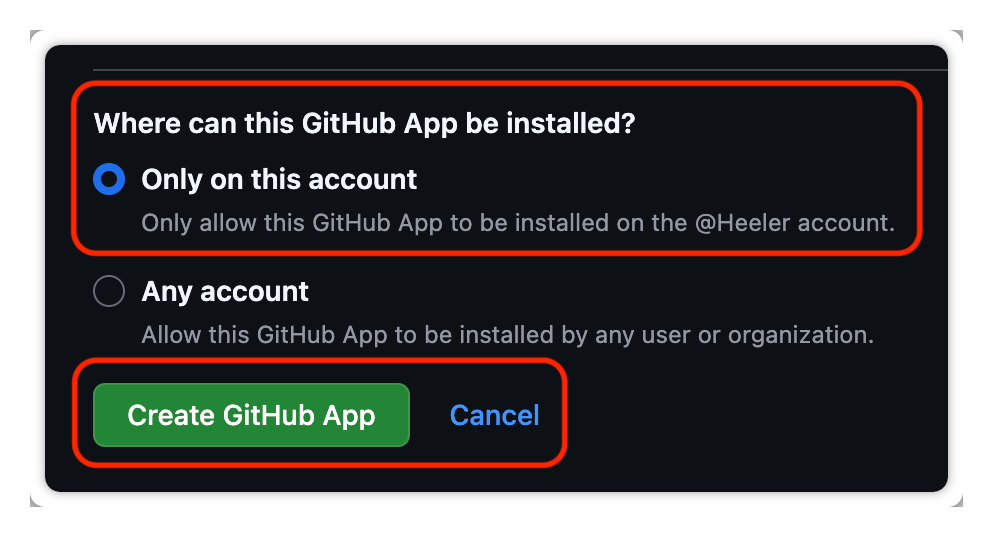
Apply the [permissions and events](#what-the-app-needs) above. Under **Where can this GitHub App be installed?** choose **Only on this account**, then click **Create GitHub App**.

<figure><img src="https://414480750-files.gitbook.io/~/files/v0/b/gitbook-x-prod.appspot.com/o/spaces%2FXP3dp2kecwKA2KvYkntz%2Fuploads%2Fgit-blob-1e8f571cfb0ce641b7f9d79f4f167a0bf2682078%2Fcc-scm-ghes-06.png?alt=media" alt="Repository permissions for the GitHub App: Administration, Checks, Contents, Dependabot alerts, Dependabot secrets, and Pull requests."><figcaption><p>Repository permissions.</p></figcaption></figure>

<figure><img src="https://414480750-files.gitbook.io/~/files/v0/b/gitbook-x-prod.appspot.com/o/spaces%2FXP3dp2kecwKA2KvYkntz%2Fuploads%2Fgit-blob-a4a4237e255af0cae3ac217141035c907cd22a6f%2Fcc-scm-ghes-07.png?alt=media" alt="Organization permissions for the GitHub App: Members read-only."><figcaption><p>Organization permissions — Members (read).</p></figcaption></figure>

<figure><img src="https://414480750-files.gitbook.io/~/files/v0/b/gitbook-x-prod.appspot.com/o/spaces%2FXP3dp2kecwKA2KvYkntz%2Fuploads%2Fgit-blob-12abcb9163c21c3214b514936eced802bfb9cf4e%2Fcc-scm-ghes-08.png?alt=media" alt="Event subscriptions for the GitHub App: Pull requests, Push, and Release."><figcaption><p>Subscribe to Pull requests, Push, and Release events.</p></figcaption></figure>

<figure><img src="https://414480750-files.gitbook.io/~/files/v0/b/gitbook-x-prod.appspot.com/o/spaces%2FXP3dp2kecwKA2KvYkntz%2Fuploads%2Fgit-blob-770d97f2e87c57939d23332940097f8cd621d0b4%2Fcc-scm-ghes-09.png?alt=media" alt="The &#x27;Where can this GitHub App be installed?&#x27; setting set to Only on this account, with Create GitHub App."><figcaption><p>Choose <strong>Only on this account</strong>, then <strong>Create GitHub App</strong>.</p></figcaption></figure>
{% endstep %}

{% step %}

### Capture the App ID and private key

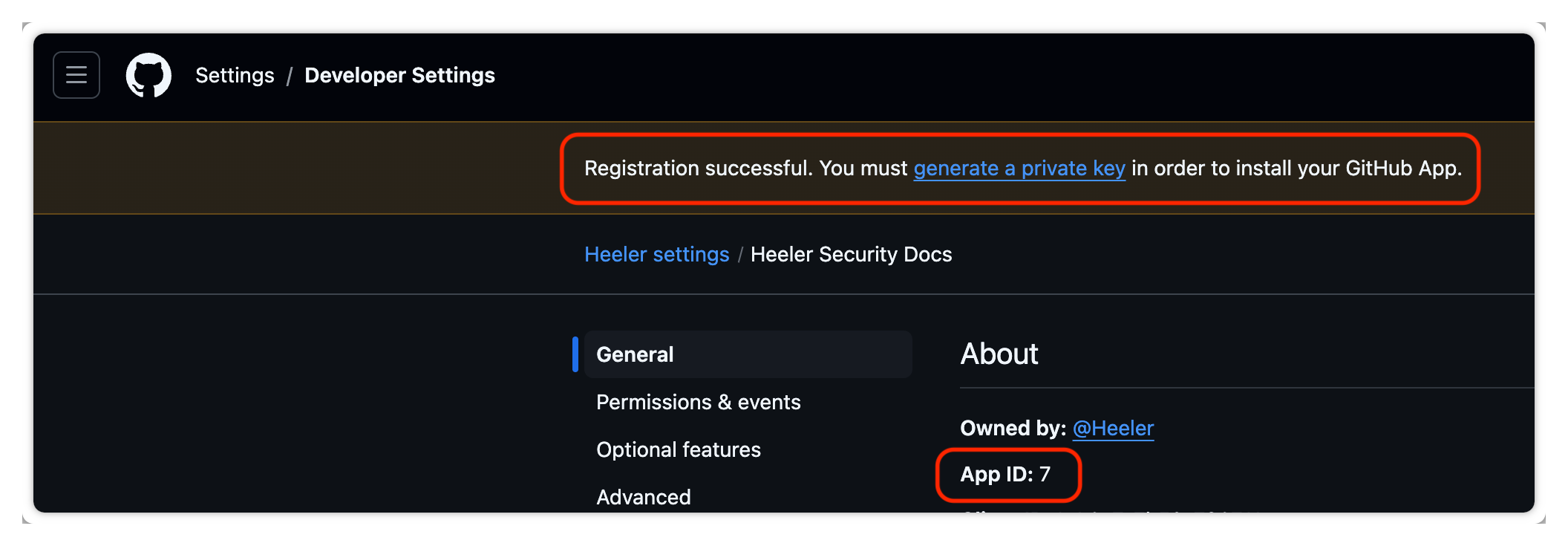
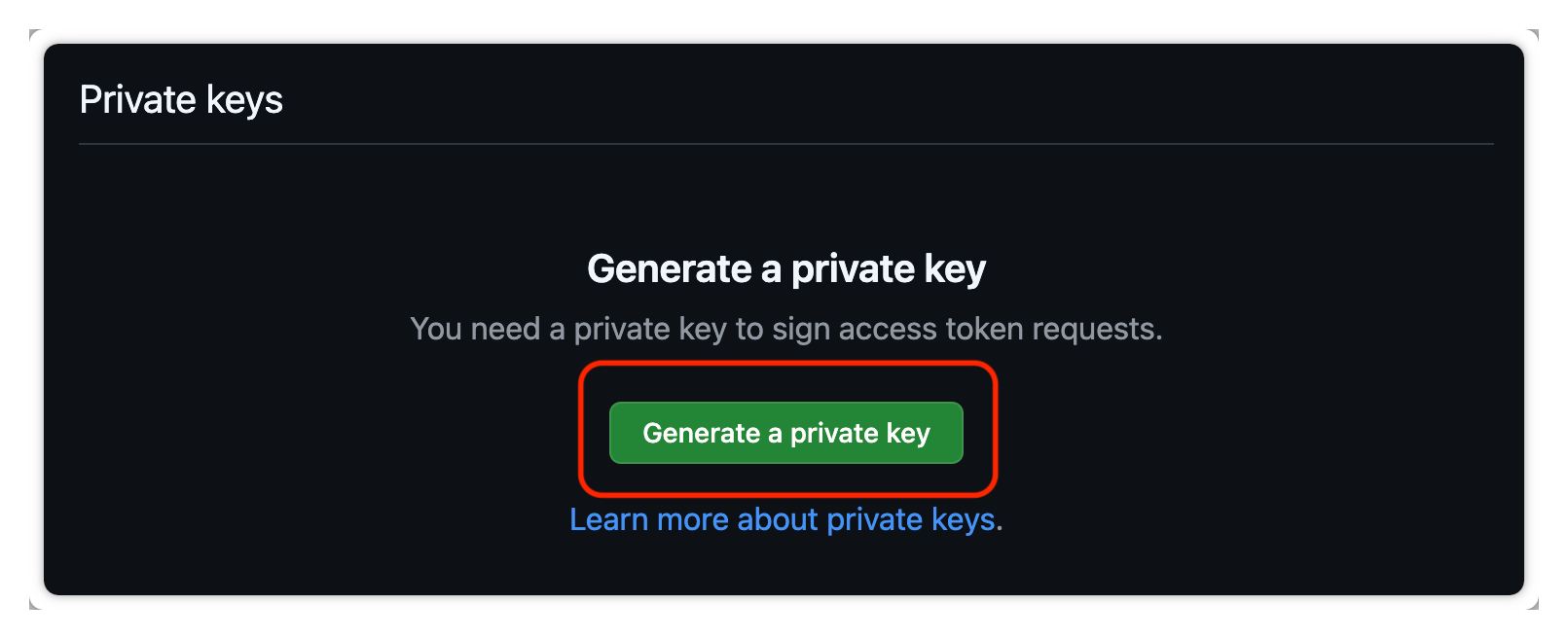
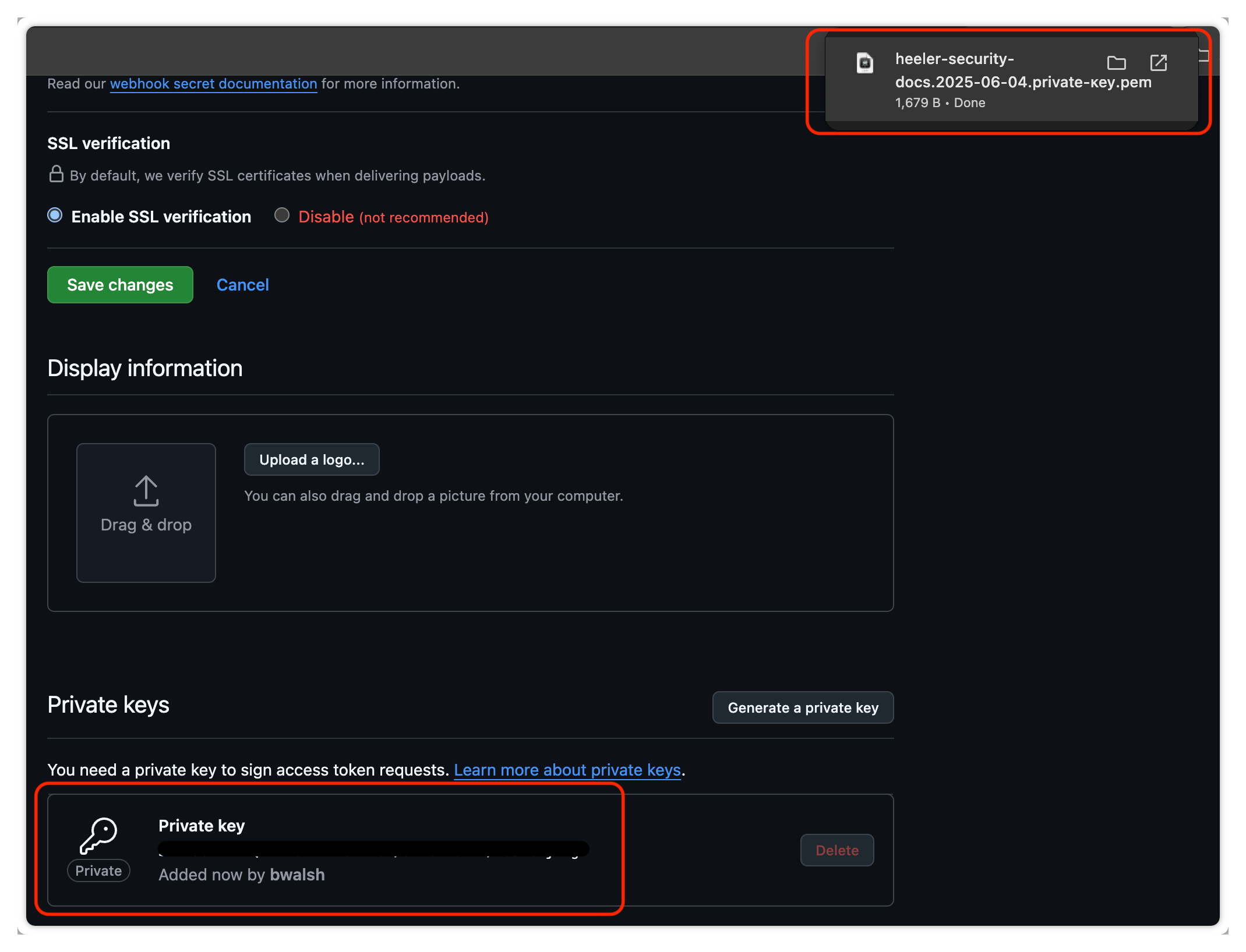
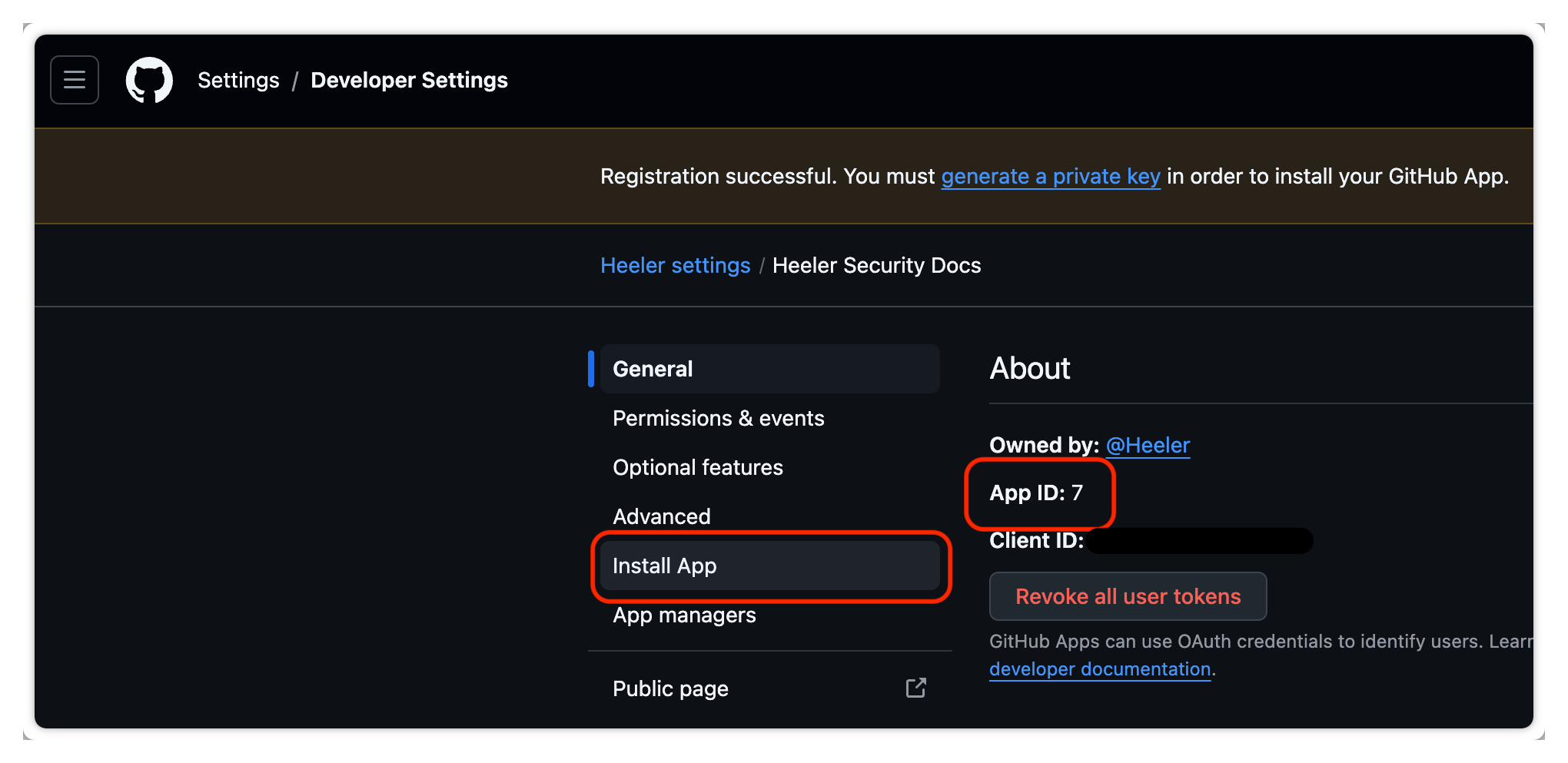
Copy the **App ID** — you'll enter it in Heeler as the **Application ID**. Then click **generate a private key**, confirm, and note the downloaded `.pem` file; its **contents** are the **Private Key** value in Heeler.

<figure><img src="https://414480750-files.gitbook.io/~/files/v0/b/gitbook-x-prod.appspot.com/o/spaces%2FXP3dp2kecwKA2KvYkntz%2Fuploads%2Fgit-blob-39a6834543835a05ca0c8c03f3a71148ca74a697%2Fcc-scm-ghes-10.png?alt=media" alt="The created GitHub App page showing the App ID and a link to generate a private key."><figcaption><p>Copy the <strong>App ID</strong>, then generate a private key.</p></figcaption></figure>

<figure><img src="https://414480750-files.gitbook.io/~/files/v0/b/gitbook-x-prod.appspot.com/o/spaces%2FXP3dp2kecwKA2KvYkntz%2Fuploads%2Fgit-blob-ed000963cbb350bbc42e828d61866517ccba84e6%2Fcc-scm-ghes-11.png?alt=media" alt="The Private keys section with Generate a private key."><figcaption><p>Generate a private key.</p></figcaption></figure>

<figure><img src="https://414480750-files.gitbook.io/~/files/v0/b/gitbook-x-prod.appspot.com/o/spaces%2FXP3dp2kecwKA2KvYkntz%2Fuploads%2Fgit-blob-21d89614f9e4296726af3b263ca4d40782b043b2%2Fcc-scm-ghes-12.png?alt=media" alt="Confirmation that the private key .pem file has downloaded."><figcaption><p>Save the downloaded <code>.pem</code> — its contents are the Private Key in Heeler.</p></figcaption></figure>
{% endstep %}

{% step %}

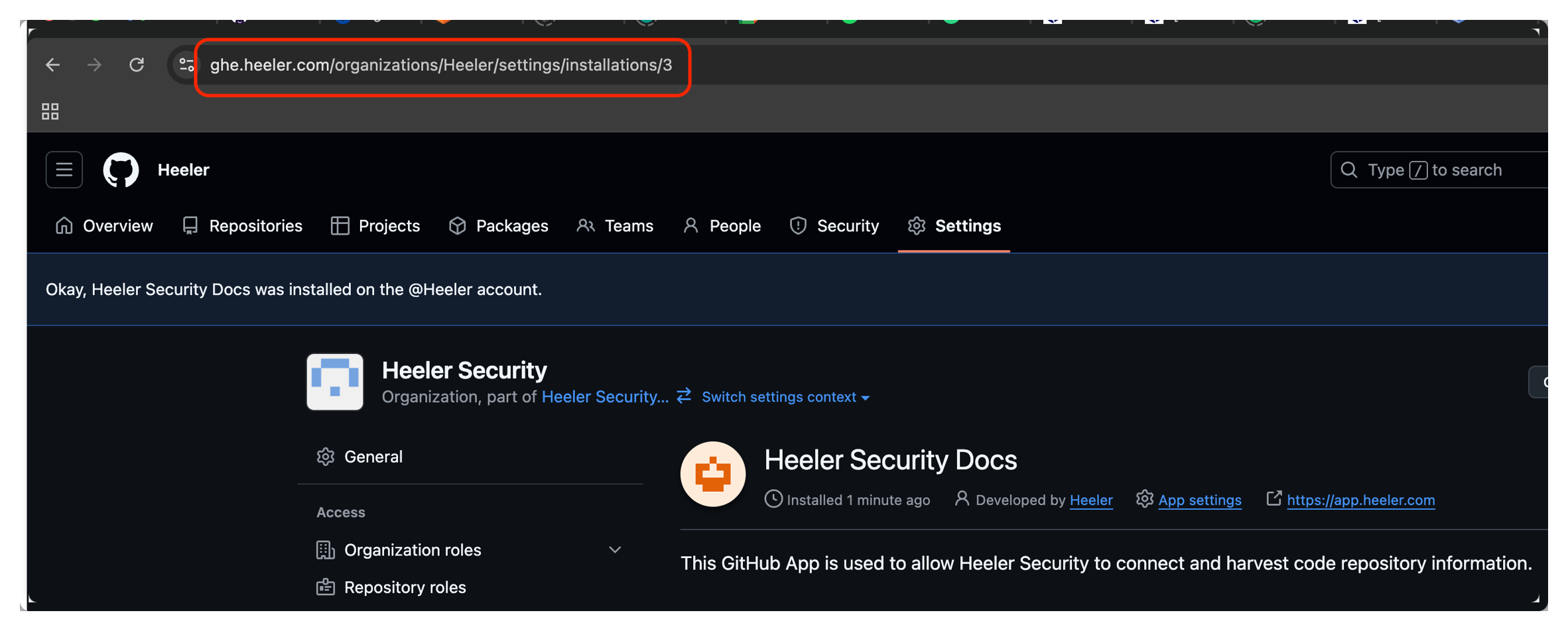
### Install the App and capture the URL

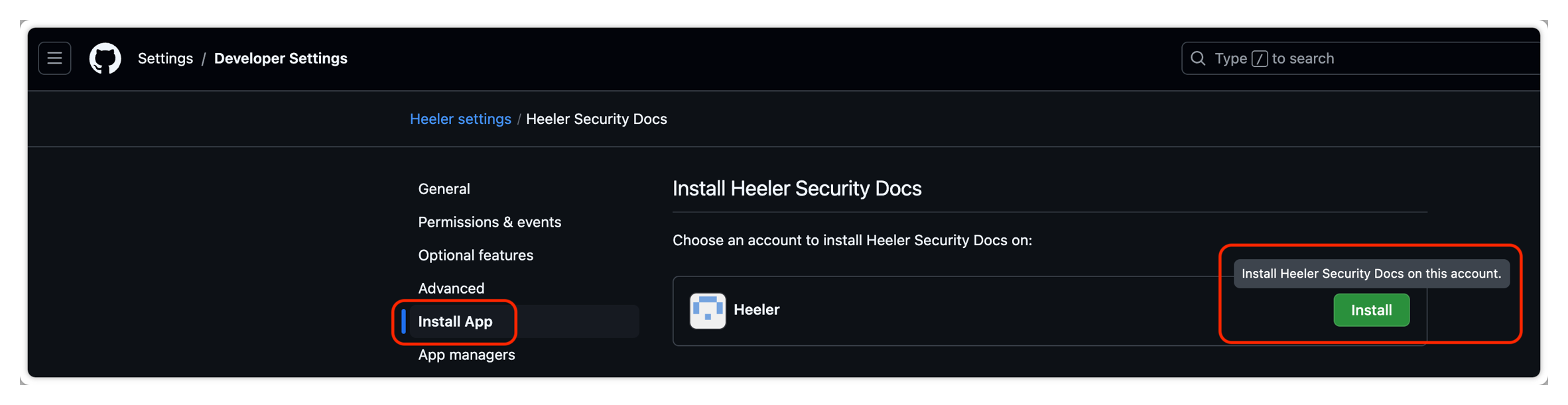
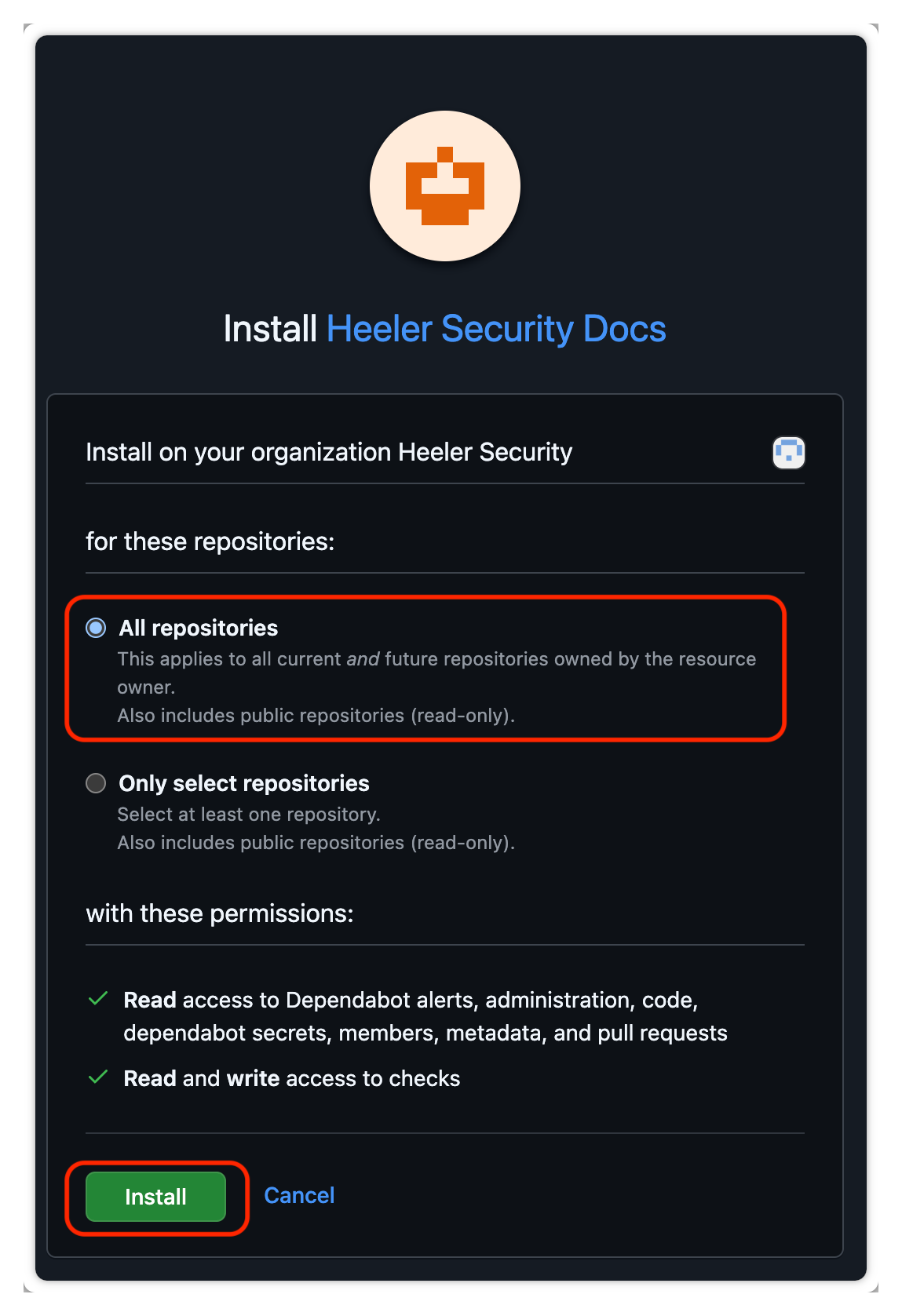
Scroll up and click **Install App**, choose the account, select **All repositories**, and click **Install**. GHES lands you on a URL of the form:

```
https://<Hostname>/organizations/<Organization>/settings/installations/<Installation ID>
```

For example `https://ghe.example.com/organizations/Acme/settings/installations/3` gives you **Installation ID** `3`, **Organization** `Acme`, and **Hostname** `ghe.example.com`.

<figure><img src="https://414480750-files.gitbook.io/~/files/v0/b/gitbook-x-prod.appspot.com/o/spaces%2FXP3dp2kecwKA2KvYkntz%2Fuploads%2Fgit-blob-27d7d297a7275991fd1d31ec938c4065530bd07c%2Fcc-scm-ghes-13.png?alt=media" alt="The Install App page for the GitHub App."><figcaption><p>Click <strong>Install App</strong>.</p></figcaption></figure>

<figure><img src="https://414480750-files.gitbook.io/~/files/v0/b/gitbook-x-prod.appspot.com/o/spaces%2FXP3dp2kecwKA2KvYkntz%2Fuploads%2Fgit-blob-72f435808a48bffc4ea0eb28b215dd8397ec2740%2Fcc-scm-ghes-14.png?alt=media" alt="Choosing the GHES account to install the App into, with the green Install button."><figcaption><p>Choose the account and click <strong>Install</strong>.</p></figcaption></figure>

<figure><img src="https://414480750-files.gitbook.io/~/files/v0/b/gitbook-x-prod.appspot.com/o/spaces%2FXP3dp2kecwKA2KvYkntz%2Fuploads%2Fgit-blob-e7a13b1bfde8d8355a449349180d0bcdfb00c2aa%2Fcc-scm-ghes-15.png?alt=media" alt="Selecting All repositories for the App installation, with Install."><figcaption><p>Select <strong>All repositories</strong> and install.</p></figcaption></figure>

<figure><img src="https://414480750-files.gitbook.io/~/files/v0/b/gitbook-x-prod.appspot.com/o/spaces%2FXP3dp2kecwKA2KvYkntz%2Fuploads%2Fgit-blob-c28ac50878acd0837ee89b1d1a58cf2520c1890f%2Fcc-scm-ghes-16.png?alt=media" alt="The installation URL in the browser address bar, containing the hostname, organization, and installation ID."><figcaption><p>Parse the install URL for the Installation ID, Organization, and Hostname.</p></figcaption></figure>
{% endstep %}
{% endstepper %}

## Step 2 — Register the connection in Heeler

{% stepper %}
{% step %}

### Open Code Organizations

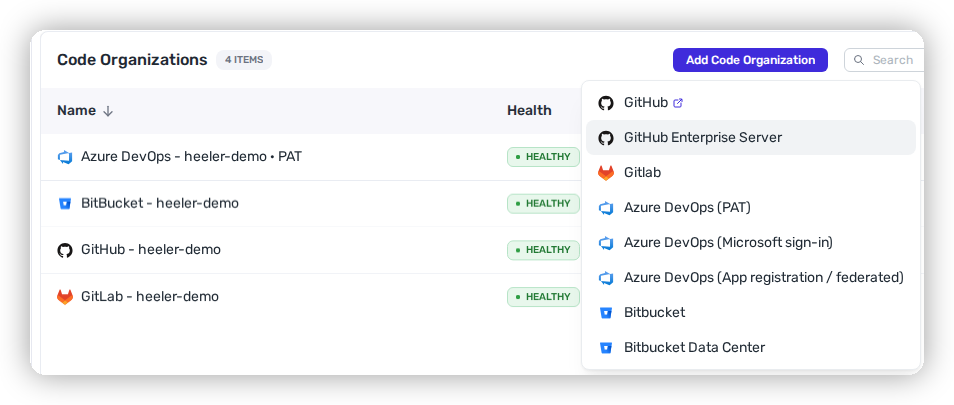
Click the **Settings** (gear) icon → **Connections → Code Organizations → Add Code Organization → GitHub Enterprise Server**.

<figure><img src="https://414480750-files.gitbook.io/~/files/v0/b/gitbook-x-prod.appspot.com/o/spaces%2FXP3dp2kecwKA2KvYkntz%2Fuploads%2Fgit-blob-baeaab14e1cb469ad45a3205d5916c34becfa626%2Fghes-add-org-menu.png?alt=media" alt="The Add Code Organization menu in Heeler with GitHub Enterprise Server selected."><figcaption><p>Choose <strong>GitHub Enterprise Server</strong> from the Add Code Organization menu.</p></figcaption></figure>
{% endstep %}

{% step %}

### Enter the values

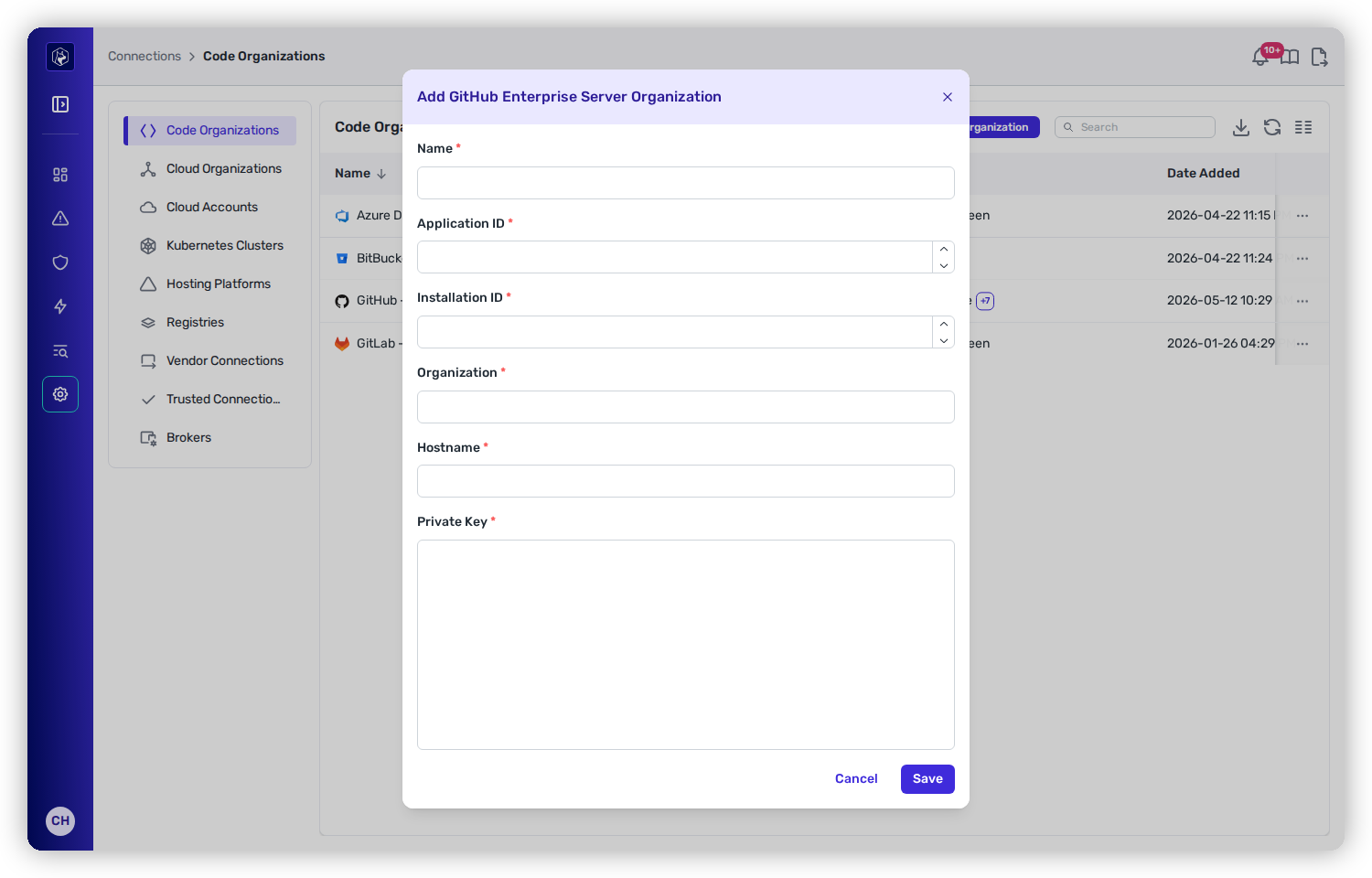
Fill the modal with the values you captured:

<figure><img src="https://414480750-files.gitbook.io/~/files/v0/b/gitbook-x-prod.appspot.com/o/spaces%2FXP3dp2kecwKA2KvYkntz%2Fuploads%2Fgit-blob-35b07bc9a9dd400b8bc7a8289725616878a56ff6%2Fcc-gs-scm-ghes-form.png?alt=media" alt="The Add GitHub Enterprise Server Organization modal with fields for Name, Application ID, Installation ID, Organization, Hostname, and Private Key."><figcaption><p>Register the GHES App in Heeler with the five values from your instance.</p></figcaption></figure>

| Field               | Value                                |
| ------------------- | ------------------------------------ |
| **Name**            | A name representing the GHES account |
| **Application ID**  | The **App ID** from Step 1           |
| **Installation ID** | Parsed from the install URL          |
| **Organization**    | Parsed from the install URL          |
| **Hostname**        | Parsed from the install URL          |
| **Private Key**     | Contents of the downloaded `.pem`    |
| {% endstep %}       |                                      |

{% step %}

### Save

Click **Save**. The connection should appear with a **Healthy** status, and Heeler begins discovering and analyzing repositories.

<figure><img src="https://414480750-files.gitbook.io/~/files/v0/b/gitbook-x-prod.appspot.com/o/spaces%2FXP3dp2kecwKA2KvYkntz%2Fuploads%2FJGfmRHbKMc7snhaiA1IS%2F19%20--%20Success%20--%20gimp.png?alt=media&amp;token=5596cb4b-107f-4a91-8261-b56d231fc350" alt="The registered GitHub Enterprise Server connection in Heeler showing a Healthy status under Health."><figcaption><p>A successful connection shows a <strong>Healthy</strong> status under <strong>Health</strong>.</p></figcaption></figure>
{% endstep %}
{% endstepper %}

## You're done when…

* [ ] The GHES organization shows **Healthy** under **Code Organizations**.
* [ ] Repositories appear in the [Catalog](/mrecEO40m5D6bt7Pq5pE/catalog/repositories.md).

## Troubleshooting

<table><thead><tr><th width="300">Symptom</th><th>Fix</th></tr></thead><tbody><tr><td>Connection <strong>Unhealthy</strong> right after saving</td><td>Re-check the Application ID, Installation ID, Organization, and Hostname parsed from the install URL, and confirm the private key was pasted in full (including the <code>BEGIN/END</code> lines).</td></tr><tr><td>No webhook events arriving</td><td>Confirm the App's <strong>Webhook URL</strong> is <code>https://gh-events.heeler.com/api/v1/github/payload</code>, the <strong>Secret</strong> matches the one Heeler gave you, and SSL verification is enabled.</td></tr><tr><td>Heeler can't reach the host</td><td>Confirm the outbound IPs are allowed on ports 443 &#x26; 22 and that the hostname resolves from Heeler.</td></tr></tbody></table>

## Related

* [Connect Your Code](/mrecEO40m5D6bt7Pq5pE/get-started/source-code-scm.md) — the common flow and network requirements.
* [PR Guardrails](/mrecEO40m5D6bt7Pq5pE/prevent/pr-guardrails.md) — GHES supports guardrails through the same App.


---

# Agent Instructions
This documentation is published with GitBook. GitBook is the documentation platform designed so that both humans and AI agents can read, navigate, and reason over technical content effectively. Learn more at gitbook.com.

## Querying This Documentation
If you need additional information that is not directly available in this page, you can query the documentation dynamically by asking a question.

Perform an HTTP GET request on the current page URL with the `ask` query parameter, and the optional `goal` query parameter:

```
GET https://docs.heeler.com/mrecEO40m5D6bt7Pq5pE/get-started/source-code-scm/github-enterprise-server.md?ask=<question>&goal=<endgoal>
```

`ask` is the immediate question: it should be specific, self-contained, and written in natural language.
`goal` is optional and describes the broader end goal you are ultimately trying to accomplish on behalf of the user. GitBook uses it to tailor the answer towards what is most useful for that goal.

The response will contain a direct answer to the question and relevant excerpts and sources from the documentation.

Use this mechanism when the answer is not explicitly present in the current page, you need clarification or additional context, or you want to retrieve related documentation sections.