> For the complete documentation index, see [llms.txt](https://docs.heeler.com/mrecEO40m5D6bt7Pq5pE/llms.txt). Markdown versions of documentation pages are available by appending `.md` to page URLs; this page is available as [Markdown](https://docs.heeler.com/mrecEO40m5D6bt7Pq5pE/get-started/source-code-scm/gitlab.md).

# GitLab

Connect a GitLab group to Heeler with a group access token and a group hook — works for GitLab SaaS and self-managed instances.

Heeler connects to GitLab at the **group** level and uses a **GitLab Group Hook** to keep repositories analyzed and guardrails enforced. Connecting at the group level means Heeler's scope follows group membership — add or remove a project from the group to bring it in or out of analysis.

You'll do three things: create a **group access token**, add the group to Heeler (which returns an **Installation Token**), and add a **group hook** that uses that token.

## Before you start

* A **GitLab group** containing the project repositories you want analyzed.
* Permission to create a **group access token** and a **group hook** on that group.
* **Administrator** role in Heeler.
* For **self-managed (On-Prem)** GitLab, outbound access from your server to Heeler's IPs on ports 443 & 22:
  * `44.221.229.40`
  * `52.73.231.96`

## Step 1 — Create a group access token

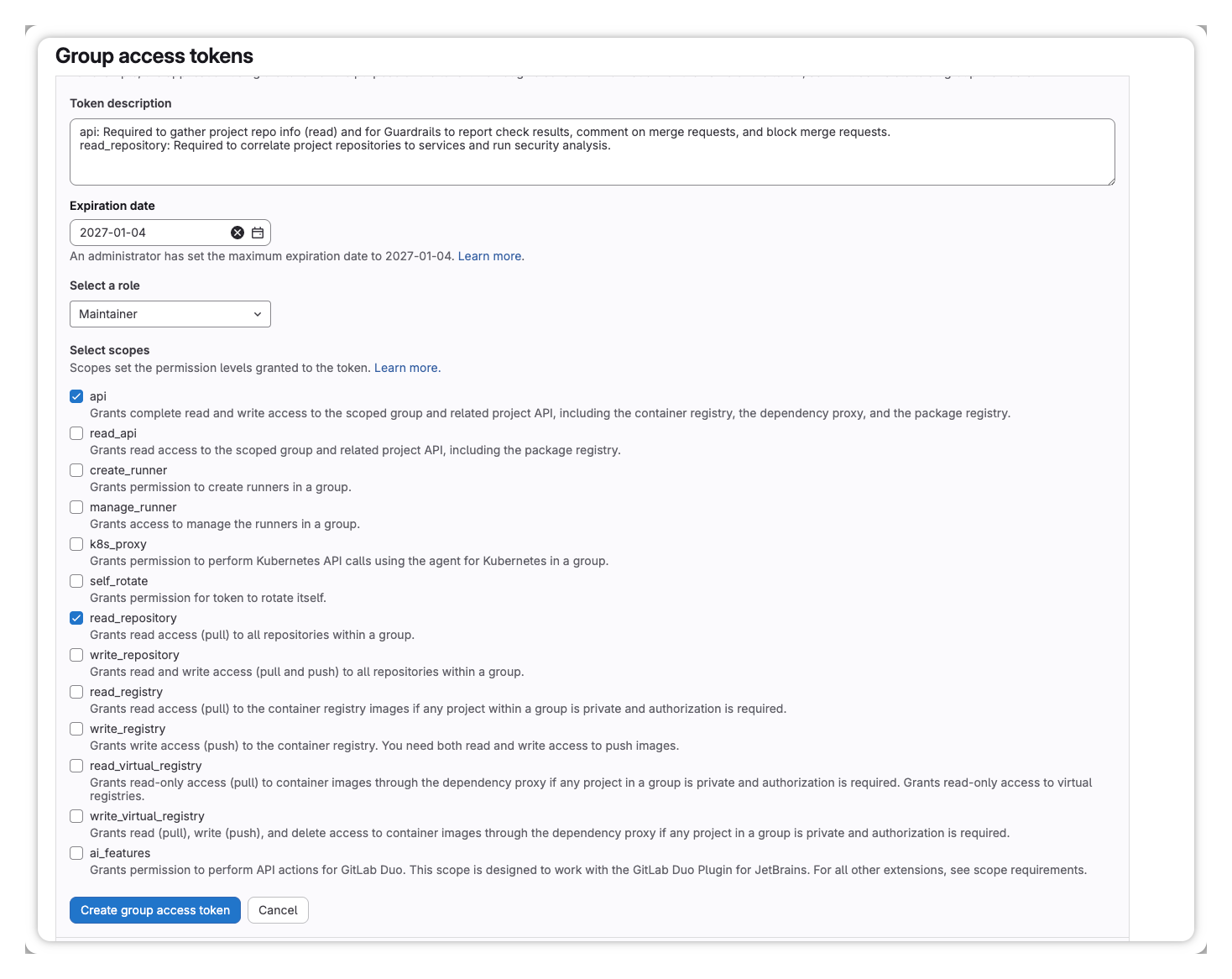
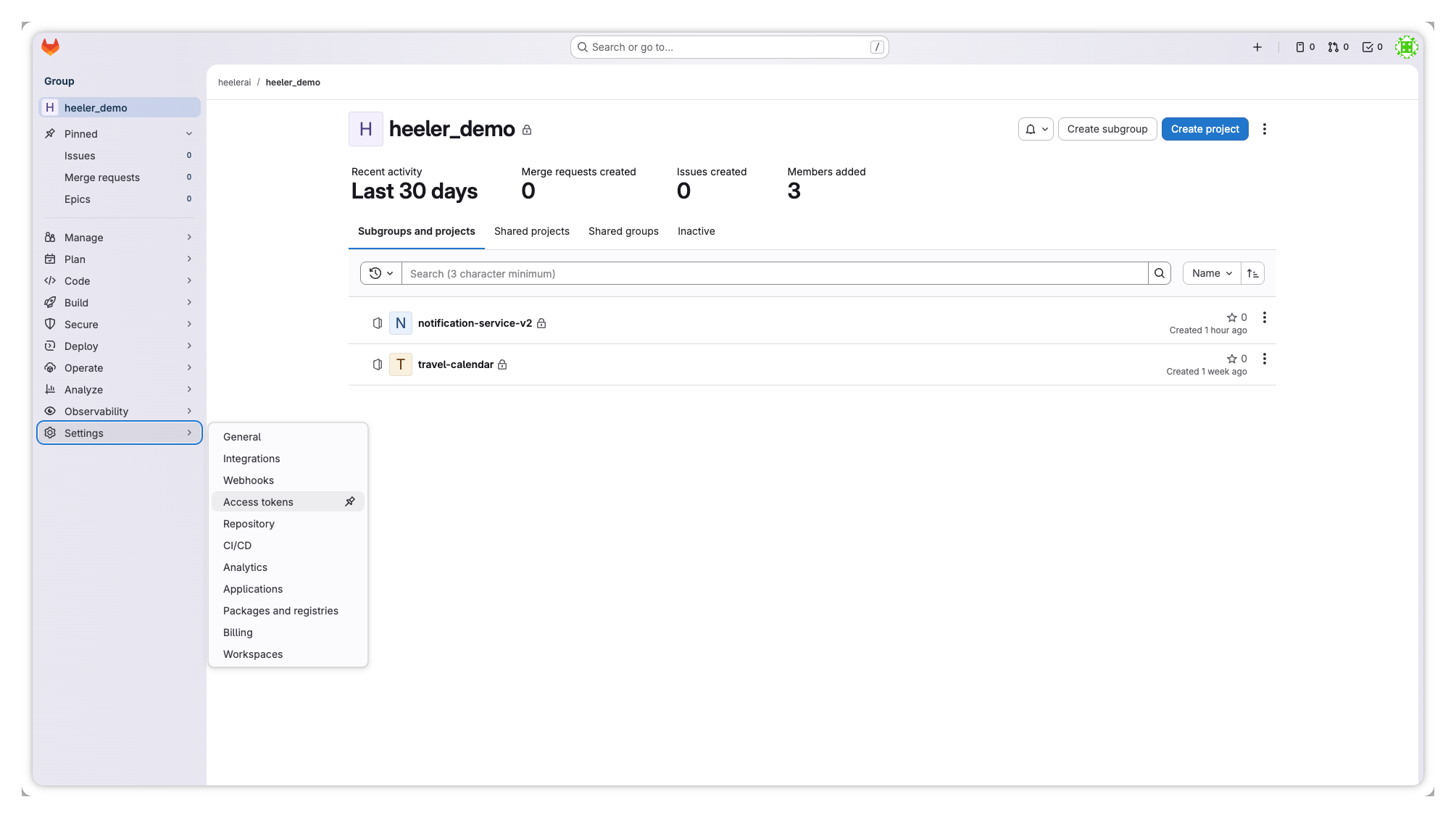
In GitLab, open your group's **Settings → Access tokens** and create a token with:

<figure><img src="https://414480750-files.gitbook.io/~/files/v0/b/gitbook-x-prod.appspot.com/o/spaces%2FXP3dp2kecwKA2KvYkntz%2Fuploads%2Fgit-blob-27e9ad11c95a77d8d15f3f7e64fd35fe69ec3ab6%2Fcc-scm-gitlab-02.png?alt=media" alt="GitLab group Settings with Access tokens selected in the left navigation."><figcaption><p>Open your group's <strong>Settings → Access tokens</strong>.</p></figcaption></figure>

<table><thead><tr><th width="180">Setting</th><th width="200">Value</th><th>Why</th></tr></thead><tbody><tr><td><strong>Role</strong></td><td><code>Maintainer</code></td><td>Required to run guardrail analysis on protected branches.</td></tr><tr><td><strong>Scope</strong></td><td><code>api</code></td><td>Gather project info, report guardrail results, and comment on / block merge requests.</td></tr><tr><td><strong>Scope</strong></td><td><code>read_repository</code></td><td>Correlate repositories to services and run security analysis.</td></tr></tbody></table>

<figure><img src="https://414480750-files.gitbook.io/~/files/v0/b/gitbook-x-prod.appspot.com/o/spaces%2FXP3dp2kecwKA2KvYkntz%2Fuploads%2Fgit-blob-8298cb3e85cd9bfddb00b560c14f5a896f2c62bf%2Fcc-scm-gitlab-03.png?alt=media" alt="The GitLab group access token form with the Maintainer role and the api and read_repository scopes selected."><figcaption><p>Grant the <code>Maintainer</code> role with the <code>api</code> and <code>read_repository</code> scopes.</p></figcaption></figure>

{% hint style="info" %}
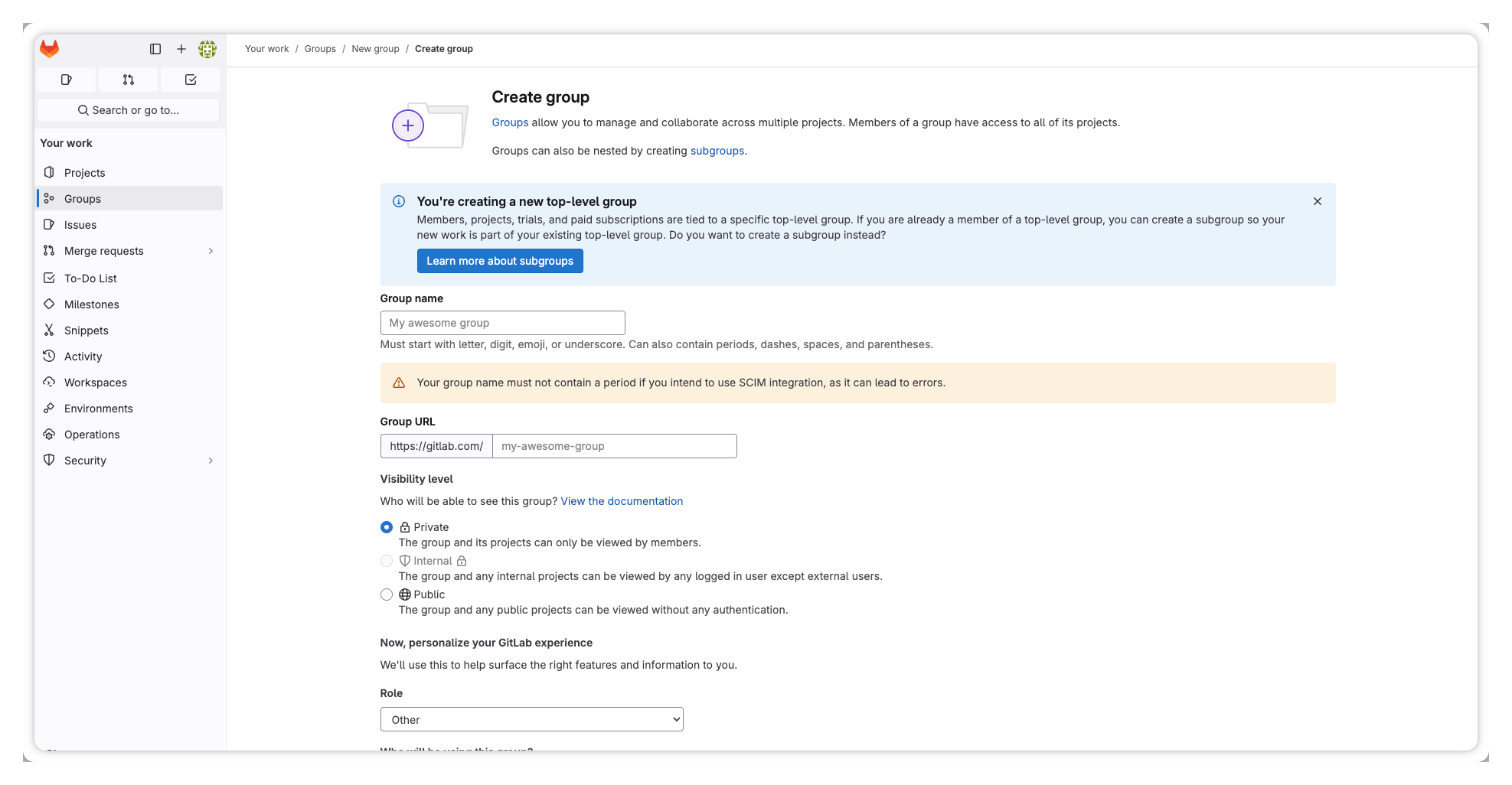
No suitable group yet? Create one under **Groups → Create Group**, then add the projects (or subgroups) you want Heeler to analyze. Group templates or automation keep new projects curated in automatically.

<img src="https://414480750-files.gitbook.io/~/files/v0/b/gitbook-x-prod.appspot.com/o/spaces%2FXP3dp2kecwKA2KvYkntz%2Fuploads%2Fgit-blob-f947aff6920653f2dbe22ff82c6fa8555439dbe6%2Fcc-scm-gitlab-01.png?alt=media" alt="Create a group if you don&#x27;t have a suitable one yet." data-size="original">
{% endhint %}

## Step 2 — Add GitLab to Heeler

{% stepper %}
{% step %}

### Open Code Organizations

Click the **Settings** (gear) icon → **Connections → Code Organizations → Add Code Organization → Gitlab**.

<figure><img src="https://414480750-files.gitbook.io/~/files/v0/b/gitbook-x-prod.appspot.com/o/spaces%2FXP3dp2kecwKA2KvYkntz%2Fuploads%2Fgit-blob-a1f0da269b3a34cc8482595baf4e326809b2c819%2Fcc-scm-gitlab-add-code-organization.png?alt=media" alt="The Heeler Code Organizations settings screen with the Add Code Organization button."><figcaption><p>From <strong>Connections → Code Organizations</strong>, click <strong>Add Code Organization</strong> and choose <strong>Gitlab</strong>.</p></figcaption></figure>
{% endstep %}

{% step %}

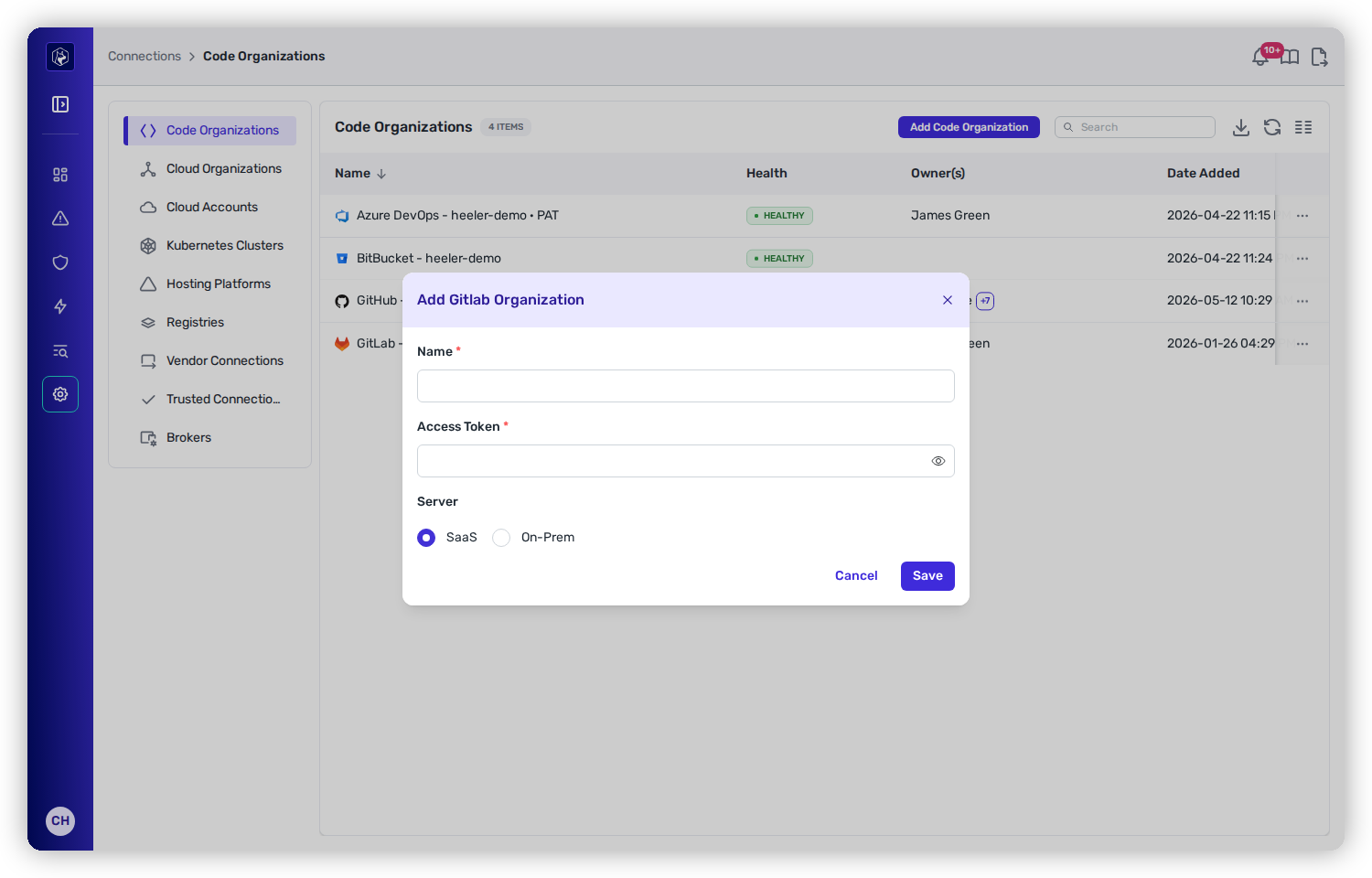
### Enter the connection details

* **Name** — a display name for the group (it needn't match the GitLab group name).
* **Access Token** — the group access token from Step 1.
* **Server** — choose **SaaS** for [gitlab.com](https://gitlab.com), or **On-Prem** and enter your **Server URL** for a self-managed instance.

<figure><img src="https://414480750-files.gitbook.io/~/files/v0/b/gitbook-x-prod.appspot.com/o/spaces%2FXP3dp2kecwKA2KvYkntz%2Fuploads%2Fgit-blob-fca74e8bec77c62a2d274298bfa21ed8ceefcab2%2Fcc-gs-scm-gitlab-form.png?alt=media" alt="The Add Gitlab Organization modal with Name, Access Token, and a SaaS / On-Prem server selector."><figcaption><p>Add the GitLab group. Choose On-Prem to reveal a Server URL field for a self-managed instance.</p></figcaption></figure>
{% endstep %}

{% step %}

### Save and copy the Installation Token

Click **Save**. The modal updates with an **Installation Token** — copy it (you can regenerate it later with **Generate New Token**). You'll use it as the secret on the group hook in the next step.

<figure><img src="https://414480750-files.gitbook.io/~/files/v0/b/gitbook-x-prod.appspot.com/o/spaces%2FXP3dp2kecwKA2KvYkntz%2Fuploads%2Fgit-blob-9005ffc87d30f5ca8bd5104a24942c78d68098d0%2Fcc-scm-gitlab-installation-token.png?alt=media" alt="The Add Gitlab Organization modal after saving, showing the generated Installation Token with a copy control."><figcaption><p>After saving, the modal returns an <strong>Installation Token</strong> — copy it to use as the group hook secret.</p></figcaption></figure>
{% endstep %}
{% endstepper %}

## Step 3 — Create the group hook

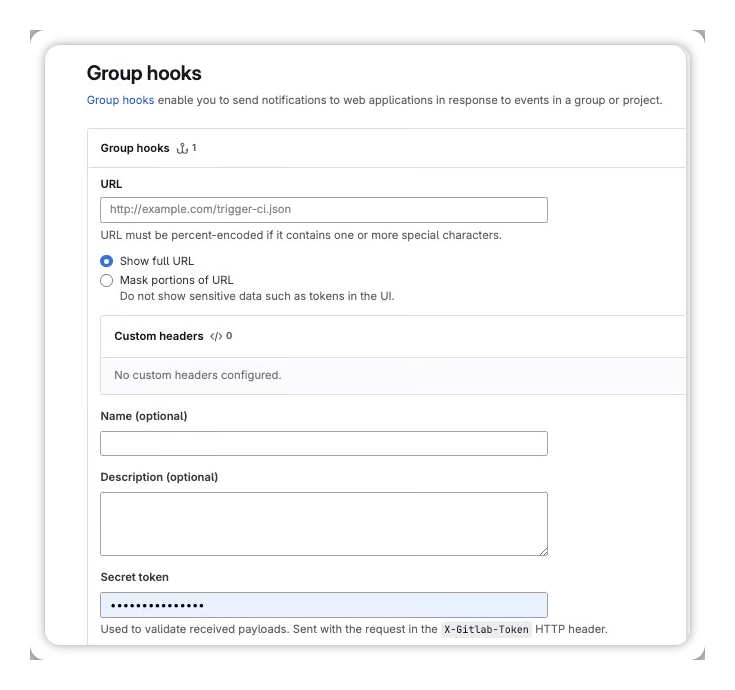
Back in GitLab, open your group's **Settings → Webhooks** and add a hook:

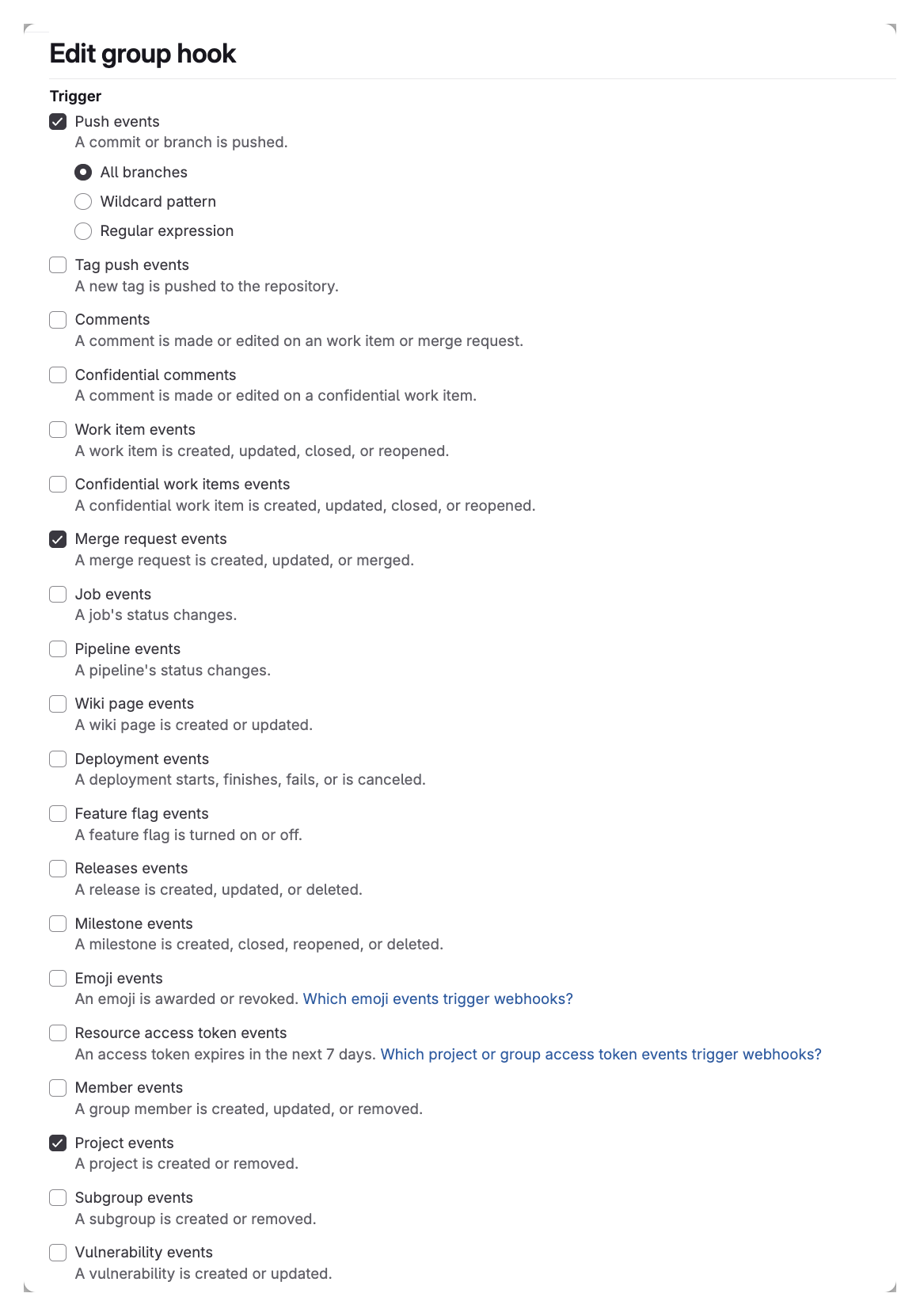
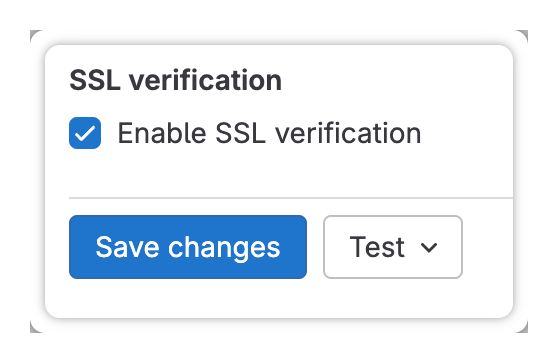
<table><thead><tr><th width="200">Field</th><th>Value</th></tr></thead><tbody><tr><td><strong>URL</strong></td><td><code>https://gl-events.heeler.com/api/v1/gitlab/payload</code> — the same endpoint for both SaaS and self-managed instances.</td></tr><tr><td><strong>Secret token</strong></td><td>The <strong>Installation Token</strong> from Step 2.</td></tr><tr><td><strong>Triggers</strong></td><td><strong>Push events</strong> (select <em>All branches</em>) · <strong>Merge request events</strong> · <strong>Project events</strong></td></tr><tr><td><strong>SSL verification</strong></td><td><strong>Enabled</strong></td></tr></tbody></table>

<figure><img src="https://414480750-files.gitbook.io/~/files/v0/b/gitbook-x-prod.appspot.com/o/spaces%2FXP3dp2kecwKA2KvYkntz%2Fuploads%2Fgit-blob-aa1d2af8e2952b4443c4925a95b722aa9ff61bc3%2Fcc-scm-gitlab-08.png?alt=media" alt="The GitLab group webhook form with the Heeler events URL and the Installation Token as the secret."><figcaption><p>Enter the Heeler events URL and the Installation Token as the secret.</p></figcaption></figure>

<figure><img src="https://414480750-files.gitbook.io/~/files/v0/b/gitbook-x-prod.appspot.com/o/spaces%2FXP3dp2kecwKA2KvYkntz%2Fuploads%2Fgit-blob-757f8f8e3a460590c30b7e6f9d9b86cb89a41c3a%2Fcc-scm-gitlab-09.png?alt=media" alt="The GitLab webhook trigger checkboxes: Push events (all branches), Merge request events, and Project events."><figcaption><p>Check the Push, Merge request, and Project event triggers.</p></figcaption></figure>

<figure><img src="https://414480750-files.gitbook.io/~/files/v0/b/gitbook-x-prod.appspot.com/o/spaces%2FXP3dp2kecwKA2KvYkntz%2Fuploads%2Fgit-blob-80107596014e799fb1646e8ae0db25d3363de608%2Fcc-scm-gitlab-10.png?alt=media" alt="The Enable SSL verification checkbox on the GitLab webhook."><figcaption><p>Enable SSL verification.</p></figcaption></figure>

{% hint style="success" %}
**Self-managed instances** post to the same `gl-events.heeler.com` endpoint — your GitLab server just needs outbound access to it. Heeler no longer uses a Broker relay for GitLab webhooks.
{% endhint %}

## You're done when…

* [ ] The group shows **Healthy** under **Code Organizations**.
* [ ] Repositories appear in the [Catalog](/mrecEO40m5D6bt7Pq5pE/catalog/repositories.md).
* [ ] Opening a merge request triggers a Heeler [guardrail](/mrecEO40m5D6bt7Pq5pE/prevent/pr-guardrails.md) check.

## Troubleshooting

<table><thead><tr><th width="300">Symptom</th><th>Fix</th></tr></thead><tbody><tr><td>Connection <strong>Unhealthy</strong></td><td>Confirm the group access token has the <code>Maintainer</code> role and both <code>api</code> and <code>read_repository</code> scopes, and hasn't expired.</td></tr><tr><td>Webhook test fails</td><td>Confirm the URL is exactly <code>https://gl-events.heeler.com/api/v1/gitlab/payload</code>, the secret is the Installation Token (not the access token), and SSL verification is on. For self-managed, confirm outbound access to Heeler.</td></tr><tr><td>Guardrail checks not appearing on MRs</td><td>Confirm the <strong>Merge request events</strong> trigger is enabled and the token role is <code>Maintainer</code>.</td></tr></tbody></table>

## Related

* [Connect Your Code](/mrecEO40m5D6bt7Pq5pE/get-started/source-code-scm.md) — the common flow and network requirements.
* [PR Guardrails](/mrecEO40m5D6bt7Pq5pE/prevent/pr-guardrails.md) — gate merge requests once GitLab is connected.


---

# Agent Instructions
This documentation is published with GitBook. GitBook is the documentation platform designed so that both humans and AI agents can read, navigate, and reason over technical content effectively. Learn more at gitbook.com.

## Querying This Documentation
If you need additional information that is not directly available in this page, you can query the documentation dynamically by asking a question.

Perform an HTTP GET request on the current page URL with the `ask` query parameter, and the optional `goal` query parameter:

```
GET https://docs.heeler.com/mrecEO40m5D6bt7Pq5pE/get-started/source-code-scm/gitlab.md?ask=<question>&goal=<endgoal>
```

`ask` is the immediate question: it should be specific, self-contained, and written in natural language.
`goal` is optional and describes the broader end goal you are ultimately trying to accomplish on behalf of the user. GitBook uses it to tailor the answer towards what is most useful for that goal.

The response will contain a direct answer to the question and relevant excerpts and sources from the documentation.

Use this mechanism when the answer is not explicitly present in the current page, you need clarification or additional context, or you want to retrieve related documentation sections.