> For the complete documentation index, see [llms.txt](https://docs.heeler.com/mrecEO40m5D6bt7Pq5pE/llms.txt). Markdown versions of documentation pages are available by appending `.md` to page URLs; this page is available as [Markdown](https://docs.heeler.com/mrecEO40m5D6bt7Pq5pE/get-started/ticketing/shortcut.md).

# Shortcut

Connect Shortcut to Heeler with a workspace URL and API token for two-way Story creation, updates, and closure.

Heeler runs a **two-way** integration with Shortcut — creating, updating, and closing Stories, and harvesting Users and Teams to automate Story context. It authenticates with a **workspace URL and API token**.

## Before you start

* **Administrator** in Heeler to add an integration.
* Access to your Shortcut workspace's **General Settings** (to copy the workspace URL) and rights to generate an **API token** (**Settings → API Tokens**).

## Step 1 — Gather Shortcut details

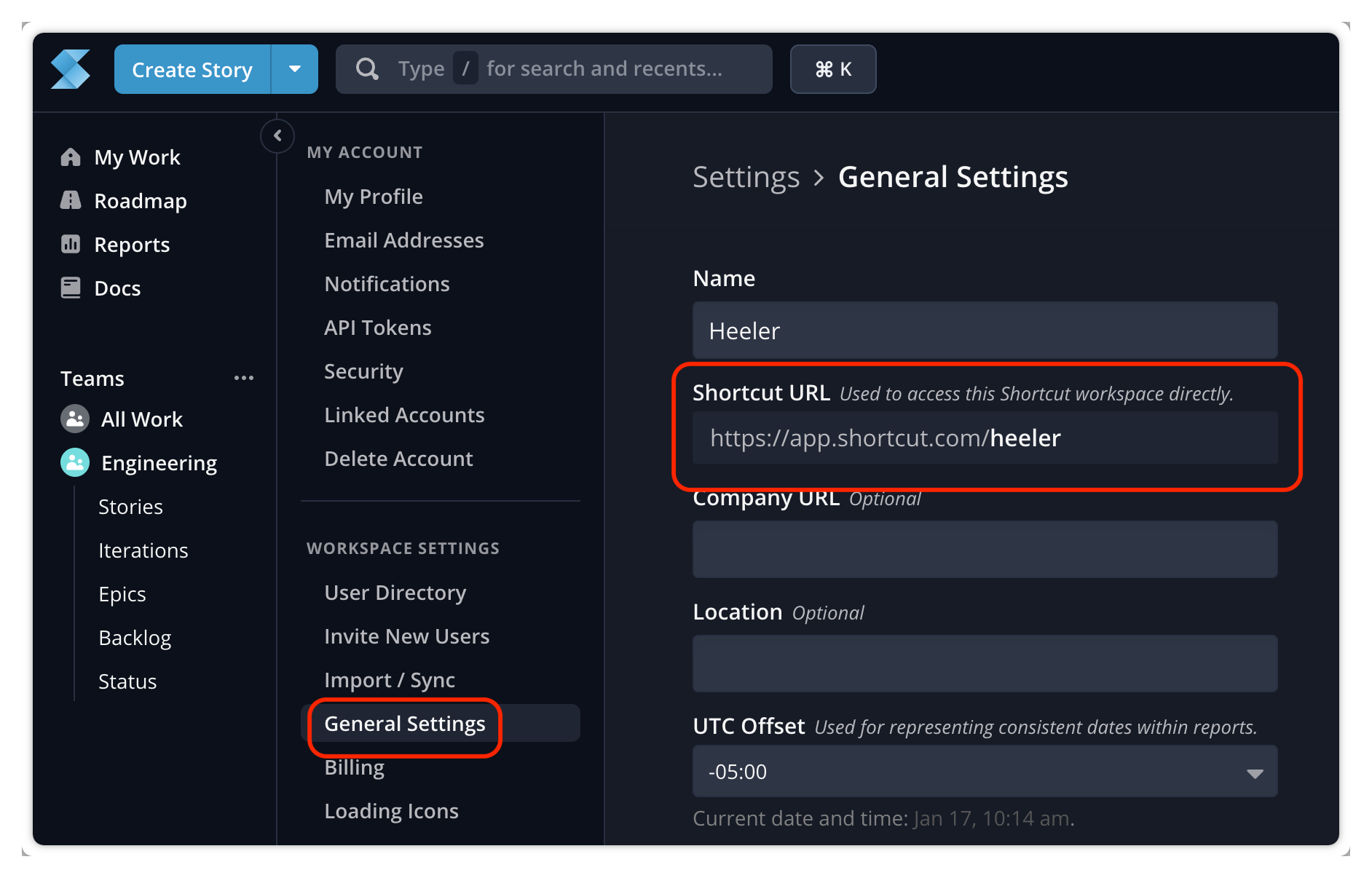
1. In Shortcut, open **Settings → General** and copy the **Shortcut URL**.

   <figure><img src="https://414480750-files.gitbook.io/~/files/v0/b/gitbook-x-prod.appspot.com/o/spaces%2FXP3dp2kecwKA2KvYkntz%2Fuploads%2Fgit-blob-3c3b96a2fde17659da80a11b3940d4879fa3b6cc%2Fcc-int-shortcut-01.png?alt=media" alt="Shortcut General Settings showing the workspace URL."><figcaption><p>Copy your Shortcut URL from General Settings.</p></figcaption></figure>
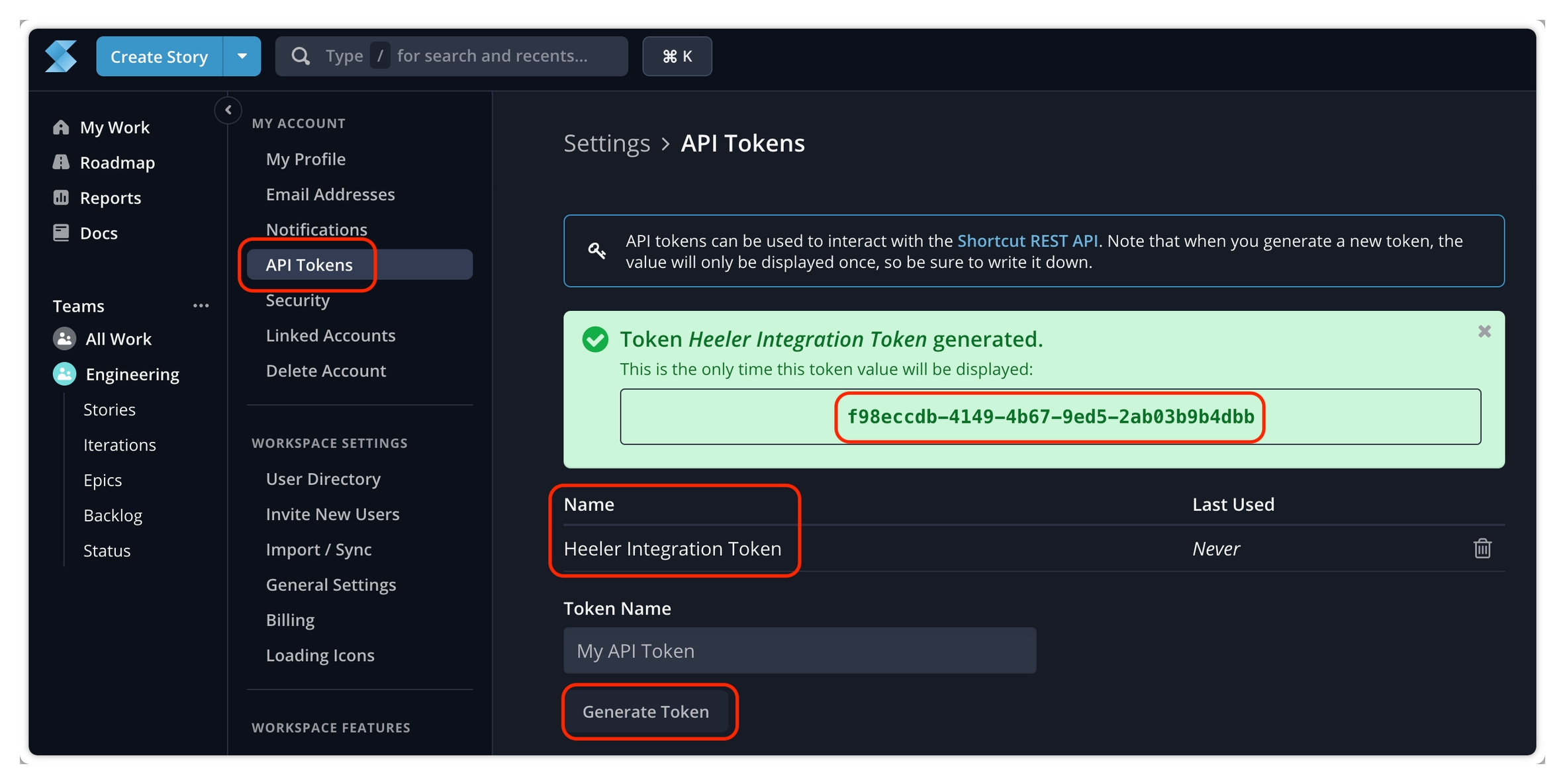
2. Open **Settings → API Tokens**, add a token (e.g. `Heeler Integration Token`), **generate** it, and copy the value.

   <figure><img src="https://414480750-files.gitbook.io/~/files/v0/b/gitbook-x-prod.appspot.com/o/spaces%2FXP3dp2kecwKA2KvYkntz%2Fuploads%2Fgit-blob-4d914f474a77fd9c020b36c12dbc5101216a30cb%2Fcc-int-shortcut-02.png?alt=media" alt="Shortcut&#x27;s API Tokens page with a generated Heeler Integration Token."><figcaption><p>Generate an API token and copy the value — it's shown only once.</p></figcaption></figure>

## Step 2 — Add Shortcut in Heeler

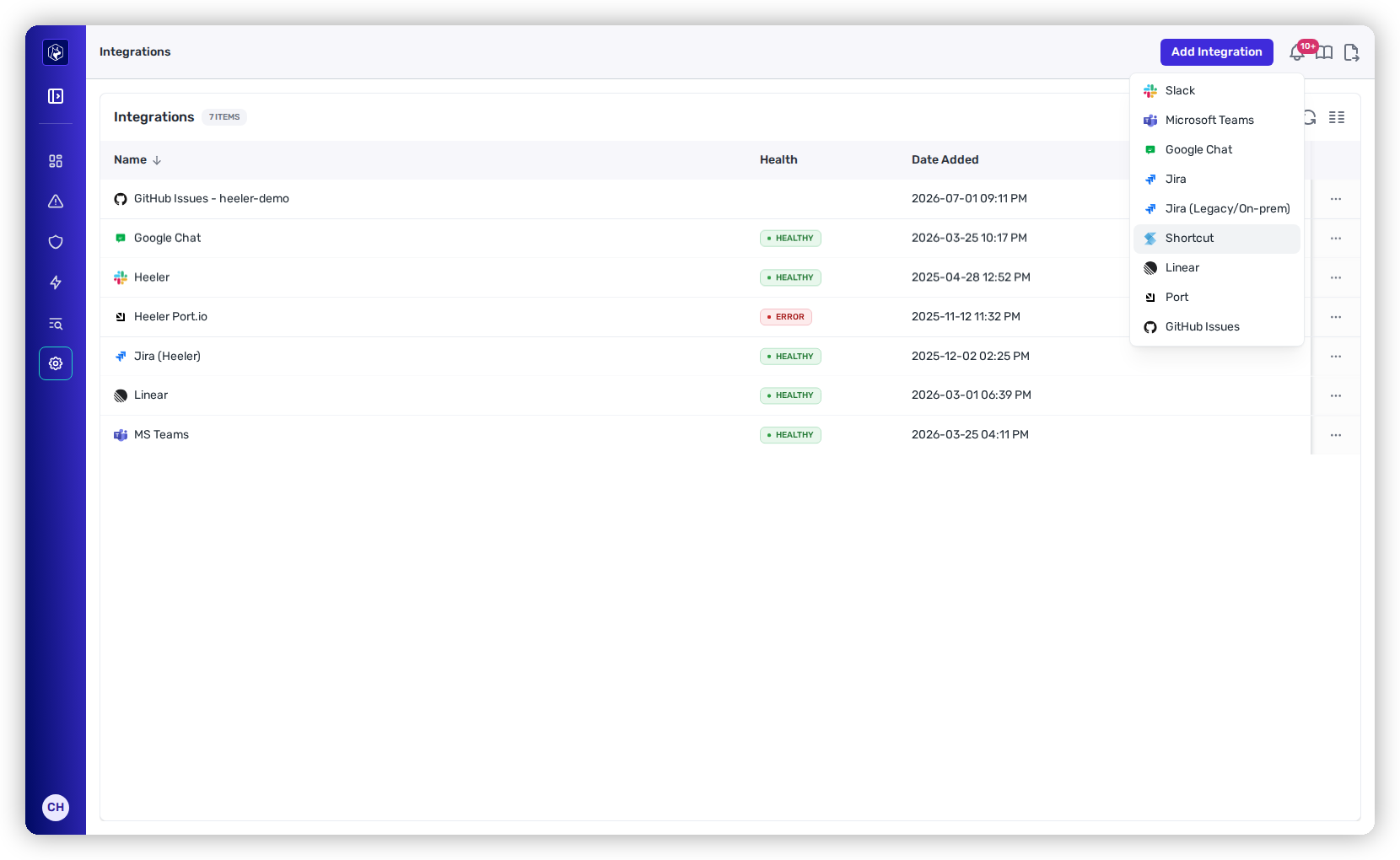
Go to **Administration → Integrations → Add Integration → Shortcut**.

<figure><img src="https://414480750-files.gitbook.io/~/files/v0/b/gitbook-x-prod.appspot.com/o/spaces%2FXP3dp2kecwKA2KvYkntz%2Fuploads%2Fgit-blob-08205593fc7df2368667c3f59e12dcbaf395fa01%2Fcc-int-shortcut-04.png?alt=media" alt="The Add Integration menu in Heeler with Shortcut selected."><figcaption><p>Add Integration → Shortcut.</p></figcaption></figure>

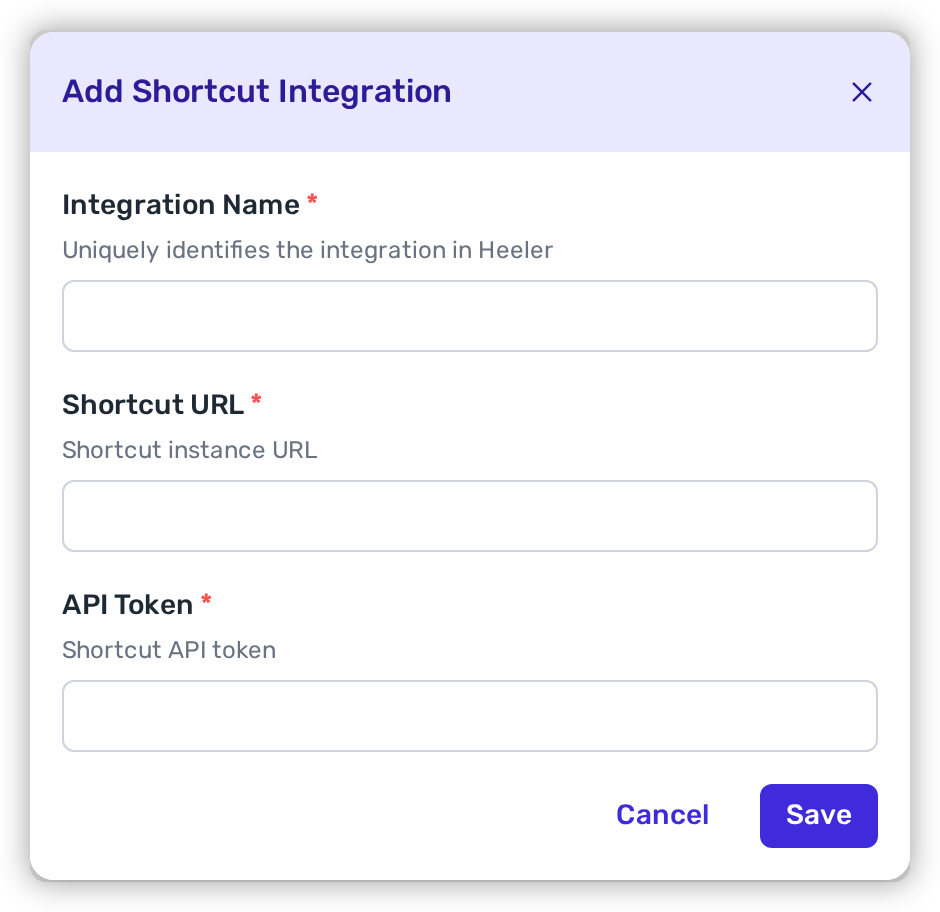
Then fill in:

<table><thead><tr><th width="200">Field</th><th>Value</th></tr></thead><tbody><tr><td><strong>Integration Name</strong></td><td>A meaningful name (e.g. <code>Company Shortcut</code>).</td></tr><tr><td><strong>Shortcut URL</strong></td><td>From Step 1.</td></tr><tr><td><strong>API Token</strong></td><td>From Step 1.</td></tr></tbody></table>

<figure><img src="https://414480750-files.gitbook.io/~/files/v0/b/gitbook-x-prod.appspot.com/o/spaces%2FXP3dp2kecwKA2KvYkntz%2Fuploads%2Fgit-blob-0dbc3c796c7d079145bbee64197c8ebfb6f18379%2Fcc-int-shortcut-05.png?alt=media" alt="The Add Shortcut integration modal with Name, Shortcut URL, and API Token fields."><figcaption><p>Enter the Shortcut URL and API token in Heeler.</p></figcaption></figure>

Save, and confirm the Shortcut row shows **Healthy** in the Integrations list. Shortcut is now available as a destination in [Workflows](/mrecEO40m5D6bt7Pq5pE/operate/workflows.md).

<figure><img src="https://414480750-files.gitbook.io/~/files/v0/b/gitbook-x-prod.appspot.com/o/spaces%2FXP3dp2kecwKA2KvYkntz%2Fuploads%2Fgit-blob-c0980c1d7bb9a1f183dc435f3d6f314e969c8a2d%2Fcc-int-shortcut-06.png?alt=media" alt="The Heeler Integrations list showing the Shortcut integration with a Healthy status."><figcaption><p>The connected Shortcut integration, Healthy.</p></figcaption></figure>

## Related

* [Workflows — Create Shortcut Story](/mrecEO40m5D6bt7Pq5pE/operate/workflows/actions.md) — Shortcut as a workflow action.


---

# Agent Instructions
This documentation is published with GitBook. GitBook is the documentation platform designed so that both humans and AI agents can read, navigate, and reason over technical content effectively. Learn more at gitbook.com.

## Querying This Documentation
If you need additional information that is not directly available in this page, you can query the documentation dynamically by asking a question.

Perform an HTTP GET request on the current page URL with the `ask` query parameter, and the optional `goal` query parameter:

```
GET https://docs.heeler.com/mrecEO40m5D6bt7Pq5pE/get-started/ticketing/shortcut.md?ask=<question>&goal=<endgoal>
```

`ask` is the immediate question: it should be specific, self-contained, and written in natural language.
`goal` is optional and describes the broader end goal you are ultimately trying to accomplish on behalf of the user. GitBook uses it to tailor the answer towards what is most useful for that goal.

The response will contain a direct answer to the question and relevant excerpts and sources from the documentation.

Use this mechanism when the answer is not explicitly present in the current page, you need clarification or additional context, or you want to retrieve related documentation sections.