> For the complete documentation index, see [llms.txt](https://docs.heeler.com/mrecEO40m5D6bt7Pq5pE/llms.txt). Markdown versions of documentation pages are available by appending `.md` to page URLs; this page is available as [Markdown](https://docs.heeler.com/mrecEO40m5D6bt7Pq5pE/get-started/users-and-access/managing-users.md).

# Managing Users

Invite people to your tenant, manage their accounts, and turn on two-factor authentication — the day-to-day of running users in Heeler.

Beyond single sign-on and automated provisioning, Heeler gives you a place to **invite people one at a time, manage each account, and secure your own login with two-factor authentication**. Everything on this page lives under **Administration → Access → Users** and is an **Administrator** action — with one exception: enabling two-factor authentication is something *every* user does for their own account.

{% hint style="info" %}
Managing individual users here and [SCIM provisioning](/mrecEO40m5D6bt7Pq5pE/get-started/users-and-access/scim-provisioning.md) are two ways to do the same job. If your identity provider drives accounts through SCIM, users appear and disappear automatically and you'll rarely invite by hand — but the actions below still work for the accounts SCIM doesn't own (for example, an external auditor).
{% endhint %}

## The Users list

The **Users** list is the roster of everyone with access to your tenant, one row per person. Each row carries:

| Column                         | What it shows                                                                                                                                                                                                                                                                     |
| ------------------------------ | --------------------------------------------------------------------------------------------------------------------------------------------------------------------------------------------------------------------------------------------------------------------------------- |
| **Email**                      | The account's email — also the sign-in identity.                                                                                                                                                                                                                                  |
| **First Name** / **Last Name** | The person's name.                                                                                                                                                                                                                                                                |
| **Is Active**                  | Whether the account can sign in. A disabled account stays in the list but can't log in.                                                                                                                                                                                           |
| **MFA Enabled**                | Whether that user has turned on two-factor authentication for their own account.                                                                                                                                                                                                  |
| **SAML Enabled**               | Whether the account authenticates through your SAML identity provider (vs. a Heeler password).                                                                                                                                                                                    |
| **Role**                       | The account's role — **Team viewer**, **Team contributor**, **Organization viewer**, **Organization contributor**, **Administrator (read-only)**, or **Administrator**. See [Roles and Permissions](/mrecEO40m5D6bt7Pq5pE/get-started/users-and-access/roles-and-permissions.md). |
| **Last Login**                 | When the account last signed in.                                                                                                                                                                                                                                                  |

The toolbar carries a **Search** box, **Manage Columns** (show, hide, and reorder columns), and **Refresh**.

## Inviting a user

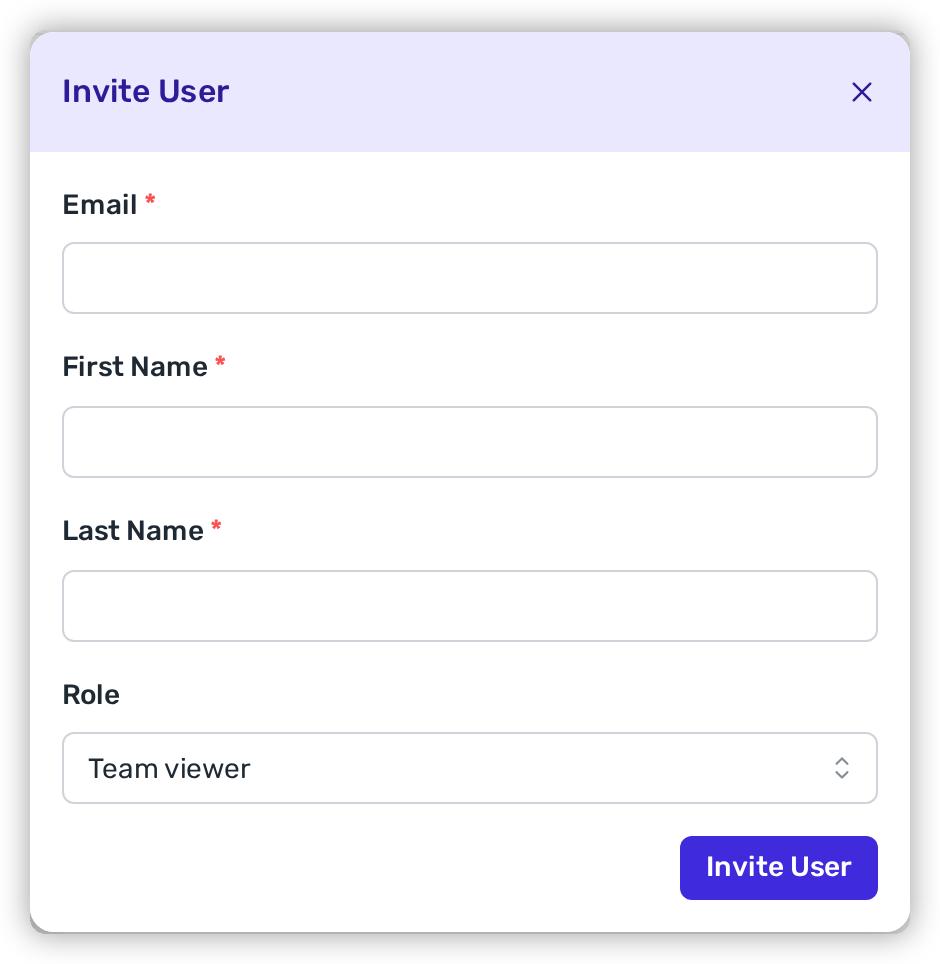
Click **Invite User** to add someone by hand. The modal asks for four things:

<figure><img src="https://414480750-files.gitbook.io/~/files/v0/b/gitbook-x-prod.appspot.com/o/spaces%2FXP3dp2kecwKA2KvYkntz%2Fuploads%2Fgit-blob-c5a6e7969b8d6061f021912e4c8990cc185bcc3e%2Fcc-users-invite.png?alt=media" alt="The Invite User modal with Email, First Name, Last Name, and a Role selector set to Team viewer."><figcaption><p>Inviting a user — supply their details and pick a starting role.</p></figcaption></figure>

* **Email** *(required)* — the address they'll sign in with, and where the welcome email goes.
* **First Name** / **Last Name** *(required)*.
* **Role** — one of **Team viewer** (the default), **Team contributor**, **Organization viewer**, **Organization contributor**, **Administrator (read-only)**, or **Administrator**. Pick the least privilege that lets the person do their job; you can change it later. [Roles and Permissions](/mrecEO40m5D6bt7Pq5pE/get-started/users-and-access/roles-and-permissions.md) explains what each grants.

Heeler emails the new person a **welcome link to set their password**. The link is valid for **24 hours** — if it expires before they use it, [reset their password](#managing-an-existing-user) to send a fresh one. New users are always required to set a password on first sign-in.

<figure><img src="https://414480750-files.gitbook.io/~/files/v0/b/gitbook-x-prod.appspot.com/o/spaces%2FXP3dp2kecwKA2KvYkntz%2Fuploads%2FgjEIThyWpcBmG56WDb7L%2Fsignin.png?alt=media&amp;token=780682a2-b744-44dc-a2a0-900f87cccf3c" alt="The set-password screen an invited user reaches from the welcome email, with New Password and Confirm Password fields."><figcaption><p>What the invited user sees — the welcome link opens a screen to set their password before first sign-in.</p></figcaption></figure>

**Expected result:** a new row appears in the Users list with **Is Active** set (the account exists and can sign in), and **Last Login** empty until the person signs in for the first time.

{% hint style="info" %}
Inviting from here creates a **password-based** account. When you use [SAML SSO](/mrecEO40m5D6bt7Pq5pE/get-started/users-and-access/saml.md), people sign in through your identity provider instead and won't have (or need) a Heeler password — those accounts show **SAML Enabled**.
{% endhint %}

## Managing an existing user

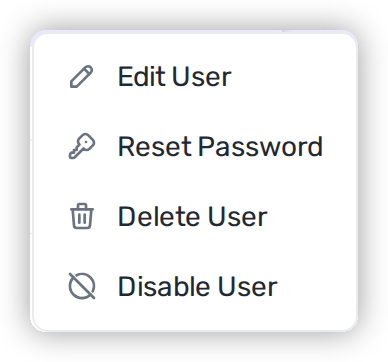
Each row's **⋯ (Actions)** menu handles the rest of the account lifecycle:

<figure><img src="https://414480750-files.gitbook.io/~/files/v0/b/gitbook-x-prod.appspot.com/o/spaces%2FXP3dp2kecwKA2KvYkntz%2Fuploads%2Fgit-blob-2a9d7ae9fd445c46f68e455501e6670305113313%2Fcc-users-actions.png?alt=media" alt="The row Actions menu: Edit User, Reset Password, Delete User, Disable User."><figcaption><p>The per-user Actions menu.</p></figcaption></figure>

| Action                             | What it does                                                                                                                                                                                                                                                                        |
| ---------------------------------- | ----------------------------------------------------------------------------------------------------------------------------------------------------------------------------------------------------------------------------------------------------------------------------------- |
| **Edit User**                      | Change the person's name, email, or **role**. A role change takes effect immediately and re-issues the user's session, so their visibility and permissions update on the spot.                                                                                                      |
| **Reset Password**                 | Send the user a password-reset email, clear their current password, and unlock the account. **This also signs them out everywhere** — their active sessions are ended. Only offered for password accounts; **SAML users can't be reset here** (their password lives with your IdP). |
| **Disable User** / **Enable User** | Toggle whether the account can sign in. **Disabling ends the user's active sessions immediately** — the fastest way to force someone out right now — while keeping the account (and its history) in place. The action flips to **Enable User** for a disabled account.              |
| **Unlock User**                    | Appears only when an account has been **locked** by repeated failed sign-in attempts. Unlocking lets them try again without a password reset.                                                                                                                                       |
| **Delete User**                    | Permanently remove the account. Prefer **Disable** when you may need the account or its audit trail again.                                                                                                                                                                          |

{% hint style="warning" %}
There's no separate "force sign-out" button. When you need to cut off access immediately, **Disable User** (or **Reset Password**) ends the person's active sessions as part of the action.
{% endhint %}

## Two-factor authentication

Two-factor authentication (2FA) adds a one-time code from an authenticator app on top of the password. It's **self-service and per-account** — you turn it on for *yourself*; an admin can't enable it on someone else's behalf (they'll only see the result in the **MFA Enabled** column).

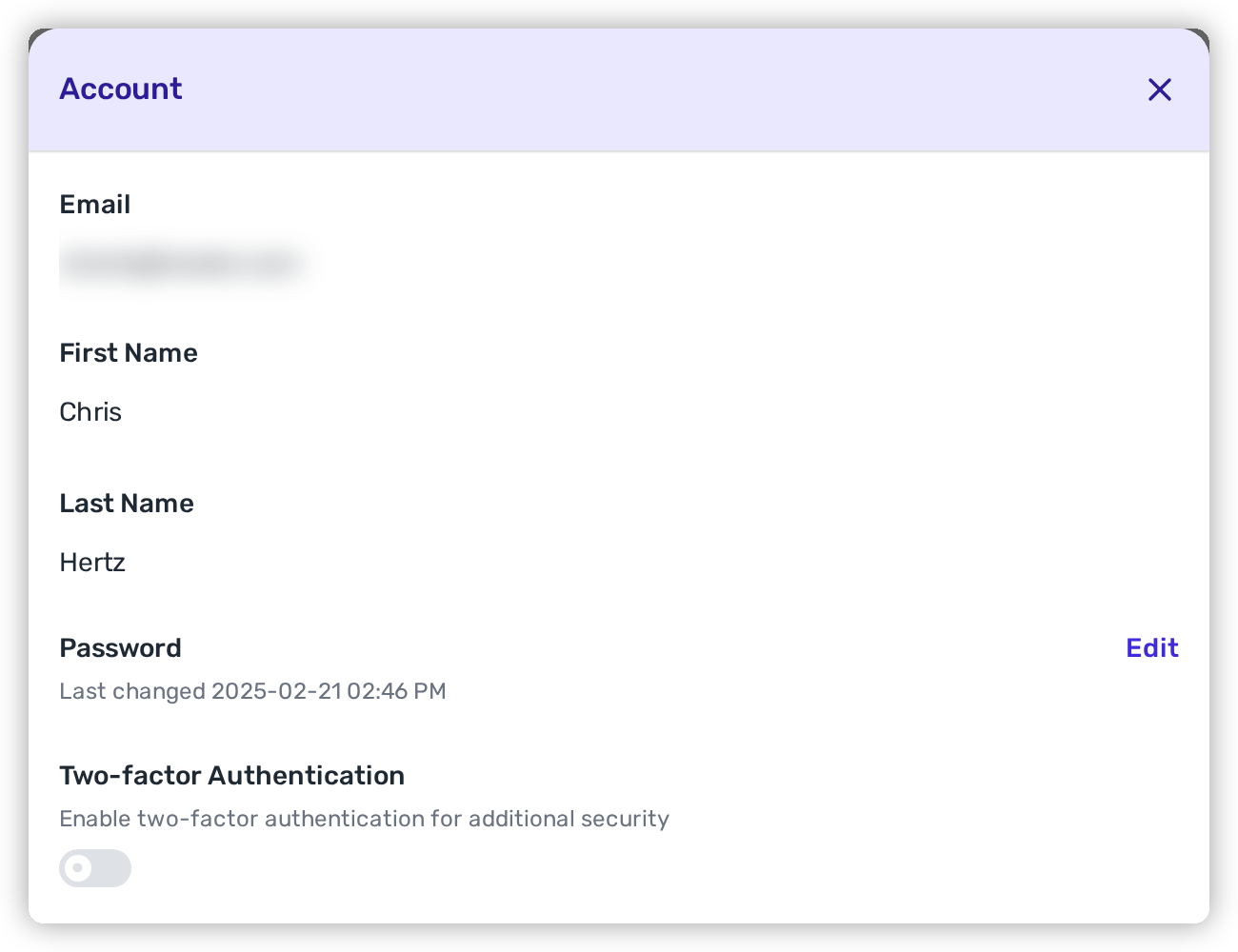
Open your **account menu** (your initials, top-right) → **Profile** to open the **Account** panel:

<figure><img src="https://414480750-files.gitbook.io/~/files/v0/b/gitbook-x-prod.appspot.com/o/spaces%2FXP3dp2kecwKA2KvYkntz%2Fuploads%2Fgit-blob-ec634ae3eb94f31b11e8d76a7f673fd8accb7387%2Fcc-users-2fa.png?alt=media" alt="The Account panel showing the Password Edit link and the Two-factor Authentication toggle."><figcaption><p>Your Account panel — change your password and turn on two-factor authentication.</p></figcaption></figure>

1. Turn the **Two-factor Authentication** switch **on**.
2. A **QR code** appears — scan it with your authenticator app (Google Authenticator, 1Password, Authy, or any TOTP app).
3. Enter the **six-digit code** from that app to confirm the pairing. Enrollment is only committed at this point: until the code is accepted, two-factor authentication stays off, so closing the panel at step 2 leaves the account exactly as it was.
4. Heeler then shows **ten backup codes**. Save them — see below.
5. From then on, signing in prompts for the six-digit code from that app in addition to your password.

To turn it off, flip the switch and confirm **Turn off two-factor authentication**. The same panel has a **Password → Edit** link to change your own password (and shows when it was last changed).

### Backup codes

The ten codes issued at the end of enrollment are the way back into the account when the authenticator app is unavailable — a lost or wiped phone, or an app that no longer holds the pairing.

* Each code works **once**, and they do not expire.
* They are shown **once**, at enrollment. Heeler stores only a keyed digest, so it cannot show them again — use **Copy all** and keep them where you keep other account recovery material. Closing the panel asks you to confirm you have saved them.
* Codes are formatted `xxxxx-xxxxx`. Case and the hyphen are ignored on entry, so `ABCDE-FGHJK` and `abcdefghjk` are the same code.

To sign in with one, choose **Use a backup code instead** on the two-factor prompt and enter the code in place of the six-digit number.

{% hint style="warning" %}
Turning two-factor authentication off and on again issues a fresh set and invalidates the old one. Codes saved from a previous enrollment will not work.
{% endhint %}

{% hint style="info" %}
2FA here applies to **password** sign-in. If you authenticate through [SAML SSO](/mrecEO40m5D6bt7Pq5pE/get-started/users-and-access/saml.md), multi-factor is enforced by your identity provider, not this switch.
{% endhint %}

## Related

* [Roles and Permissions](/mrecEO40m5D6bt7Pq5pE/get-started/users-and-access/roles-and-permissions.md) — what each role can see and do.
* [SAML SSO](/mrecEO40m5D6bt7Pq5pE/get-started/users-and-access/saml.md) — sign-in through your identity provider.
* [SCIM Provisioning](/mrecEO40m5D6bt7Pq5pE/get-started/users-and-access/scim-provisioning.md) — automate account creation and deactivation.


---

# Agent Instructions
This documentation is published with GitBook. GitBook is the documentation platform designed so that both humans and AI agents can read, navigate, and reason over technical content effectively. Learn more at gitbook.com.

## Querying This Documentation
If you need additional information that is not directly available in this page, you can query the documentation dynamically by asking a question.

Perform an HTTP GET request on the current page URL with the `ask` query parameter, and the optional `goal` query parameter:

```
GET https://docs.heeler.com/mrecEO40m5D6bt7Pq5pE/get-started/users-and-access/managing-users.md?ask=<question>&goal=<endgoal>
```

`ask` is the immediate question: it should be specific, self-contained, and written in natural language.
`goal` is optional and describes the broader end goal you are ultimately trying to accomplish on behalf of the user. GitBook uses it to tailor the answer towards what is most useful for that goal.

The response will contain a direct answer to the question and relevant excerpts and sources from the documentation.

Use this mechanism when the answer is not explicitly present in the current page, you need clarification or additional context, or you want to retrieve related documentation sections.