> For the complete documentation index, see [llms.txt](https://docs.heeler.com/mrecEO40m5D6bt7Pq5pE/llms.txt). Markdown versions of documentation pages are available by appending `.md` to page URLs; this page is available as [Markdown](https://docs.heeler.com/mrecEO40m5D6bt7Pq5pE/get-started/users-and-access/roles-and-permissions.md).

# Roles and Permissions

The six Heeler roles, and exactly what each one can see and do.

When you invite someone to your Heeler tenant, you assign one of **six roles**. A role answers two separate questions: **how much of the organization the person sees**, and **how much they're allowed to change** — from read-only access to their own teams' repositories, up to full administration.

<table><thead><tr><th width="240">Role</th><th>Give it to…</th></tr></thead><tbody><tr><td><strong>Team viewer</strong></td><td>Most team members — view findings and work tickets on the repositories their teams own.</td></tr><tr><td><strong>Team contributor</strong></td><td>Engineers who fix findings on their own repositories — everything a Team viewer has, plus triggering remediations.</td></tr><tr><td><strong>Organization viewer</strong></td><td>People who need to see across the whole organization without administering it — auditors, security leads, leadership tracking the estate.</td></tr><tr><td><strong>Organization contributor</strong></td><td>Security and platform engineers who fix findings anywhere in the organization — everything an Organization viewer sees, plus triggering remediations on any repository, with no admin rights.</td></tr><tr><td><strong>Administrator (read-only)</strong></td><td>Auditors and partner teams who need full visibility, including settings and connections, but must not change anything.</td></tr><tr><td><strong>Administrator</strong></td><td>Platform owners who configure Heeler, manage connections, and invite others.</td></tr></tbody></table>

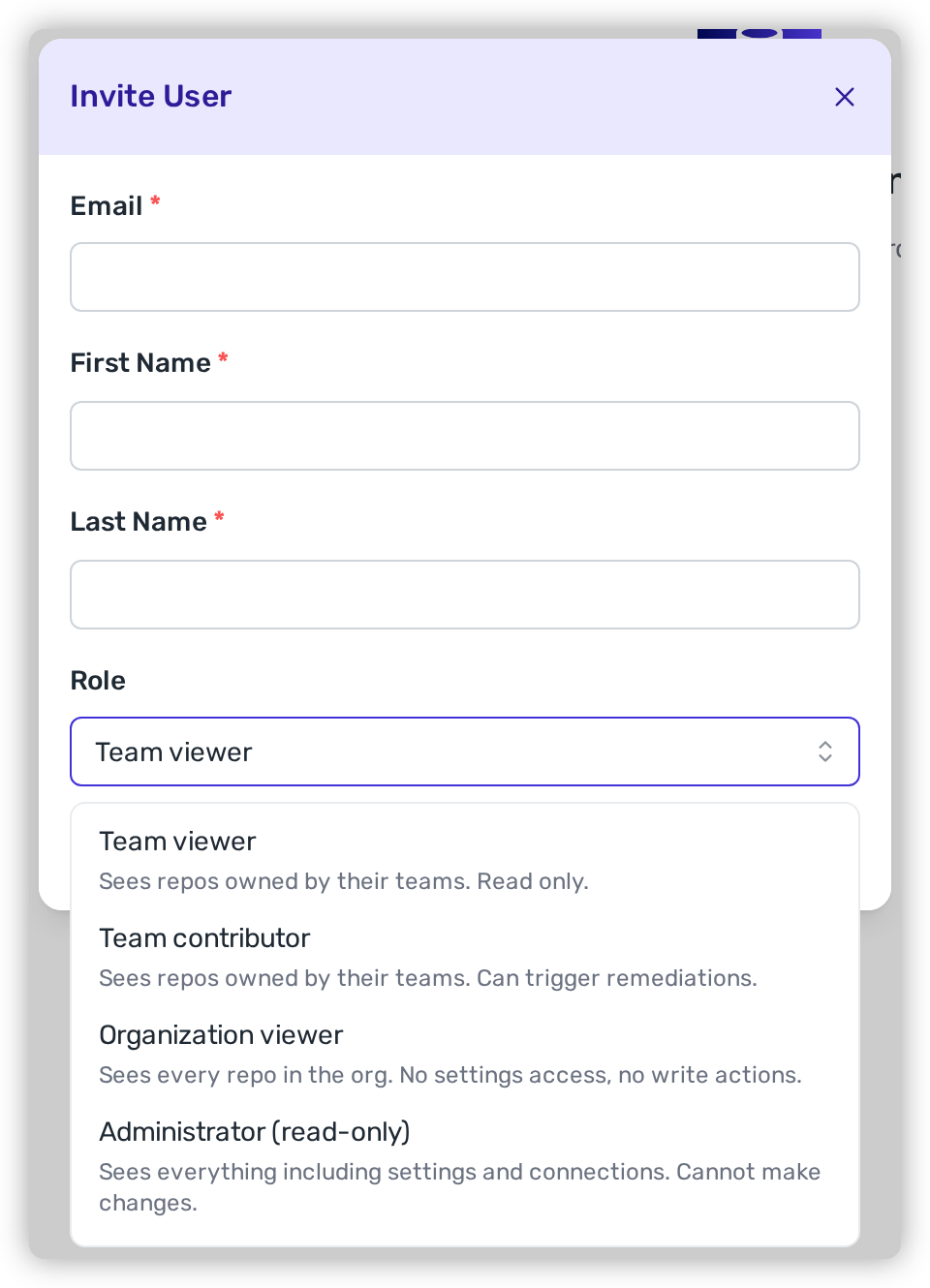
You assign a role in **Administration → Access → Users → Invite User** (or later, from the row's **⋯ → Edit User**). Each option in the picker carries a one-line reminder of what it grants. New invites default to **Team viewer**.

<figure><img src="https://414480750-files.gitbook.io/~/files/v0/b/gitbook-x-prod.appspot.com/o/spaces%2FXP3dp2kecwKA2KvYkntz%2Fuploads%2Fgit-blob-192b05ca54c5bf184aa466ce4344aba68ff6949c%2Fcc-gs-roles-invite.png?alt=media" alt="The Invite User dialog with the Role dropdown open, listing each role with a one-line description of what it can see and do; the list scrolls"><figcaption><p>Inviting a user and choosing their role.</p></figcaption></figure>

{% hint style="info" %}
**Had these roles before?** They've been renamed: **Member** is now **Team viewer**, **Member (Write)** is **Team contributor**, **Read-only admin** is **Administrator (read-only)**, and **Tenant admin** is **Administrator**. **Organization viewer** and **Organization contributor** are new. Existing users keep their access — only the names changed.
{% endhint %}

## How access works

Every role is a combination of two independent grants:

* **Visibility — what you see.** **Team viewers** and **Team contributors** see the applications and repositories owned by the teams they belong to; adding someone to a team widens their view to that team's repositories, so access is never granted repository by repository. **Organization viewers**, **Organization contributors** and both **Administrator** roles see every repository, application, and finding in the tenant. The **Administrator** roles additionally see the administrative surfaces — connections, program policy, users, Guardrails and Workflows configuration, and the audit log.
* **Authority — what you change.** Only an **Administrator** can change configuration (connections, policies, guardrails, workflows, users). A **Team contributor** or **Organization contributor** holds one write grant: triggering agentic remediation on findings they can see. Everyone else works findings without changing anything — an **Administrator (read-only)** can't even do that: every change is blocked, with write actions visibly disabled rather than hidden, so the read-only scope is always clear.

## Role summary

| Capability                                                        | Team viewer | Team contributor | Organization viewer | Organization contributor | Administrator (read-only) | Administrator |
| ----------------------------------------------------------------- | :---------: | :--------------: | :-----------------: | :----------------------: | :-----------------------: | :-----------: |
| View dashboards, findings & catalog (their teams' repositories)   |      ✅      |         ✅        |          ✅          |             ✅            |             ✅             |       ✅       |
| View every repository in the organization                         |      ❌      |         ❌        |          ✅          |             ✅            |             ✅             |       ✅       |
| View admin settings (connections, policies, users)                |      ❌      |         ❌        |          ❌          |             ❌            |             ✅             |       ✅       |
| View Guardrails & Workflows                                       |      ❌      |         ❌        |          ❌          |             ❌            |             ✅             |       ✅       |
| View the audit log                                                |      ❌      |         ❌        |          ❌          |             ❌            |             ✅             |       ✅       |
| Create & manage tickets                                           |      ✅      |         ✅        |          ✅          |             ✅            |             ❌             |       ✅       |
| Chat & collaboration                                              |      ✅      |         ✅        |          ✅          |             ✅            |             ❌             |       ✅       |
| Trigger agentic remediation (Fix Now)                             |      ❌      |         ✅        |          ❌          |             ✅            |             ❌             |       ✅       |
| Approve or discard a held fix (Administration → Agent Executions) |      ❌      |         ❌        |          ❌          |             ❌            |             ❌             |       ✅       |
| Export data (within their visibility)                             |      ✅      |         ✅        |          ✅          |             ✅            |             ❌             |       ✅       |
| Manage integrations & connections                                 |      ❌      |         ❌        |          ❌          |             ❌            |             ❌             |       ✅       |
| Configure SLOs, policies & remediation                            |      ❌      |         ❌        |          ❌          |             ❌            |             ❌             |       ✅       |
| Configure Guardrails & Workflows                                  |      ❌      |         ❌        |          ❌          |             ❌            |             ❌             |       ✅       |
| Invite users & manage roles                                       |      ❌      |         ❌        |          ❌          |             ❌            |             ❌             |       ✅       |
| Configure SAML / SCIM                                             |      ❌      |         ❌        |          ❌          |             ❌            |             ❌             |       ✅       |
| Manage their own profile, password & API tokens                   |      ✅      |         ✅        |          ✅          |             ✅            |             ✅             |       ✅       |

Exports respect both grants: every role that can export gets exactly what it can see (a Team viewer's export covers their teams' repositories; an Organization viewer's or Organization contributor's covers the whole tenant), and a handful of tenant-wide export types — deployments, the global dependency inventory, licenses, and guardrail violations — are available to Administrators only.

## The roles in detail

### Team viewer

The default role for a new user, and the right one for most team members. Team viewers see the dashboards, findings, catalog, deployments, and licenses for the applications and repositories **owned by the teams they belong to**. They can create and manage tickets on those findings, use chat and collaboration, track remediation, and export the data they can see. They can't see other teams' repositories, any administrative view, or the audit log — and they can't change settings or trigger remediations.

### Team contributor

The same team-scoped visibility as a Team viewer, plus **one** added capability: **triggering agentic remediation** on findings in their repositories — **Fix Now**, which validates the change and opens it as a pull request for review. This lets engineers fix what they own without any admin rights; every other Team viewer restriction still applies.

A fix a Team contributor starts always opens its pull request, whatever the tenant's [pull request default](/mrecEO40m5D6bt7Pq5pE/administer-and-monitor/program-policy/remediation-agent.md#pull-request-defaults-for-sca-and-sast-autofix) says. Held fixes wait in [Agent Executions](/mrecEO40m5D6bt7Pq5pE/fix/agent-executions.md), which is part of Administration and out of a Team contributor's reach; approving and discarding them happens there.

### Organization viewer

Organization-wide **visibility without any administrative authority**. An Organization viewer sees every repository, application, and finding in the tenant — the whole estate, not just their teams' — and can work with what they see: create tickets, use chat and collaboration, and export organization-wide data. What they never see is the administrative side of Heeler: no settings, connections, Guardrails or Workflows configuration, and no audit log. Reach for this role when someone needs to see across the organization but has no business administering it — an auditor, a security lead outside the owning teams, a leader tracking the estate.

### Organization contributor

Organization-wide visibility **plus one write grant**. An Organization contributor sees everything an Organization viewer sees — every repository, application, and finding in the tenant — and can additionally **trigger agentic remediation (Fix Now)** on any of them, without maintaining a team repository list. Everything else is as for an Organization viewer: no settings, connections, Guardrails or Workflows configuration, and no audit log. Reach for it when a central security or platform group needs to fix findings across the organization without becoming administrators.

A fix an Organization contributor starts always opens its pull request, like a Team contributor's; held fixes wait in [Agent Executions](/mrecEO40m5D6bt7Pq5pE/fix/agent-executions.md), which is out of reach for both.

### Administrator (read-only)

Full visibility into all tenant data **and** configuration — everything an Administrator sees, including connections, program policy, users, Guardrails, Workflows, and the audit log — but **cannot make changes**. Write actions are **visibly disabled rather than hidden**, so the read-only scope is always clear. That includes actions other roles have: an Administrator (read-only) can't create tickets, use chat, trigger remediations, or export data. They can still manage their own profile and API tokens (which inherit the same read-only access). Built for auditors and partner teams who need complete context without edit access.

### Administrator

Full access within the tenant — everything every other role can see and do, plus every administrative action:

* **Users & access** — invite users and assign roles, manage API tokens, configure SAML / SCIM, and review the audit log.
* **Integrations & connections** — manage ticketing and messaging integrations, cloud accounts (AWS, GCP, Azure), container registries, and Kubernetes clusters.
* **Applications & services** — create and configure applications, service settings, repositories, and code roots.
* **Policy & automation** — define SLOs, license policies, and remediation defaults; configure Guardrails and Workflows; trigger agentic remediation.
* **Data export** — create and manage exports across all data types, including the Administrator-only ones (deployments, global dependencies, licenses, violations).

{% hint style="info" %}
A role change takes effect immediately — Heeler re-issues the user's session, so their visibility and permissions update on the spot.
{% endhint %}

## Related

* [Managing Users](/mrecEO40m5D6bt7Pq5pE/get-started/users-and-access/managing-users.md) — inviting people, the account lifecycle, and two-factor authentication.
* [Set Up Developer Tooling](/mrecEO40m5D6bt7Pq5pE/get-started/set-up-developer-tooling.md) — give developers the CLI, Agent Skills, and MCP server.
* [Automate Remediation](/mrecEO40m5D6bt7Pq5pE/fix/automate-remediation.md) — how the agentic remediation that a Team contributor or Organization contributor can trigger actually works.


---

# Agent Instructions
This documentation is published with GitBook. GitBook is the documentation platform designed so that both humans and AI agents can read, navigate, and reason over technical content effectively. Learn more at gitbook.com.

## Querying This Documentation
If you need additional information that is not directly available in this page, you can query the documentation dynamically by asking a question.

Perform an HTTP GET request on the current page URL with the `ask` query parameter, and the optional `goal` query parameter:

```
GET https://docs.heeler.com/mrecEO40m5D6bt7Pq5pE/get-started/users-and-access/roles-and-permissions.md?ask=<question>&goal=<endgoal>
```

`ask` is the immediate question: it should be specific, self-contained, and written in natural language.
`goal` is optional and describes the broader end goal you are ultimately trying to accomplish on behalf of the user. GitBook uses it to tailor the answer towards what is most useful for that goal.

The response will contain a direct answer to the question and relevant excerpts and sources from the documentation.

Use this mechanism when the answer is not explicitly present in the current page, you need clarification or additional context, or you want to retrieve related documentation sections.
