> For the complete documentation index, see [llms.txt](https://docs.heeler.com/mrecEO40m5D6bt7Pq5pE/llms.txt). Markdown versions of documentation pages are available by appending `.md` to page URLs; this page is available as [Markdown](https://docs.heeler.com/mrecEO40m5D6bt7Pq5pE/operate/dashboards/filtering-and-exports.md).

# Filtering and Exports

The controls that work the same on every dashboard and Catalog list — scoping with the filter bar and All Filters drawer, saving views, managing columns, and exporting data and SBOMs.

Every dashboard and every Catalog inventory is driven by the same set of controls. Learn them once here and they apply everywhere — scoping a dashboard to one team, narrowing the dependency list to a single ecosystem, saving a view you return to daily, or exporting a list for a report or an SBOM.

{% hint style="info" %}
**For:** Anyone working the dashboards or the Catalog. The controls appear once the [operating loop is connected](/mrecEO40m5D6bt7Pq5pE/get-started.md) and there's data to scope, filter, and export.
{% endhint %}

## The global filter bar

Across the top of every **dashboard** sits a fixed filter bar. Set any combination and the whole page — every card and chart — re-scopes to match:

| Filter           | Scopes to                     |
| ---------------- | ----------------------------- |
| **Application**  | A specific application.       |
| **Repository**   | A specific repository.        |
| **Service**      | A specific service.           |
| **Team**         | The findings owned by a team. |
| **Organization** | An SCM organization.          |
| **Tier**         | A service tier (Tier 1–4).    |

Scoping to a **Team** turns any dashboard into that team's own view; scoping to **Tier 1** focuses everyone on the services that matter most. Filters combine — Team *and* Tier 1 shows one team's most critical services.

## Filtering a list

Catalog inventories (and the finding lists) carry a row of **quick-filter chips** tuned to that list — the Dependencies list offers License, Package Ecosystem, Classification, and Dependency Scope; Endpoints offers Method, Framework, Authentication, and more. Beyond the chips, **All Filters** opens the full set.

<figure><img src="https://414480750-files.gitbook.io/~/files/v0/b/gitbook-x-prod.appspot.com/o/spaces%2FXP3dp2kecwKA2KvYkntz%2Fuploads%2Fgit-blob-d6aceb0470de852e8f14a592b5ab11e832d1c3e4%2Fcc-vis-allfilters.png?alt=media" alt="The All Filters drawer with a searchable filter list and a star beside each filter to pin it to the toolbar."><figcaption><p>All Filters — search the full set, and star the ones you use often to pin them as quick chips on the toolbar.</p></figcaption></figure>

In the drawer you can:

* **Search filters** — type to find a filter by name instead of scrolling.
* **Star a filter** — the star pins it to the toolbar as a quick chip. Un-star to remove it.
* **Clear All Filters** — reset the list to unfiltered.
* **Restore default layout** — return the pinned quick chips to their defaults.

Within a single filter, multiple selected values are treated as **OR** (any of them match); across different filters they're **AND** (all conditions must hold) — so "Ecosystem: npm *or* Maven" combined with "Classification: Direct" narrows to direct npm-or-Maven dependencies.

## Search

Each list has a **Search** box that matches the list's key fields — package and repository names, endpoint paths, CVE IDs, and so on — and narrows results as you type. Search stacks on top of whatever filters are active: filter to an ecosystem, then search within it.

## Saved views

Once you've dialed in a set of filters worth keeping, save it. The **bookmark** icon on the toolbar opens **Presets** — your saved views. Apply one with a click, or save the filters you have set right now.

When you save a view, you name it and choose who can see it:

| Visibility       | Who sees it                   |
| ---------------- | ----------------------------- |
| **Private**      | Only you.                     |
| **Team**         | Everyone on your team.        |
| **Organization** | Everyone in the organization. |

Team and Organization views are how you standardize a shared starting point — for example, an org-wide "Tier 1, Critical only" view that everyone opens the same way.

The bookmark menu has three sections: **Presets** (system views curated by Heeler), **My Filters** (yours), and **Shared** (shared with you). A few presets ship ready to use:

| Preset                          | List                | Surfaces                                                             |
| ------------------------------- | ------------------- | -------------------------------------------------------------------- |
| **Rotate Now**                  | Secrets             | Secrets confirmed live at the provider, needing immediate attention. |
| **High Confidence Findings**    | Source Findings     | The highest-confidence SAST findings, to cut noise.                  |
| **Critical with Fix Available** | Dependency Findings | Critical vulnerabilities that already have a fix.                    |
| **Urgent Remediations**         | Remediations        | Remediations past or nearing their SLO.                              |

Presets can't be edited or removed. **Every filter selection is also reflected in the page URL**. A copied link reproduces the filtered view for anyone with permission to see those results, the URL can be bookmarked, and the browser's back and forward buttons move between filter states.

## Column layout

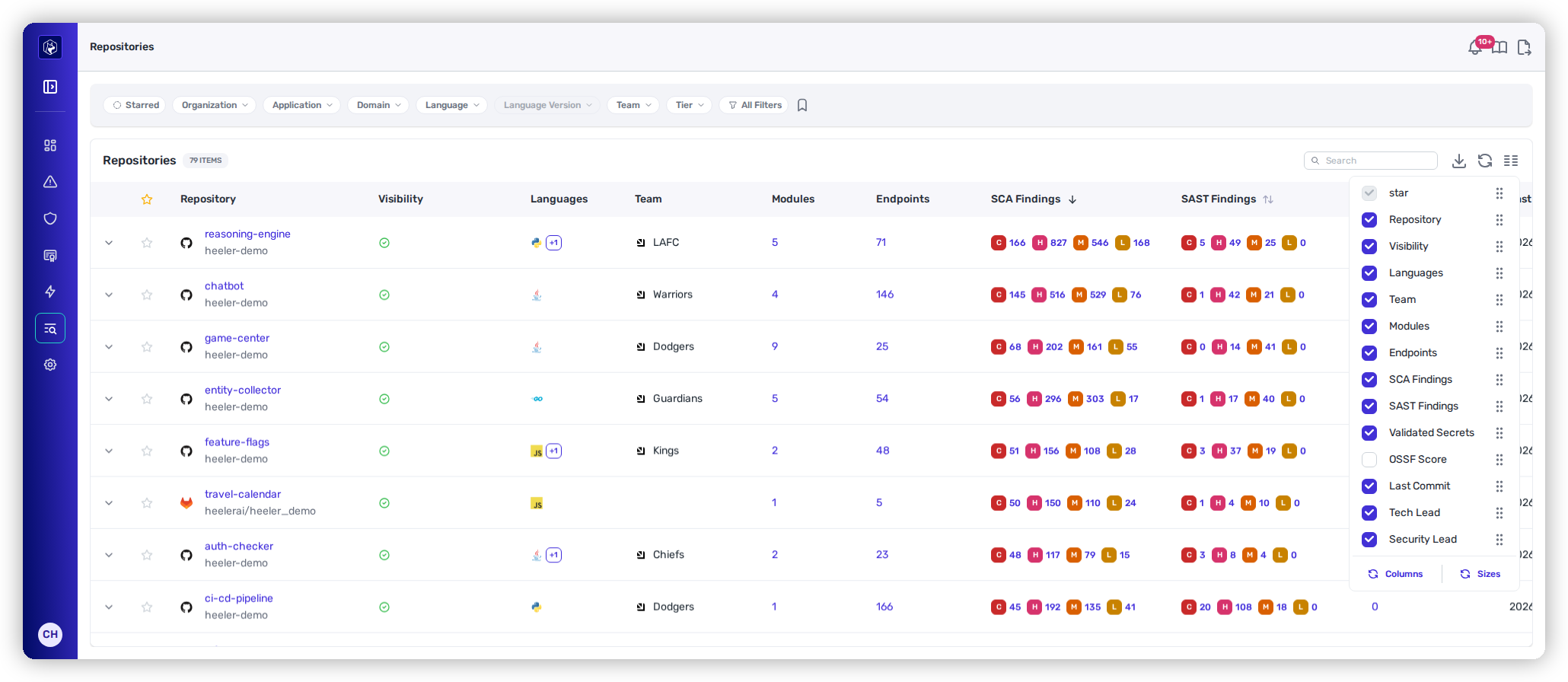
Lists open with a sensible default set of columns; the **Manage Columns** control lets you tailor them.

<figure><img src="https://414480750-files.gitbook.io/~/files/v0/b/gitbook-x-prod.appspot.com/o/spaces%2FXP3dp2kecwKA2KvYkntz%2Fuploads%2Fgit-blob-62f6903edaa7cd9d2be7ff032a78572de21521c3%2Fcc-vis-columns.png?alt=media" alt="The Manage Columns panel with visibility checkboxes, drag handles, and Columns and Sizes tabs."><figcaption><p>Manage Columns — check to show or hide, drag to reorder, and switch to the Sizes tab to set widths.</p></figcaption></figure>

* **Columns** tab — check or uncheck to show/hide, and drag the handles to reorder.
* **Sizes** tab — set column widths.

Your layout persists, so a list stays arranged the way you set it the next time you open it.

## Refresh

**Refresh** re-pulls the current list on demand. Dashboards also show when their data was **last refreshed** in the page header, so you always know how current the numbers are.

## Starring and expanding rows

On Catalog lists, the **star** in the first column marks a row as a favorite, and the **Starred** quick filter narrows the list to just those — handy for keeping an eye on a handful of critical repositories. **Expand row** opens an inline preview of the row's detail.

## Exporting

Heeler offers two kinds of export, depending on what you need.

### Export data

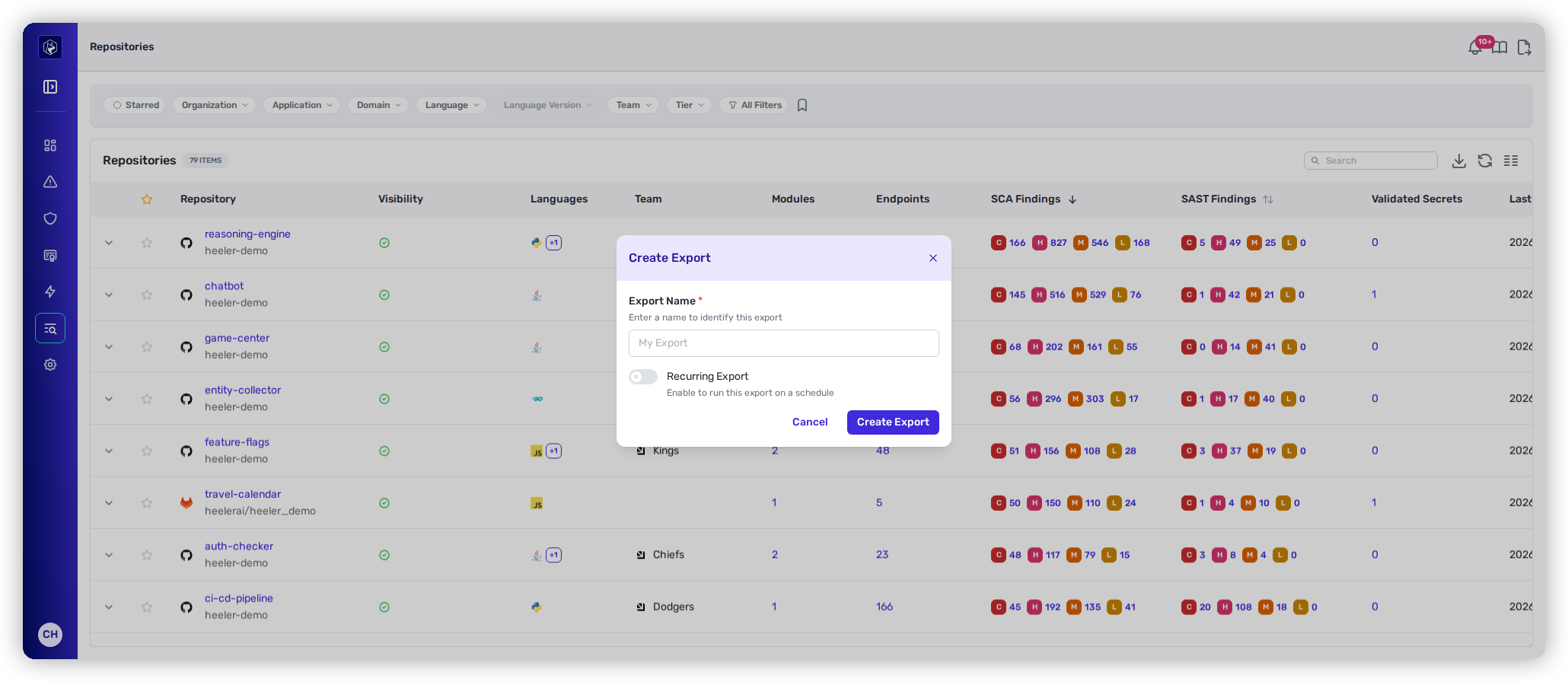
Most lists — Catalog inventories and finding lists alike — have an **Export** action that opens the **Create Export** dialog.

<figure><img src="https://414480750-files.gitbook.io/~/files/v0/b/gitbook-x-prod.appspot.com/o/spaces%2FXP3dp2kecwKA2KvYkntz%2Fuploads%2Fgit-blob-3f0e6a55db390444e7ae1c4a2d5203d3333f98dc%2Fcc-vis-export.png?alt=media" alt="The Create Export dialog with an Export Name field and a Recurring Export toggle."><figcaption><p>Create Export — name the export, and optionally turn it into a recurring, scheduled export.</p></figcaption></figure>

* **Export Name** — a name to identify this export.
* **Recurring Export** — toggle on to run on a schedule instead of once. When on, set the **Frequency** (Daily, Weekly, or Monthly), the **Day of Week** or **Day of Month**, and the **Time** it runs (in **UTC**).

The export uses the list's **current filters, search, and sort** to decide what's included, then runs as a background job. When the file is ready, Heeler **emails the requesting user a link** to download it — a one-time export runs immediately; a recurring one runs on its schedule.

**What you can export:** most Security lists (Dependency Findings, Source Findings, License Violations, Secrets, Secret Exceptions), Catalog lists (Services, Deployments, Endpoints, Repositories, Dependencies), Guardrail **Violations**, and the **License Policy** under Program.

### Managing exports

The **Download** icon in the top navigation (beside the gear) opens the exports manager — every export you've created, one-time and recurring:

* **Search and filter** by **Type**, **Recurring**, and **User**.
* Each row shows its **status** (Active / Inactive), latest run time, file size, and row count; **expand** it to see **run history**, with a downloadable file per run.
* The row's **⋯** menu offers **Edit** (name and schedule), **Download** (the latest file), **Run Now** (regenerate on demand), **Deactivate / Activate** (pause or resume a recurring export), and **Delete**.

### Who can export

<table><thead><tr><th width="300">Role</th><th>What they can create</th><th>Which exports they see in the manager</th></tr></thead><tbody><tr><td><strong>Team viewer</strong> · <strong>Team contributor</strong></td><td>The repository-scoped lists</td><td>Their own</td></tr><tr><td><strong>Organization viewer</strong> · <strong>Organization contributor</strong></td><td>The repository-scoped lists</td><td>Their own</td></tr><tr><td><strong>Administrator (read-only)</strong></td><td>Nothing. Exports already created can be opened and downloaded</td><td>Every export in the tenant</td></tr><tr><td><strong>Administrator</strong></td><td>Every list</td><td>Every export in the tenant</td></tr></tbody></table>

The repository-scoped lists are **Repositories**, **Dependency Findings**, **Source Findings**, **Secrets**, **Secret Exceptions**, **Endpoints**, **Services**, and **License Violations**. **Deployments**, **Dependencies**, **Violations**, and **License Policy** need the **Administrator** role.

An export carries the rows the person who created it can see in the product. A **Team viewer** or **Team contributor** gets the repositories their teams own; every other role gets the whole tenant.

### Risk override reason in the findings exports

The **Dependency Findings** and **Source Findings** exports both end with a `risk_override_reason` column. It carries the reason recorded when the finding's risk was overridden, and is blank for a finding with no override.

| Export                  | Values                                                                                                  |
| ----------------------- | ------------------------------------------------------------------------------------------------------- |
| **Dependency Findings** | Not Reachable · Unpinned Version · False Positive · Environment Configuration · Risk Acceptance · Other |
| **Source Findings**     | False Positive · Inaccurate Severity · Environment Configuration · Risk Acceptance · Other              |

Use the column to split a report by why a finding is not being fixed — accepted risk on one side, everything else on the other. See [Exceptions and Overrides](/mrecEO40m5D6bt7Pq5pE/operate/exceptions-and-overrides.md) for how those reasons are set.

### Limits on a run

An export that would produce more than **1,000,000 rows** fails rather than handing you a partial file. The run's error names the limit. Narrow the list's filters or scope and run it again.

A run that was interrupted before it could finish is marked **failed** in the run history, with a message saying the worker stopped. Use **Run Now** to try it again.

### Export an SBOM

For software bill-of-materials needs, Heeler exports **CycloneDX** SBOMs directly:

* From the **Dependencies** inventory, **Export SBOM** produces a **global** SBOM across your whole environment.
* From an individual **Deployment**, you can download an SBOM for **exactly what's running** in that instance — not just what's in source.

## Related

* [The Catalog](/mrecEO40m5D6bt7Pq5pE/catalog.md) — the inventories these controls filter and export.
* [Priorities](/mrecEO40m5D6bt7Pq5pE/operate/dashboards/priorities.md) · [Coverage](/mrecEO40m5D6bt7Pq5pE/operate/dashboards/coverage.md) · [Weekly and Monthly Overviews](/mrecEO40m5D6bt7Pq5pE/operate/dashboards/weekly-and-monthly-overviews.md) — the dashboards the global filter bar scopes.


---

# Agent Instructions
This documentation is published with GitBook. GitBook is the documentation platform designed so that both humans and AI agents can read, navigate, and reason over technical content effectively. Learn more at gitbook.com.

## Querying This Documentation
If you need additional information that is not directly available in this page, you can query the documentation dynamically by asking a question.

Perform an HTTP GET request on the current page URL with the `ask` query parameter, and the optional `goal` query parameter:

```
GET https://docs.heeler.com/mrecEO40m5D6bt7Pq5pE/operate/dashboards/filtering-and-exports.md?ask=<question>&goal=<endgoal>
```

`ask` is the immediate question: it should be specific, self-contained, and written in natural language.
`goal` is optional and describes the broader end goal you are ultimately trying to accomplish on behalf of the user. GitBook uses it to tailor the answer towards what is most useful for that goal.

The response will contain a direct answer to the question and relevant excerpts and sources from the documentation.

Use this mechanism when the answer is not explicitly present in the current page, you need clarification or additional context, or you want to retrieve related documentation sections.