> For the complete documentation index, see [llms.txt](https://docs.heeler.com/mrecEO40m5D6bt7Pq5pE/llms.txt). Markdown versions of documentation pages are available by appending `.md` to page URLs; this page is available as [Markdown](https://docs.heeler.com/mrecEO40m5D6bt7Pq5pE/operate/workflows/execution-and-management.md).

# Execution and Management

Watch what a workflow has done, run one on demand against findings that already exist, and keep your automations healthy — enable, edit, duplicate, delete, and recover from rate limits.

Once a workflow is live, this is how you keep an eye on it: see what it's run, run it on demand against a backlog, and manage it over time.

## Watching a workflow

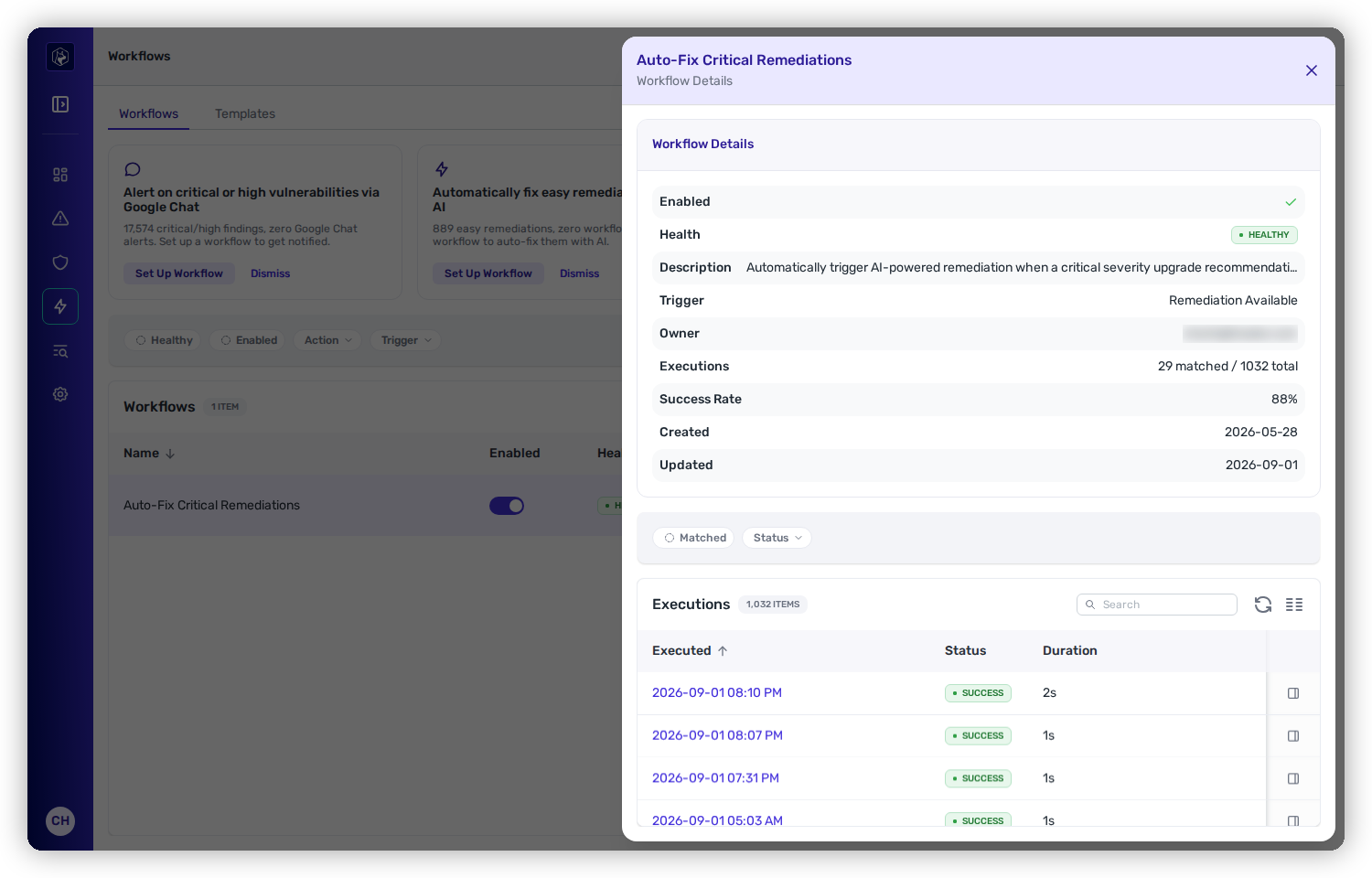
Select **View Details** on any row to open its tray. The top summarizes the workflow — **Enabled**, **Health**, **Description**, **Trigger**, **Owner**, **Executions** (matched / total), **Success Rate**, and its created/updated dates. Below that, the **Executions** log lists every run.

<figure><img src="https://414480750-files.gitbook.io/~/files/v0/b/gitbook-x-prod.appspot.com/o/spaces%2FXP3dp2kecwKA2KvYkntz%2Fuploads%2Fgit-blob-92ae81953f36eaf788294521ba1c4ab92c59b167%2Fcc-wf-detail.png?alt=media" alt="The Workflow Details tray for Auto-Fix Critical Remediations: a summary panel with Enabled, Health, Trigger, Owner, Executions, and Success Rate, above an Executions log with Executed On, Status, and Duration columns showing Success runs."><figcaption><p>The detail tray — the workflow's settings up top, and every execution below with its status and duration.</p></figcaption></figure>

The executions log has an **Executed On**, **Status**, and **Duration** column, a **Search** box, and two filters — **Matched** (only the runs that passed conditions and ran actions) and **Status**. Each run's row opens to the detail of that individual execution.

### Execution statuses

<table><thead><tr><th width="200">Status</th><th>Meaning</th></tr></thead><tbody><tr><td><strong>Pending</strong></td><td>Queued, not yet started.</td></tr><tr><td><strong>Running</strong></td><td>In progress.</td></tr><tr><td><strong>Awaiting Trigger</strong></td><td>Paused, waiting on an external event — for example, a Fix with Heeler Agent run waiting for its pull request to reach an outcome.</td></tr><tr><td><strong>Success</strong></td><td>Completed successfully.</td></tr><tr><td><strong>Failed</strong></td><td>Hit an error.</td></tr></tbody></table>

**Matched vs. total** and **success rate** are the two health signals to watch. *Matched* is how many trigger events actually passed your conditions and ran actions — a low matched-over-total ratio just means your conditions are selective. *Success rate* is the share of recent runs that finished without error; a dip means a destination or the agent is failing.

### Health

The **Health** badge is **Healthy** or **Unhealthy**. A workflow goes unhealthy when something it depends on is broken — a Slack channel that no longer exists, a Jira project or issue type that's misconfigured or missing a required field, a team that can't be resolved for automatic routing, or a template that's gone missing. Heeler notifies administrators when a workflow first flips from healthy to unhealthy, so a quietly-broken automation surfaces instead of failing in the dark. Fix the underlying destination and the workflow recovers on its next check.

## Running a workflow on demand

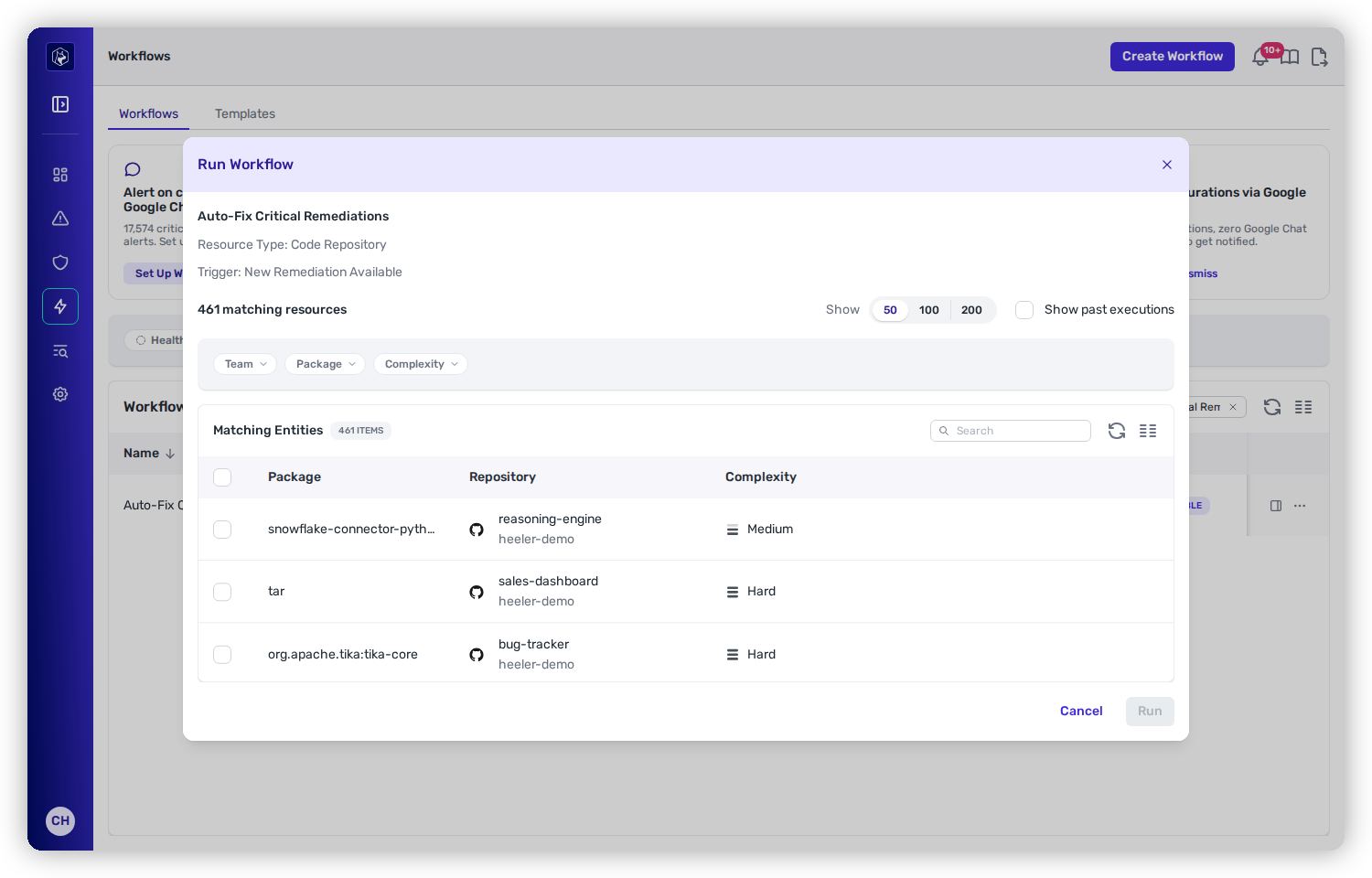
Workflows fire on new events, but you'll often want to apply one to findings that *already* exist — clear the backlog the day you create the rule. From a row's **Actions** menu, choose **Run Workflow**.

<figure><img src="https://414480750-files.gitbook.io/~/files/v0/b/gitbook-x-prod.appspot.com/o/spaces%2FXP3dp2kecwKA2KvYkntz%2Fuploads%2Fgit-blob-b5f38c7941235603010a1c104cda24394d06a180%2Fcc-wf-run.png?alt=media" alt="The Run Workflow modal: it shows the resource type, trigger, and a count of matching resources; a Show 50/100/200 selector; a Show past executions toggle; and a selectable table of matching entities with Package, Repository, CVE, and Severity columns, plus a Run button."><figcaption><p>Run Workflow — pick from the matching entities and run the workflow against them now.</p></figcaption></figure>

The modal shows how many resources currently match, a **Show 50 / 100 / 200** selector for how many to list, and a selectable table of those entities. Select the rows you want and click **Run**, or run against the whole matching set — batch runs are **capped at 200** entities. Toggle **Show past executions** to include entities the workflow has already run against, which allows a chosen set to be re-run.

{% hint style="warning" %}
Workflows that use a **JQ (Advanced)** [filter](/mrecEO40m5D6bt7Pq5pE/operate/workflows/conditions.md) can't be run in batch — run them individually, or replace the JQ filter with built-in conditions.
{% endhint %}

## Managing a workflow

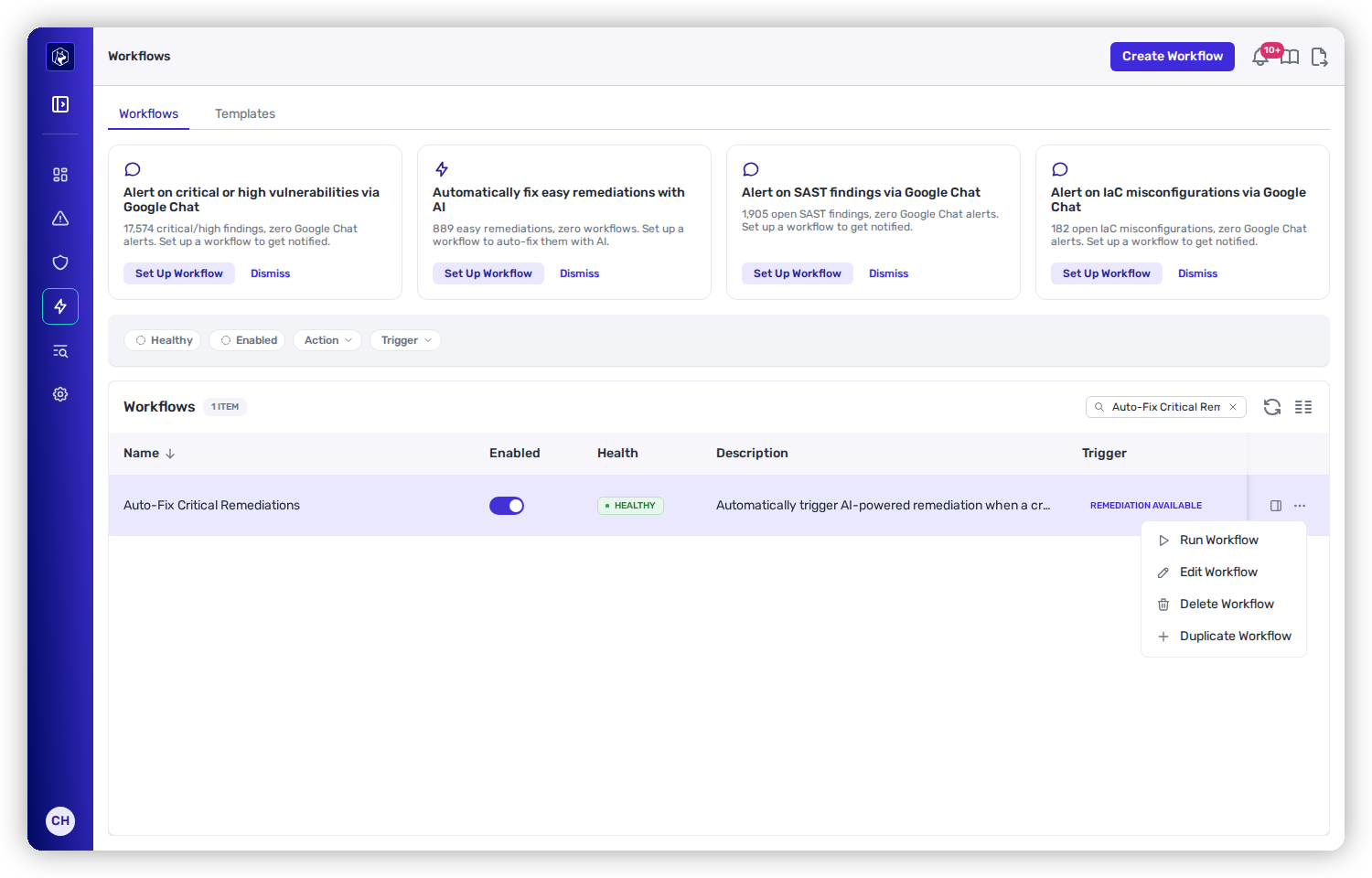
Every row's **Actions** menu carries the lifecycle controls:

<figure><img src="https://414480750-files.gitbook.io/~/files/v0/b/gitbook-x-prod.appspot.com/o/spaces%2FXP3dp2kecwKA2KvYkntz%2Fuploads%2Fgit-blob-0c889941309d03b156c7d323aed639a57fba9491%2Fcc-wf-row-menu.png?alt=media" alt="A workflow row&#x27;s Actions menu open, listing Run Workflow, Edit Workflow, Delete Workflow, and Duplicate Workflow."><figcaption><p>The row Actions menu — run, edit, duplicate, or delete.</p></figcaption></figure>

<table><thead><tr><th width="220">Control</th><th>What it does</th></tr></thead><tbody><tr><td><strong>Enable / Disable</strong></td><td>The <strong>Enabled</strong> toggle on the row. Disabled workflows stay configured but won't fire automatically.</td></tr><tr><td><strong>Edit Workflow</strong></td><td>Change the trigger, conditions, or actions — for updating a policy or retargeting notifications.</td></tr><tr><td><strong>Duplicate Workflow</strong></td><td>Copy an existing workflow (created disabled). Edit the copy before enabling it.</td></tr><tr><td><strong>Delete Workflow</strong></td><td>Permanently remove the workflow. This can't be undone.</td></tr></tbody></table>

{% hint style="info" %}
**Automatic rate-limit pause.** If a workflow executes far more often than expected in a short window (by default, more than \~1,000 times over a few hours), Heeler disables it and alerts administrators — a circuit breaker against a misconfigured rule flooding your tools. Address the cause, then re-enable it from the row.
{% endhint %}

## Related

* [Building a Workflow](/mrecEO40m5D6bt7Pq5pE/operate/workflows/building-a-workflow.md) — create the automations you manage here.
* [Routing and Templates](/mrecEO40m5D6bt7Pq5pE/operate/workflows/routing-and-templates.md) — the destinations whose health this page tracks.
* [Workflows overview](/mrecEO40m5D6bt7Pq5pE/operate/workflows.md) — the list page and its columns.


---

# Agent Instructions
This documentation is published with GitBook. GitBook is the documentation platform designed so that both humans and AI agents can read, navigate, and reason over technical content effectively. Learn more at gitbook.com.

## Querying This Documentation
If you need additional information that is not directly available in this page, you can query the documentation dynamically by asking a question.

Perform an HTTP GET request on the current page URL with the `ask` query parameter, and the optional `goal` query parameter:

```
GET https://docs.heeler.com/mrecEO40m5D6bt7Pq5pE/operate/workflows/execution-and-management.md?ask=<question>&goal=<endgoal>
```

`ask` is the immediate question: it should be specific, self-contained, and written in natural language.
`goal` is optional and describes the broader end goal you are ultimately trying to accomplish on behalf of the user. GitBook uses it to tailor the answer towards what is most useful for that goal.

The response will contain a direct answer to the question and relevant excerpts and sources from the documentation.

Use this mechanism when the answer is not explicitly present in the current page, you need clarification or additional context, or you want to retrieve related documentation sections.