> For the complete documentation index, see [llms.txt](https://docs.heeler.com/mrecEO40m5D6bt7Pq5pE/llms.txt). Markdown versions of documentation pages are available by appending `.md` to page URLs; this page is available as [Markdown](https://docs.heeler.com/mrecEO40m5D6bt7Pq5pE/operate/workflows/routing-and-templates.md).

# Routing and Templates

Where a workflow's messages and tickets go — automatic team routing versus a fixed destination — and how templates shape the content Heeler sends.

Two settings decide *where* a notification or ticket lands and *what it says*: **routing** and **templates**. They apply to every messaging and ticketing action.

## Routing: who gets it

Every messaging and ticketing action has a **Routing** setting with two modes:

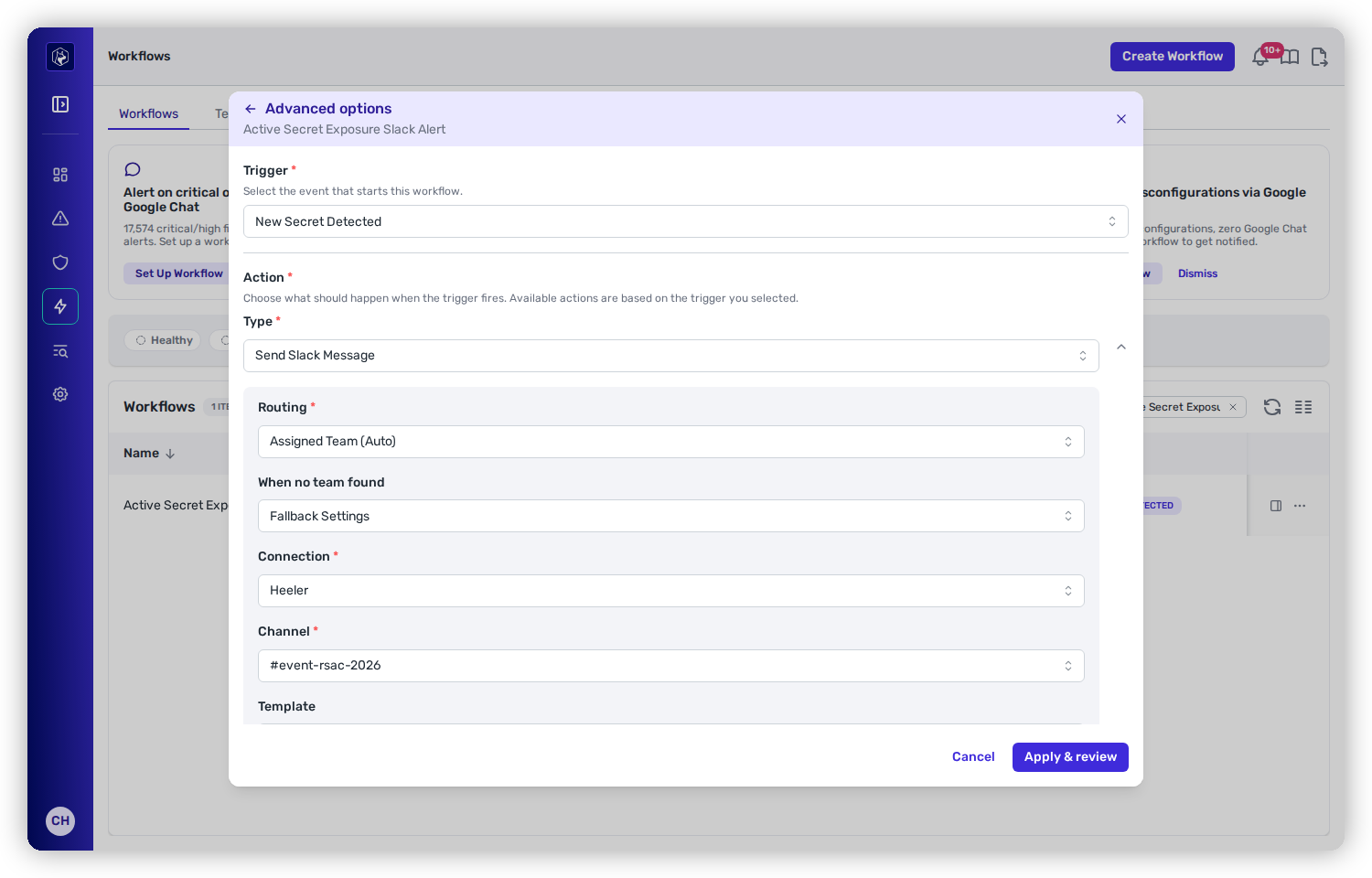
<figure><img src="https://414480750-files.gitbook.io/~/files/v0/b/gitbook-x-prod.appspot.com/o/spaces%2FXP3dp2kecwKA2KvYkntz%2Fuploads%2Fgit-blob-73bed42d456eeefbb40dbaa488c1a536e7d72a0a%2Fcc-wf-action-slack.png?alt=media" alt="A Slack action with Routing set to Assigned Team (Auto) and a When no team found dropdown set to Fallback Settings."><figcaption><p>Routing decides the destination; the "When no team found" policy decides what happens if a team can't be resolved.</p></figcaption></figure>

<table><thead><tr><th width="230">Mode</th><th>What it does</th></tr></thead><tbody><tr><td><strong>Assigned Team (Auto)</strong></td><td>Heeler looks up the team that owns the affected repository and routes to <em>that team's</em> configured channel or project. One workflow, and every team hears about its own findings in its own channel.</td></tr><tr><td><strong>Explicit</strong></td><td>You choose the connection, channel, or project directly on the action. Every matching event goes to the same place, regardless of ownership.</td></tr></tbody></table>

Automatic routing depends on each team having its ticketing and messaging preferences set. When a team can't be resolved — no owning team, or the team hasn't configured that destination — the **When no team found** policy takes over:

<table><thead><tr><th width="150">Policy</th><th>Behavior</th></tr></thead><tbody><tr><td><strong>Skip</strong></td><td>No ticket or message is created for that event; the workflow's other actions still run.</td></tr><tr><td><strong>Fallback</strong></td><td>Creates the ticket or message at a configured fallback destination instead.</td></tr></tbody></table>

{% hint style="info" %}
**Fallback** is handy during rollout: point unrouted findings at a central triage queue so nothing goes silently unhandled while teams finish configuring their channels.
{% endhint %}

## Templates: what it says

A **template** is reusable content — a message body, or a ticket's summary, description, and default fields. Templates keep every notification consistent and save you from rewriting the same Jinja for each workflow.

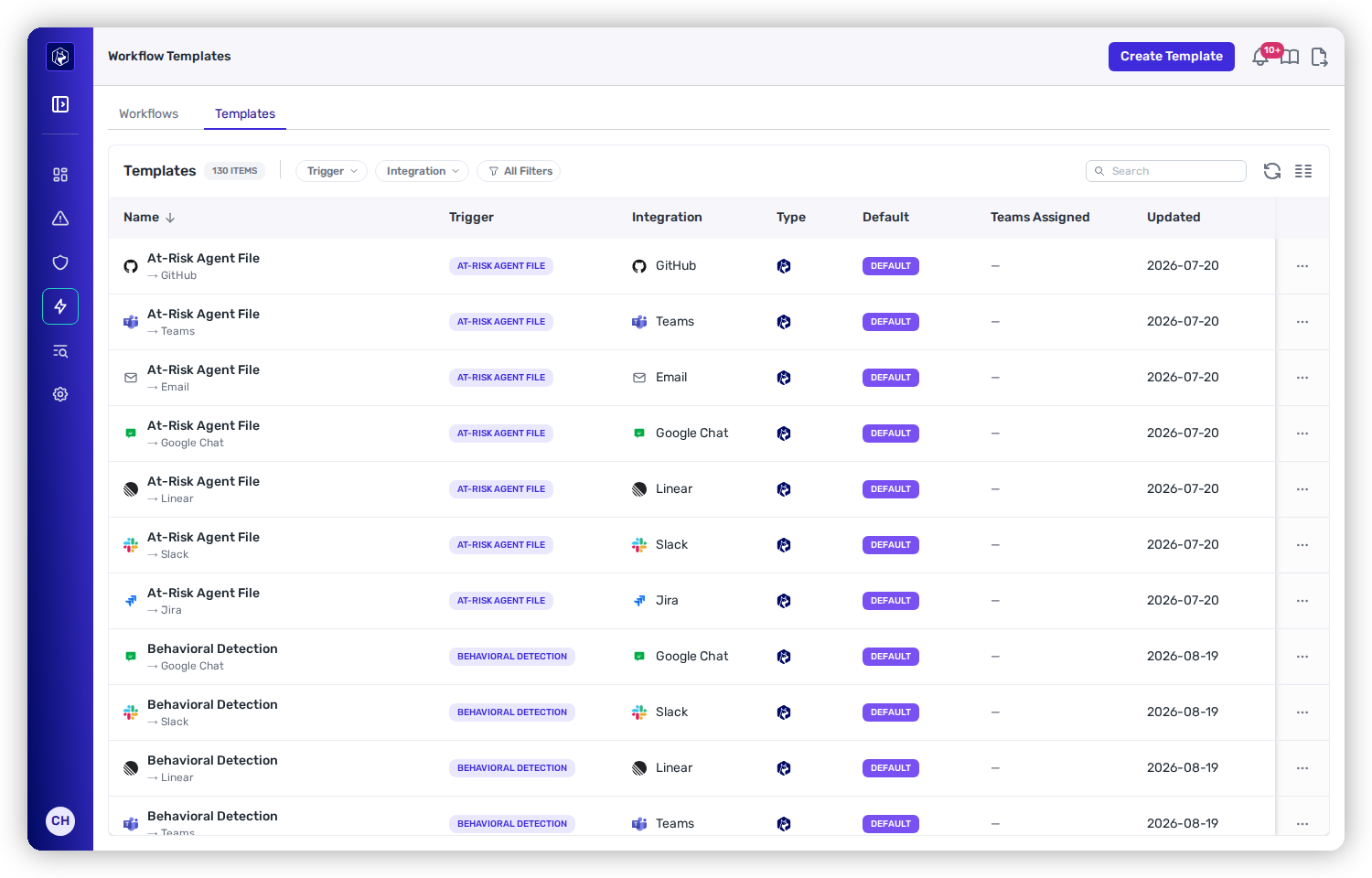
<figure><img src="https://414480750-files.gitbook.io/~/files/v0/b/gitbook-x-prod.appspot.com/o/spaces%2FXP3dp2kecwKA2KvYkntz%2Fuploads%2Fgit-blob-175b50a0c798d21cdd6a19cf71e6d39f4a566edb%2Fcc-wf-templates.png?alt=media" alt="The Templates tab: a table of templates with Name, Trigger, Integration, Type, Default, Teams Assigned, and Updated columns; many marked DEFAULT."><figcaption><p>The Templates tab — a template for each trigger-and-integration pair, with Heeler-managed defaults marked DEFAULT.</p></figcaption></figure>

The **Templates** tab (next to Workflows) lists them all. Each template is scoped to one **trigger** and one **integration** (Slack, Teams, Google Chat, Jira, Linear, GitHub, Email), shown in those columns. Heeler ships a **default** template for every trigger-and-integration pair — the ones marked **DEFAULT** — so a brand-new workflow already sends something sensible. **Teams Assigned** shows any teams that have overridden the default with their own version, and **Create Template** adds your own.

### Fields by action type

<table><thead><tr><th width="290">Action type</th><th>Template fields</th></tr></thead><tbody><tr><td>Slack / Teams / Google Chat</td><td>Message</td></tr><tr><td>Email</td><td>Subject, Body (HTML)</td></tr><tr><td>Jira / Linear / GitHub / Shortcut</td><td>Summary, Description, and field defaults</td></tr></tbody></table>

### Row actions

What the **⋯** menu offers depends on whether the template is one of Heeler's or one of yours:

| Action                    | On which templates                                                                                                              |
| ------------------------- | ------------------------------------------------------------------------------------------------------------------------------- |
| **Preview Template**      | Any template — renders it with sample data so you can see the output before a workflow uses it.                                 |
| **Edit Team Assignments** | Any template — choose which teams use this version instead of the default.                                                      |
| **Edit Template**         | Your own templates only. Heeler's defaults are read-only; to change one, create your own for that trigger-and-integration pair. |
| **Delete Template**       | Your own templates only.                                                                                                        |

A template you created shows **Set as default** in the Default column, which promotes it over Heeler's version for that trigger-and-integration pair.

### Ticket field defaults

For a ticketing template, the editor carries a **Field defaults preview** below the summary and description. Pick a **preview project connection**, **preview project** and **preview issue type** — all three are required — and the editor loads the custom fields that project and issue type actually expose, each with a field for its default. On a Jira project that typically includes **Assignee**, **Due date**, **Parent**, **Priority**, **Start date**, **Team** and **Time tracking**, but the list is whatever your project defines.

{% hint style="warning" %}
**The preview picker does not decide where tickets go.** Tickets are created in the project configured in the team's [ticket settings](/mrecEO40m5D6bt7Pq5pE/get-started/map-your-organization/team-ticket-settings.md). The picker exists only to load the right set of custom fields for you to set defaults on. Choosing a project here does not route anything to it.
{% endhint %}

### Field mappings

Beneath the defaults, **Field Mappings** sets ticket fields from Heeler data at execution time rather than to a fixed value — mapping a finding's severity onto the tracker's priority field, for example. **Add Mapping** adds a row. A default is a constant; a mapping is computed per finding, which is what you want whenever the right value depends on the finding.

### How templates and workflows combine

When you configure an action you can choose a template from the **Template** dropdown to auto-populate its content, or pick **Custom** to write from scratch. Two precedence rules keep everything predictable:

* **A field you set on the action wins over the template.** The template fills in anything you leave blank.
* **A team's own template wins over the tenant default.** With automatic routing, a team that has customized its template for a trigger gets its version; everyone else gets the default.

Compose message and ticket content with [template variables](/mrecEO40m5D6bt7Pq5pE/reference/workflow-template-variables.md) — the finding's severity, package, URLs, and more — so each notification carries the specifics.

## Related

* [Actions](/mrecEO40m5D6bt7Pq5pE/operate/workflows/actions.md) — the messaging and ticketing actions these settings apply to.
* [Workflow Template Variables](/mrecEO40m5D6bt7Pq5pE/reference/workflow-template-variables.md) — everything you can drop into a template.


---

# Agent Instructions
This documentation is published with GitBook. GitBook is the documentation platform designed so that both humans and AI agents can read, navigate, and reason over technical content effectively. Learn more at gitbook.com.

## Querying This Documentation
If you need additional information that is not directly available in this page, you can query the documentation dynamically by asking a question.

Perform an HTTP GET request on the current page URL with the `ask` query parameter, and the optional `goal` query parameter:

```
GET https://docs.heeler.com/mrecEO40m5D6bt7Pq5pE/operate/workflows/routing-and-templates.md?ask=<question>&goal=<endgoal>
```

`ask` is the immediate question: it should be specific, self-contained, and written in natural language.
`goal` is optional and describes the broader end goal you are ultimately trying to accomplish on behalf of the user. GitBook uses it to tailor the answer towards what is most useful for that goal.

The response will contain a direct answer to the question and relevant excerpts and sources from the documentation.

Use this mechanism when the answer is not explicitly present in the current page, you need clarification or additional context, or you want to retrieve related documentation sections.