> For the complete documentation index, see [llms.txt](https://docs.heeler.com/mrecEO40m5D6bt7Pq5pE/llms.txt). Markdown versions of documentation pages are available by appending `.md` to page URLs; this page is available as [Markdown](https://docs.heeler.com/mrecEO40m5D6bt7Pq5pE/administer-and-monitor/manage-access/scim-provisioning.md).

# Automated Provisioning (SCIM)

Automatically sync users from your identity provider into Heeler with SCIM 2.0 — manage the endpoint, tokens, and sync status.

**Administration → Access → SCIM Provisioning** lets your identity provider (Okta, Entra ID, and others) create, update, and deactivate Heeler users automatically, so the roster stays in sync with your IdP without manual invites. This page covers managing that connection; the on-page **Setup Instructions** and [Get Started → SCIM Provisioning](/mrecEO40m5D6bt7Pq5pE/get-started/users-and-access/scim-provisioning.md) cover first-time configuration.

{% hint style="info" %}
Changing anything on this page requires the **Administrator** role. An **Administrator (read-only)** can view it but can't make changes.
{% endhint %}

## What your IdP needs

You give your IdP two things: the **SCIM Endpoint URL** shown on the page (`…/api/scim/v2`) and a **bearer token** you generate here. Your IdP then pushes user changes to Heeler.

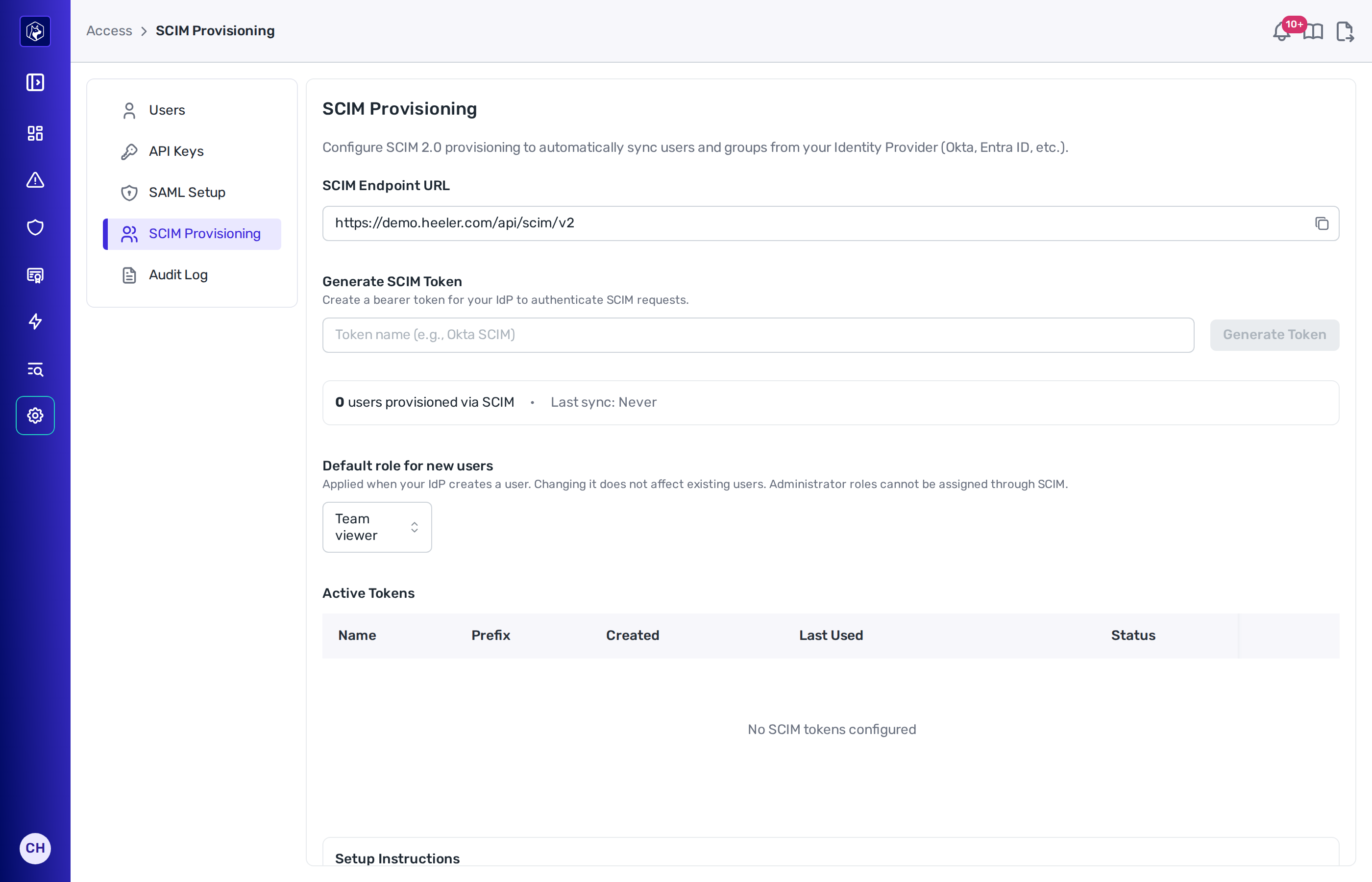
<figure><img src="https://414480750-files.gitbook.io/~/files/v0/b/gitbook-x-prod.appspot.com/o/spaces%2FXP3dp2kecwKA2KvYkntz%2Fuploads%2Fgit-blob-e503faa5b96afe550a78e04fac0f859f9279f90f%2Fam-access-scim.png?alt=media" alt="The SCIM Provisioning page showing the SCIM Endpoint URL, a Generate Token control, the Default role for new users picker, an Active Tokens table, and setup instructions for Okta and Entra ID."><figcaption><p>SCIM Provisioning — the endpoint, token generation, the default role for new users, active tokens, and IdP instructions.</p></figcaption></figure>

## Generate and manage tokens

Enter a name (for example, "Okta SCIM") and click **Generate Token**. The token is shown **once** — copy it into your IdP immediately. Use the **Test Connection** button to confirm your IdP can reach the endpoint.

Existing tokens appear in the **Active Tokens** table:

<table><thead><tr><th width="150">Column</th><th>What it means</th></tr></thead><tbody><tr><td><strong>Name</strong> / <strong>Prefix</strong></td><td>The label and the non-secret prefix, which distinguish one token from another.</td></tr><tr><td><strong>Created</strong> / <strong>Last used</strong></td><td>When it was issued and last exercised — "Never" means your IdP hasn't connected with it yet.</td></tr><tr><td><strong>Status</strong></td><td><strong>Active</strong> or <strong>Revoked</strong>. Revoke a token (trash icon) to cut off that IdP connection.</td></tr></tbody></table>

## Choose the default role

**Default role for new users** sets the role every SCIM-created account starts with. Pick one of **Team viewer** (the default), **Team contributor**, **Organization viewer**, or **Organization contributor** — see [Roles and Permissions](/mrecEO40m5D6bt7Pq5pE/get-started/users-and-access/roles-and-permissions.md) for what each grants. Administrator roles aren't offered: an IdP push can never create an administrator.

The choice applies at creation only. Changing it doesn't touch users who already exist, and your IdP can't override it per user — SCIM carries no role attribute. Promote individuals on the [Users](/mrecEO40m5D6bt7Pq5pE/administer-and-monitor/manage-access/users-and-roles.md) tab.

## What SCIM does and doesn't sync

<table><thead><tr><th width="170">Synced</th><th>Behavior</th></tr></thead><tbody><tr><td><strong>Users</strong></td><td>Created, updated, and deactivated from your IdP. Setting a user inactive (or removing them) deactivates the Heeler account — revoking their API tokens and ending their sessions.</td></tr><tr><td><strong>Roles</strong></td><td>New users get the <strong>Default role for new users</strong> chosen on this page — <strong>Team viewer</strong> unless you change it. The default applies when the account is created and never changes existing users. Administrator roles can't be assigned through SCIM. Change anyone's role later on the <a href="/mrecEO40m5D6bt7Pq5pE/administer-and-monitor/manage-access/users-and-roles.md">Users</a> tab.</td></tr><tr><td><strong>Groups / Teams</strong></td><td>Heeler teams are exposed to your IdP <strong>read-only</strong>. IdP group membership does <strong>not</strong> drive team membership — manage <a href="/mrecEO40m5D6bt7Pq5pE/administer-and-monitor/organization-model/teams.md">teams</a> inside Heeler.</td></tr></tbody></table>

## Verify it worked

The page shows a running count — "**N** users provisioned via SCIM" — and a **Last sync** time. After your IdP's first push, the count climbs and the token's **Last used** updates from "Never."

## Set it up

First-time SCIM setup, with Okta and Entra detail, is in Get Started:

{% content-ref url="/pages/6zO2llM15V0eoaUnZy6o" %}
[SCIM Provisioning](/mrecEO40m5D6bt7Pq5pE/get-started/users-and-access/scim-provisioning.md)
{% endcontent-ref %}

## Related

* [Single Sign-On (SAML)](/mrecEO40m5D6bt7Pq5pE/administer-and-monitor/manage-access/saml-sso.md) — usually configured alongside SCIM.


---

# Agent Instructions
This documentation is published with GitBook. GitBook is the documentation platform designed so that both humans and AI agents can read, navigate, and reason over technical content effectively. Learn more at gitbook.com.

## Querying This Documentation
If you need additional information that is not directly available in this page, you can query the documentation dynamically by asking a question.

Perform an HTTP GET request on the current page URL with the `ask` query parameter, and the optional `goal` query parameter:

```
GET https://docs.heeler.com/mrecEO40m5D6bt7Pq5pE/administer-and-monitor/manage-access/scim-provisioning.md?ask=<question>&goal=<endgoal>
```

`ask` is the immediate question: it should be specific, self-contained, and written in natural language.
`goal` is optional and describes the broader end goal you are ultimately trying to accomplish on behalf of the user. GitBook uses it to tailor the answer towards what is most useful for that goal.

The response will contain a direct answer to the question and relevant excerpts and sources from the documentation.

Use this mechanism when the answer is not explicitly present in the current page, you need clarification or additional context, or you want to retrieve related documentation sections.
