> For the complete documentation index, see [llms.txt](https://docs.heeler.com/mrecEO40m5D6bt7Pq5pE/llms.txt). Markdown versions of documentation pages are available by appending `.md` to page URLs; this page is available as [Markdown](https://docs.heeler.com/mrecEO40m5D6bt7Pq5pE/get-started/map-your-organization/teams.md).

# Teams

Sync your team structure from GitHub, GitLab, or Port.io so every repository is owned by the right team automatically.

Heeler organizes repositories into teams by syncing with your existing team structure: rather than assigning every repository by hand, it reads your org hierarchy and mirrors it — keeping ownership accurate as your organization evolves. Where you have no such structure to sync, you can [create a team and attach its repositories directly](#create-teams-manually). Team ownership then drives repository access, security visibility, and [automatic ticket routing](/mrecEO40m5D6bt7Pq5pE/get-started/map-your-organization/team-ticket-settings.md). For the team-scoped roles (**Team viewer** and **Team contributor**), team membership is also what scopes their visibility — they see the applications and repositories owned by the teams they belong to.

## Supported sources

<table><thead><tr><th width="160">Source</th><th>How teams are derived</th><th>Needs a separate connection?</th></tr></thead><tbody><tr><td><strong>GitHub</strong></td><td>GitHub Teams linked to repositories.</td><td>No — reuses your <a href="/mrecEO40m5D6bt7Pq5pE/get-started/source-code-scm/github.md">GitHub connection</a>.</td></tr><tr><td><strong>GitHub Custom Property</strong></td><td>Repositories grouped by a GitHub repository <strong>custom property</strong> value.</td><td>No — reuses your <a href="/mrecEO40m5D6bt7Pq5pE/get-started/source-code-scm/github.md">GitHub connection</a>.</td></tr><tr><td><strong>GitLab</strong></td><td>GitLab Groups (by name or path prefix).</td><td>No — reuses your <a href="/mrecEO40m5D6bt7Pq5pE/get-started/source-code-scm/gitlab.md">GitLab connection</a>.</td></tr><tr><td><strong>Port.io</strong></td><td>Port.io team entities linked to catalog entries.</td><td>Yes — the <a href="/mrecEO40m5D6bt7Pq5pE/get-started/developer-platform/port-io.md">Port.io integration</a>.</td></tr><tr><td><strong>Heeler</strong></td><td>Manual team creation (no external sync).</td><td>No.</td></tr></tbody></table>

## Select a team source

1. Go to **Administration → Connection Mapping → Teams**.
2. Click the **Source** badge in the table header to open the source selector.
3. Select **GitHub**, **GitHub Custom Property**, **GitLab**, **Port.io**, or **Heeler**.

Heeler queues a sync job immediately; teams begin appearing within a few minutes.

{% hint style="warning" %}
Switching sources stops auto-creating teams from the previous source — existing teams remain but stop updating. A confirmation dialog appears before the switch.
{% endhint %}

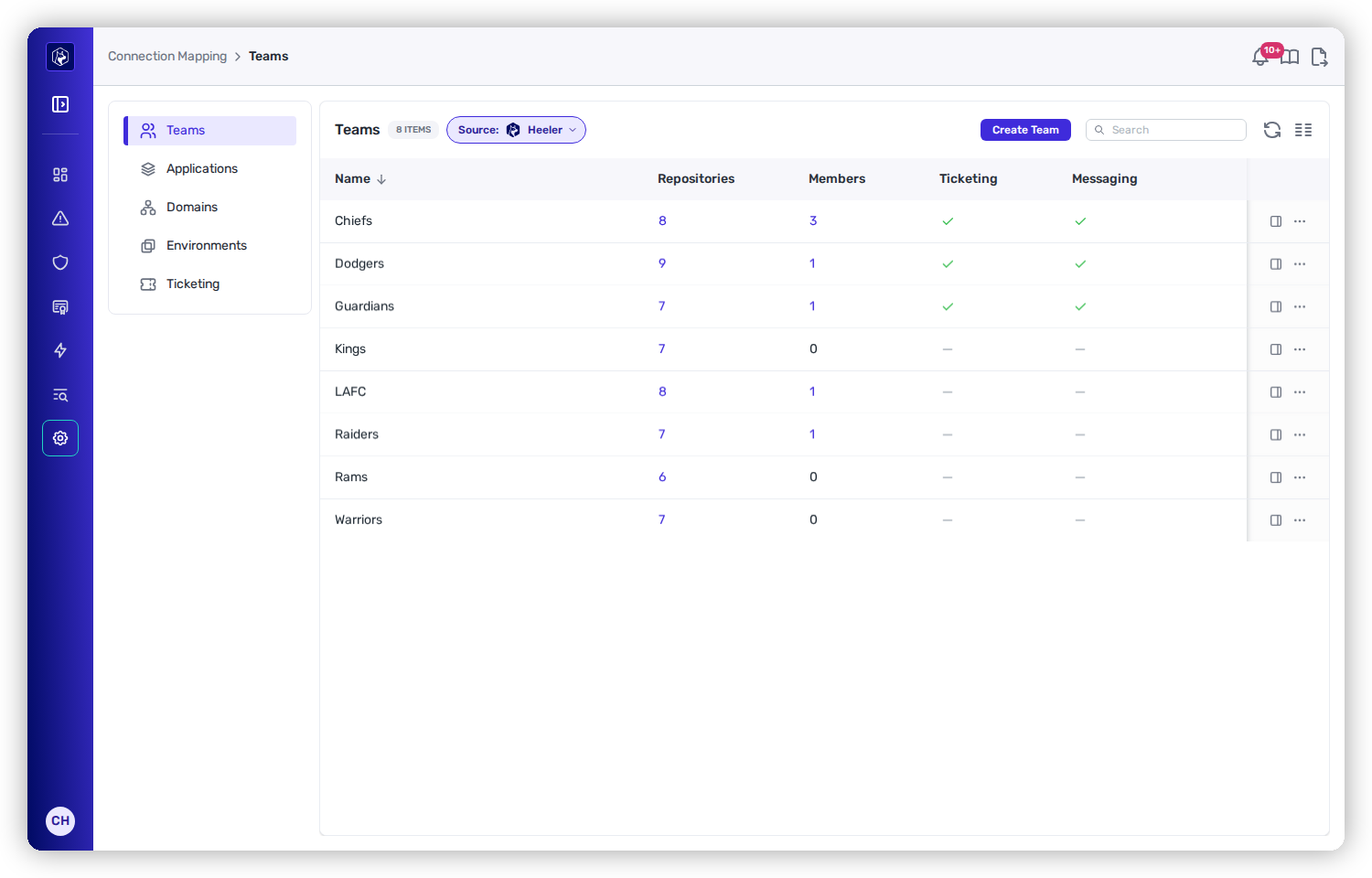
<figure><img src="https://414480750-files.gitbook.io/~/files/v0/b/gitbook-x-prod.appspot.com/o/spaces%2FXP3dp2kecwKA2KvYkntz%2Fuploads%2Fgit-blob-3966e3570fde1e80e39b49307e0aa3cad49fd8eb%2Fcc-gs-map-teams.png?alt=media" alt="Connection Mapping → Teams, listing each team with its repository and member counts and a tick or dash for whether ticketing and messaging are configured."><figcaption><p>The team list, with repositories, members, and whether routing destinations are set.</p></figcaption></figure>

## Configure the mapping

For any source other than Heeler, click **Configure Mapping** to customize how teams are created.

{% tabs %}
{% tab title="GitHub" %}
Heeler imports your **GitHub Teams** (the teams that own at least one repository). Use the **Team Import Filter** to control which sync:

* **Import all teams** — every GitHub team that owns a repository.
* **Import only selected teams** — pick the specific teams to include.
* **Import all except selected teams** — include everything except the teams you pick.

To group repositories by a GitHub **custom property** instead of GitHub Teams, choose the **GitHub Custom Property** source rather than **GitHub** — that's the same custom-property flow used for [Applications](/mrecEO40m5D6bt7Pq5pE/get-started/map-your-organization/applications.md).
{% endtab %}

{% tab title="GitLab" %}

* **Grouping Key** — `group_path` for path-prefix matching, or `group_name` for direct name mapping.
* **Allowed Values** — the specific groups to include (e.g. `org/engineering`, `org/platform`).

{% hint style="info" %}
Path-prefix matching is **longest-prefix-first**: `org/platform/auth-service` matches `org/platform` before `org`.
{% endhint %}
{% endtab %}

{% tab title="Port.io" %}

* **Blueprint** — the blueprint that represents teams in your Port.io catalog.
* **Skip Teams** — teams selected here are not imported, which keeps groups you don't manage in Heeler out of the roster.
* **Attribute Mapping** — map Port.io properties to Heeler team fields (Name, Slack Channel, Portfolio, Domain).
  {% endtab %}
  {% endtabs %}

### Attribute mapping

For every source, the attribute-mapping table defines how source fields map to Heeler team properties:

<table><thead><tr><th width="200">Column</th><th>What it does</th></tr></thead><tbody><tr><td><strong>Team Field</strong></td><td>The Heeler property to populate (Name, Slack Channel, …).</td></tr><tr><td><strong>Source Attribute</strong></td><td>The source field (auto-populated from harvested data).</td></tr><tr><td><strong>Supported Values</strong></td><td>Optionally restrict which values are accepted.</td></tr></tbody></table>

Use **+ Add Attribute Mapping** for fields beyond the defaults.

## Preview before saving

Click **Preview Mapping Results** for a dry run — the teams that would be created and how many repositories each would own. It reads the mapping the next sync will use, so save a change before previewing it.

## Create teams manually

**Create Team** in the toolbar adds a manual team. It's enabled when the **Source** is **Heeler** — Heeler-created teams are the ones you can edit and delete here, while teams synced from GitHub, GitLab, or Port.io are managed by their source.

Give the team a **Name** and, in the same dialog, attach its **Repositories**. The picker takes several repositories at once and marks each option with its source-control provider, so repositories with the same name in GitHub and Azure DevOps are distinguishable. Reopening the team for editing shows the repositories already attached, and the set can be changed there.

{% hint style="info" %}
Attaching repositories this way applies to teams whose **Source** is **Heeler**. Teams synced from GitHub, GitLab, or Port.io take their repositories from that source — the next sync is authoritative for them.
{% endhint %}

## Where a synced team is changed

A team that comes from GitHub, GitLab, or Port.io is maintained in that system, and Heeler reflects it.

| What you want to change                     | Where to change it                         |
| ------------------------------------------- | ------------------------------------------ |
| The team's name and other mapped properties | The source, or the attribute mapping above |
| Which repositories the team owns            | The source                                 |
| Who is on the team                          | The source                                 |

Heeler applies that in three places:

* In the team picker on a repository or a module, synced teams sit in their own group — **Synced from GitHub**, **Synced from GitHub custom property**, **Synced from GitLab**, or **Synced from Port** — with a note naming where to change them. They cannot be selected there, and one a repository already has stays selected and locked.
* **Manage Members** on the team row is disabled where membership comes from GitHub, GitLab, or Port. Teams grouped by a GitHub custom property sync no members, so their membership stays editable in Heeler.
* The API refuses a request that adds or removes a synced team on a repository, and names the teams it would have changed.

Teams whose **Source** is **Heeler** stay fully editable: name, repositories, and members.

## How syncing works

* Team sync runs automatically every **4 hours**, and immediately when you save a new configuration.
* New teams are created, orphaned teams removed, and repository assignments updated.
* Team **membership (users)** is reconciled against the source for GitHub, GitLab, and Port.io teams. Teams grouped by a GitHub custom property carry no members from the source, and their membership is managed in Heeler.
* Repository access is recalculated after each sync.

## Verify

1. On **Connection Mapping → Teams**, each team appears with its **Source** badge and non-zero **repository** (and member) counts.
2. Cross-check ownership in [**Catalog → Applications**](/mrecEO40m5D6bt7Pq5pE/catalog/applications.md) — repositories and applications show their owning team.
3. If you changed the mapping, use **Preview Mapping Results** to confirm the teams and repo counts match what you expect before the next sync writes them.

## Troubleshooting

<table><thead><tr><th width="300">Symptom</th><th>Fix</th></tr></thead><tbody><tr><td>No teams appear</td><td>The <strong>Source</strong> is still set to Heeler (manual). Select GitHub, GitLab, or Port.io in the table header.</td></tr><tr><td>Teams appear but own 0 repositories</td><td>The <strong>Grouping Key</strong> is wrong — confirm it matches the field that identifies teams in your source (e.g. <code>team_slug</code>, <code>group_path</code>).</td></tr><tr><td>A newly configured source shows nothing yet</td><td>Sync hasn't run. It runs every 4 hours and immediately on save — wait a few minutes, or re-save the configuration.</td></tr></tbody></table>

## Related

Once teams sync, configure each team's [Team Ticket Settings](/mrecEO40m5D6bt7Pq5pE/get-started/map-your-organization/team-ticket-settings.md) to unlock **Assigned Team** routing — one workflow can then send every finding to the right team's Jira project or Linear team, no per-team copies.

{% hint style="info" %}
Teams without ticket settings are still valid — their findings just need a workflow using **Explicit** or **Fallback** settings until the team's ticket settings are configured.
{% endhint %}


---

# Agent Instructions
This documentation is published with GitBook. GitBook is the documentation platform designed so that both humans and AI agents can read, navigate, and reason over technical content effectively. Learn more at gitbook.com.

## Querying This Documentation
If you need additional information that is not directly available in this page, you can query the documentation dynamically by asking a question.

Perform an HTTP GET request on the current page URL with the `ask` query parameter, and the optional `goal` query parameter:

```
GET https://docs.heeler.com/mrecEO40m5D6bt7Pq5pE/get-started/map-your-organization/teams.md?ask=<question>&goal=<endgoal>
```

`ask` is the immediate question: it should be specific, self-contained, and written in natural language.
`goal` is optional and describes the broader end goal you are ultimately trying to accomplish on behalf of the user. GitBook uses it to tailor the answer towards what is most useful for that goal.

The response will contain a direct answer to the question and relevant excerpts and sources from the documentation.

Use this mechanism when the answer is not explicitly present in the current page, you need clarification or additional context, or you want to retrieve related documentation sections.
