> For the complete documentation index, see [llms.txt](https://docs.heeler.com/mrecEO40m5D6bt7Pq5pE/llms.txt). Markdown versions of documentation pages are available by appending `.md` to page URLs; this page is available as [Markdown](https://docs.heeler.com/mrecEO40m5D6bt7Pq5pE/operate/workflows.md).

# Workflows

Standing automations that run the response side of the lifecycle — routing, notifying, ticketing, extending SLOs, and fixing — the moment a security event happens, no human in the loop.

A workflow is a standing rule: **when something happens, do something about it.** A new critical finding appears, a fix becomes available, an override is about to expire, a compromised package lands in a repo — a workflow catches the event, checks it against your conditions, and fires the actions you configured: open a ticket, message the owning team, extend an SLO, or turn Heeler's agent loose to fix it.

Detection reports what is wrong; workflows run the routing, communication and closure stages, across every repository, without an operator.

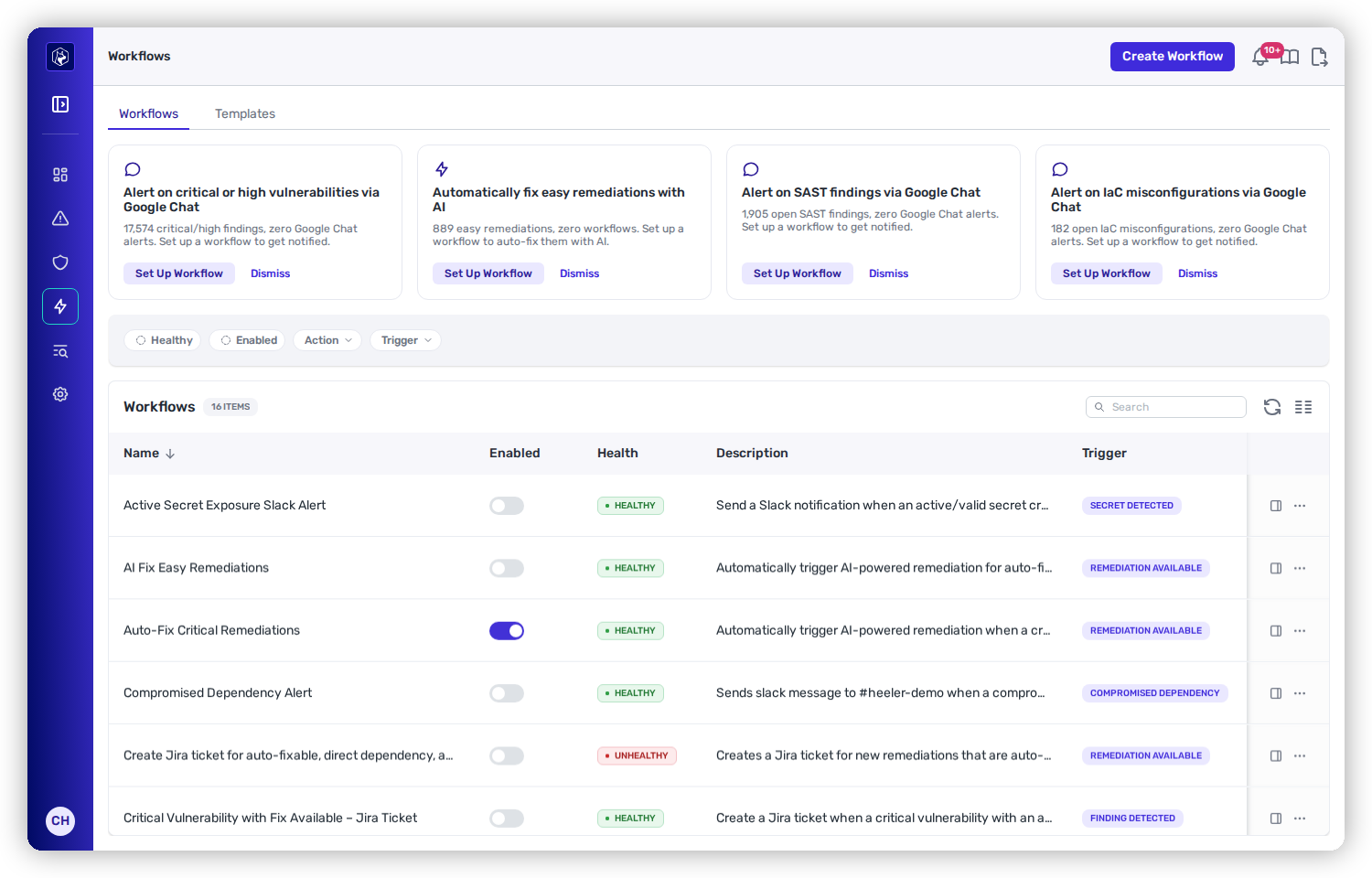
<figure><img src="https://414480750-files.gitbook.io/~/files/v0/b/gitbook-x-prod.appspot.com/o/spaces%2FXP3dp2kecwKA2KvYkntz%2Fuploads%2Fgit-blob-d1536ecda12bfe8d191fb958e486d00db29d8c22%2Fcc-wf-list.png?alt=media" alt="The Workflows page: suggested-workflow cards across the top, then a table of configured workflows with health, trigger, and execution history."><figcaption><p>The Workflows page — suggested automations up top, and every configured workflow below with its health, trigger, and run history.</p></figcaption></figure>

## How a workflow works

Every workflow is three parts:

<table><thead><tr><th width="150">Part</th><th>What it does</th></tr></thead><tbody><tr><td><strong>Trigger</strong></td><td>The single event that starts the workflow — a new finding, an available fix, a merged PR with violations. One trigger per workflow. <a href="/mrecEO40m5D6bt7Pq5pE/operate/workflows/triggers.md">See all triggers →</a></td></tr><tr><td><strong>Conditions</strong></td><td>Optional filters that decide which of those events actually proceed. Multiple conditions are combined with AND. No conditions means the workflow fires on every matching event. <a href="/mrecEO40m5D6bt7Pq5pE/operate/workflows/conditions.md">See conditions →</a></td></tr><tr><td><strong>Actions</strong></td><td>What Heeler does once the conditions are met — up to three per workflow, run in order. <a href="/mrecEO40m5D6bt7Pq5pE/operate/workflows/actions.md">See actions →</a></td></tr></tbody></table>

```mermaid
flowchart LR
    E[Event fires] --> T{Trigger<br/>matches?}
    T -- yes --> C{Conditions<br/>met?}
    C -- yes --> A[Run actions<br/>· ticket · message · SLO · fix]
    T -- no --> X[Ignore]
    C -- no --> X
```

A workflow runs automatically whenever its trigger fires. You can also [run one on demand](/mrecEO40m5D6bt7Pq5pE/operate/workflows/execution-and-management.md#running-a-workflow-on-demand) against findings that already exist.

{% hint style="info" %}
**New to this?** The fastest way to a working workflow is to let Heeler build it — describe what you want in plain English, or accept one of the suggestions below. See [Building a Workflow](/mrecEO40m5D6bt7Pq5pE/operate/workflows/building-a-workflow.md).
{% endhint %}

## The Workflows list

The **Workflows** tab lists every automation you've configured. Each row is one workflow, and the columns record whether it is enabled, whether it is healthy, and how many times it has executed.

<table><thead><tr><th width="180">Column</th><th>What it means</th></tr></thead><tbody><tr><td><strong>Name</strong></td><td>The workflow's name.</td></tr><tr><td><strong>Enabled</strong></td><td>A toggle. Off means the workflow stays configured but won't fire automatically.</td></tr><tr><td><strong>Health</strong></td><td><strong>Healthy</strong> or <strong>Unhealthy</strong>. Unhealthy means a destination the workflow depends on is broken — see <a href="/mrecEO40m5D6bt7Pq5pE/operate/workflows/execution-and-management.md#health">Health</a>.</td></tr><tr><td><strong>Description</strong></td><td>The free-text description you gave it.</td></tr><tr><td><strong>Trigger</strong></td><td>The event that starts it.</td></tr><tr><td><strong>Owner</strong></td><td>Who created the workflow.</td></tr><tr><td><strong>Executions</strong></td><td>Two numbers: <em>matched</em> (events that passed the conditions and ran actions) over <em>total</em> (every event the trigger received). A large gap means your conditions are doing their job filtering.</td></tr><tr><td><strong>Success Rate</strong></td><td>The share of recent runs that completed without error.</td></tr><tr><td><strong>Created / Last Updated</strong></td><td>Timestamps.</td></tr></tbody></table>

Above the table, the toolbar has **Create Workflow**, a **Search** box, **Refresh**, and **Manage Columns**. Four quick filters narrow the list: **Healthy**, **Enabled**, **Action**, and **Trigger**.

Each row carries two controls on the right: **View Details** (opens the workflow's [detail tray](/mrecEO40m5D6bt7Pq5pE/operate/workflows/execution-and-management.md#watching-a-workflow) with its full execution history) and **Actions** (the [row menu](/mrecEO40m5D6bt7Pq5pE/operate/workflows/execution-and-management.md#managing-a-workflow) — Run, Edit, Delete, Duplicate).

## Suggested workflows

At the top of the page, Heeler surfaces **Suggested Workflows** — cards that call out gaps in your automation coverage. Each one names the gap — the count of open findings of that kind and the absence of a workflow for them — shows the trigger and conditions it would use, and offers a one-click **Set Up Workflow** that opens the builder pre-filled. **Dismiss** hides a suggestion for you without affecting anyone else.

Suggestions are recomputed from your current posture and connected tools — for example, an alerting suggestion only appears if you have a messaging integration connected, and the AI auto-fix suggestion only appears when you have easy remediations waiting and a supported SCM.

## In this section

{% content-ref url="/pages/dxQoMP5pT3IMbUsMp8z9" %}
[Building a Workflow](/mrecEO40m5D6bt7Pq5pE/operate/workflows/building-a-workflow.md)
{% endcontent-ref %}

{% content-ref url="/pages/y9GgMSOGToGrzaCbqMnj" %}
[Triggers](/mrecEO40m5D6bt7Pq5pE/operate/workflows/triggers.md)
{% endcontent-ref %}

{% content-ref url="/pages/qOUYfxiwg3X74qrKHQSk" %}
[Conditions](/mrecEO40m5D6bt7Pq5pE/operate/workflows/conditions.md)
{% endcontent-ref %}

{% content-ref url="/pages/FdXRvFvV4HwfBqcE3aQP" %}
[Actions](/mrecEO40m5D6bt7Pq5pE/operate/workflows/actions.md)
{% endcontent-ref %}

{% content-ref url="/pages/YSTtNvJp6XudOS6h51xv" %}
[Routing and Templates](/mrecEO40m5D6bt7Pq5pE/operate/workflows/routing-and-templates.md)
{% endcontent-ref %}

{% content-ref url="/pages/UCNHhtdFxoi0lbgPR3DX" %}
[Execution and Management](/mrecEO40m5D6bt7Pq5pE/operate/workflows/execution-and-management.md)
{% endcontent-ref %}

## Worked example

See this inside a full SLO-driven program:

{% content-ref url="/pages/qXynZJ6ysecRvAHjNFOM" %}
[Run an SLO-Driven AppSec Program](/mrecEO40m5D6bt7Pq5pE/solutions-and-use-cases/run-an-slo-driven-appsec-program.md)
{% endcontent-ref %}

## Related

* [Automate Remediation](/mrecEO40m5D6bt7Pq5pE/fix/automate-remediation.md) — the workflow configuration that fixes findings without an operator.
* [PR Guardrails](/mrecEO40m5D6bt7Pq5pE/prevent/pr-guardrails.md) — stop new risk at the pull request; workflows handle what's already landed.
* [Workflow Trigger Data Elements](/mrecEO40m5D6bt7Pq5pE/reference/workflow-trigger-data-elements.md) and [Workflow Template Variables](/mrecEO40m5D6bt7Pq5pE/reference/workflow-template-variables.md) — the reference tables behind conditions and templates.


---

# Agent Instructions
This documentation is published with GitBook. GitBook is the documentation platform designed so that both humans and AI agents can read, navigate, and reason over technical content effectively. Learn more at gitbook.com.

## Querying This Documentation
If you need additional information that is not directly available in this page, you can query the documentation dynamically by asking a question.

Perform an HTTP GET request on the current page URL with the `ask` query parameter, and the optional `goal` query parameter:

```
GET https://docs.heeler.com/mrecEO40m5D6bt7Pq5pE/operate/workflows.md?ask=<question>&goal=<endgoal>
```

`ask` is the immediate question: it should be specific, self-contained, and written in natural language.
`goal` is optional and describes the broader end goal you are ultimately trying to accomplish on behalf of the user. GitBook uses it to tailor the answer towards what is most useful for that goal.

The response will contain a direct answer to the question and relevant excerpts and sources from the documentation.

Use this mechanism when the answer is not explicitly present in the current page, you need clarification or additional context, or you want to retrieve related documentation sections.
